
Fantasy Gems for iPhone and iOS: What Actually Works
People searching for Fantasy Gems for iOS usually want to know whether the game has a native iPhone application, whether an APK can be installed on iOS, or whether the platform can be opened through Safari.
A native Fantasy Gems iPhone application has not been independently verified. An Android APK cannot be installed on an iPhone.

Not Confirmed
Native App
Not Possible
APK on iPhone
Safari Supported
Browser
Oct 2026
Reviewed
Fantasy Gems iOS: The Short Answer for iPhone Users
Fantasy Gems iOS access is the question behind most iPhone searches for this app, and the honest answer is short. We have not been able to verify a Fantasy Gems listing on the Apple App Store, and the Android APK that most players use cannot be installed on an iPhone or iPad at all.
That leaves one realistic route: opening the platform in Safari, if and where it offers a mobile web version. Everything else you will see advertised, from IPA downloads to profile installs, carries more risk than benefit.
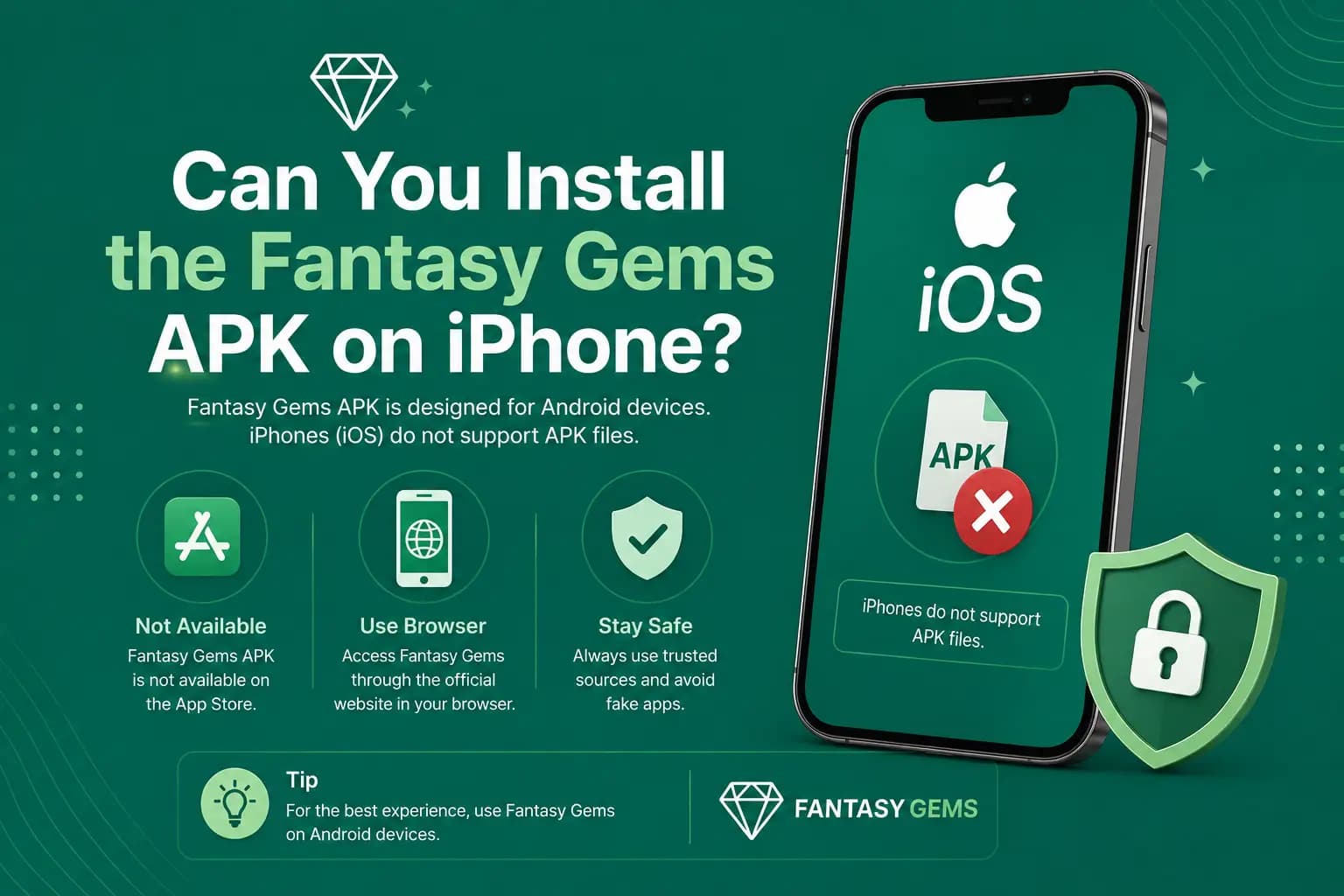
Can You Install the Fantasy Gems APK on iPhone?
No. APK is the Android application-package format. iPhones use a different installation and signing system. A website that offers a file ending in .apk is not providing an iPhone application.
Avoid instructions telling you to:
- Rename an APK
- Convert an APK on the phone
- Disable iPhone security
- Install an unknown configuration profile
- Share your Apple ID password
- Complete unrelated app offers
- Pay someone to activate an iOS version
These steps can expose the device or account without providing a working Fantasy Gems app.
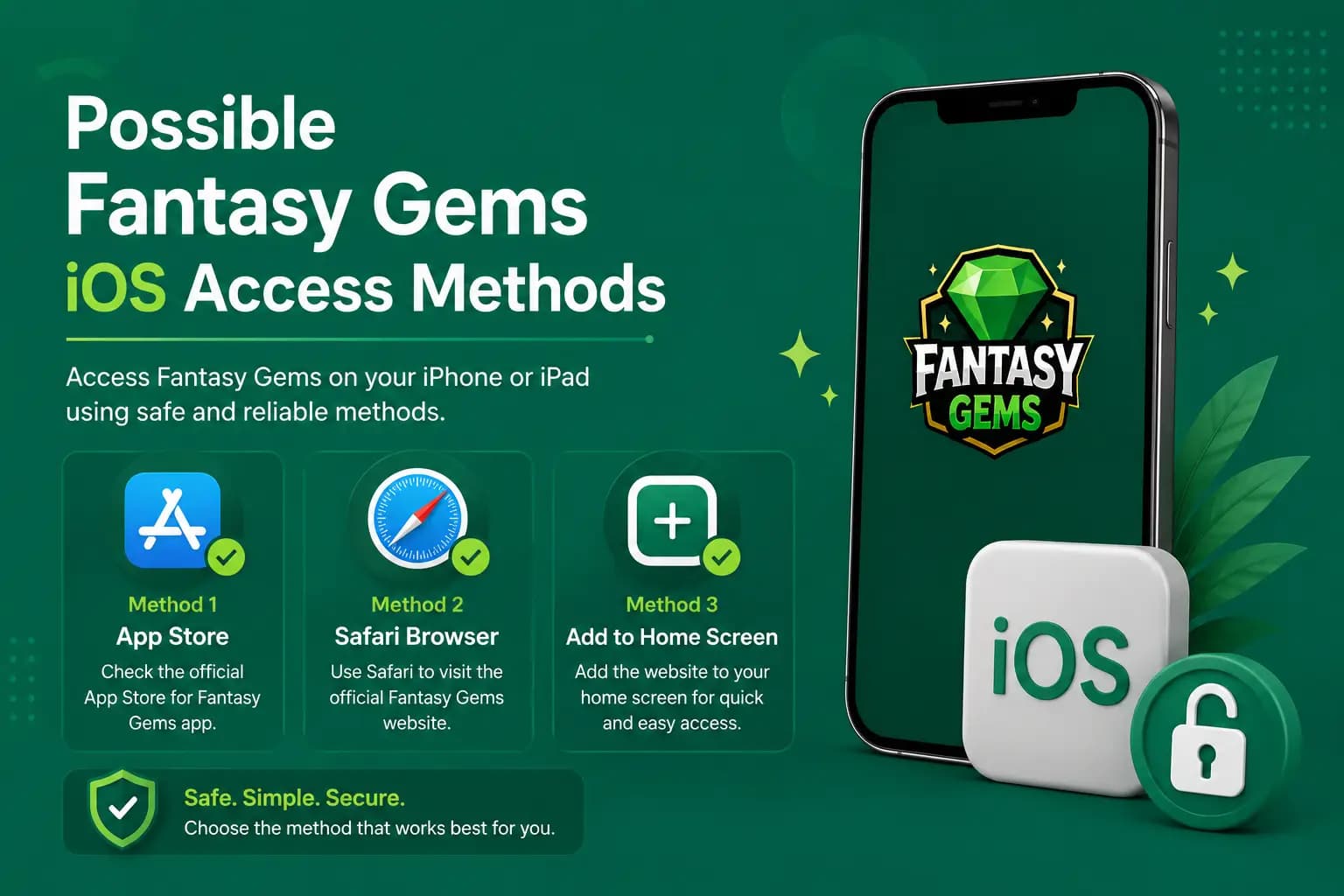
Possible Fantasy Gems iOS Access Methods
Only the methods actually supported by the platform should be published.
1. Apple App Store
A native app, when available, should have a clear developer name, a description matching the intended platform, privacy information, a support link, version history, an age rating, and recognizable screenshots. A similar name alone does not prove that the listing is connected to the same Fantasy Gems platform.
2. Safari Browser Access
Some gaming platforms work through a mobile website: open Safari, enter the verified domain manually, confirm HTTPS, log in, and use the browser-supported features.
- Browser access may not provide every app feature.
- Notifications, full-screen gameplay, payments, or live sections may work differently.
3. Add to Home Screen
A supported web application may be added as a shortcut: open the verified page in Safari, select the Share icon, choose Add to Home Screen, review the name and domain, then select Add.
- This creates a shortcut.
- It does not turn an unverified website into an App Store-approved application.
4. TestFlight
A developer may distribute a beta through Apple TestFlight. Use only an invitation connected to a verifiable developer. A TestFlight build can expire or change and should not automatically be treated as the final public application.
Fantasy Gems iPhone Download Routes: Reality and Risk
| Route | Reality | Risk |
|---|---|---|
| App Store search | No listing we could verify. Similar names may be unrelated apps. | Medium: a look-alike app can collect your login or payments. |
| Safari browser | The realistic route where a mobile web version is offered. | Lower, provided you typed a verified address yourself. |
| IPA download sites | Cannot be installed like a normal app without sideloading tools. | High: the file or the tool can be tampered with. |
| TestFlight invitation | Genuine only from a developer you can verify. Builds expire. | Medium to high when the invite comes from a stranger. |
| Configuration profile or enterprise install | Bypasses App Store review and relies on a revocable certificate. | High: can expose your traffic, data and logins. |
If a route asks you to change a security setting before it works, treat that as the answer and stop.
How to Use Fantasy Gems Online on iPhone in Safari Safely
Use these steps only when the platform offers browser access.
- 1
Open Safari itself, not the browser built into WhatsApp, Facebook or Telegram.
- 2
Type the address you have verified by hand. Do not tap a link from an advert, a group chat or an SMS.
- 3
Check the padlock and read the domain letter by letter before entering anything.
- 4
Log in with your registered mobile number and confirm your balance and history look right.
- 5
To add a shortcut, tap the Share icon, choose Add to Home Screen, check the name and address, then tap Add.
- 6
Log out when you finish instead of only closing the tab.
A home-screen shortcut is a bookmark with an icon. Apple has not reviewed it, and it should never ask you to install a profile.
How to Check an App Store Listing
Before installation, compare:
- Developer name
- App icon
- Description
- Screenshots
- Website
- Support email
- Privacy policy
- In-app purchases
- Data collection
- User reviews
- Update date
Search results can include unrelated applications using similar words.
Avoid Enterprise Profile Installation Risks
Some unofficial iPhone apps are distributed through enterprise certificates or configuration profiles. Risks may include:
- Certificate revocation
- Unexpected permissions
- Device-management access
- Data collection
- App failure after an update
- Fake login screens
- Payment fraud
Open Settings → General → VPN & Device Management to check installed profiles. Do not trust a profile merely because a website calls it official.
Never Install a Profile or IPA From an Unknown Site
Sites offering a Fantasy Gems IPA, a trust-this-developer install or a configuration profile are asking you to switch off the protection that makes an iPhone hard to attack. A profile can route your traffic through someone else's server, and an enterprise-signed app has never been reviewed by Apple. If an unknown site asks you to install a profile, close the page.
Protect Your Apple ID
Fantasy Gems should not need your Apple ID password through a third-party form. Use the Apple password only in genuine Apple interfaces. Never send:
- Apple ID password
- Two-factor code
- Device passcode
- Recovery key
- Payment-card security code
Do not let an agent sign in to the iPhone remotely.
Fantasy Gems Login on iPhone
When browser access is available:
- 1
Open Safari.
- 2
Visit the verified domain.
- 3
Select Login.
- 4
Enter the registered number.
- 5
Enter the password.
- 6
Complete OTP verification if requested.
- 7
Confirm the account and wallet details.
Avoid saving the password on a shared iPhone. Read the complete Fantasy Gems login guide for account-recovery steps.
iPhone Login and OTP: What Behaves Differently
Browser login follows the same account rules as the Android app, but a few iPhone habits make a difference.
- The OTP goes to your registered mobile number, so keep that SIM active even if it sits in another phone.
- iOS may suggest the code above the keyboard. Check it belongs to the login you just requested before tapping it.
- Request one code and wait for the timer. Repeated requests commonly trigger a temporary block.
- Logging in on an iPhone may sign your Android phone out, because apps of this kind often allow one active session.
- Never read an OTP out to anyone, including someone claiming to be support.
The login guide covers forgotten passwords and codes that never arrive.
Fantasy Gems Registration on iPhone
Registration may be possible through the browser or supported app. Use:
- Your own active number
- A unique password
- A private OTP
- Accurate profile information
Do not upload documents through a personal chat account. See the Fantasy Gems registration guide.
Deposits and Withdrawals on iPhone
A browser-based wallet may support the same payment methods as Android, but this must be checked inside the account. Before paying:
- Verify the recipient.
- Save the transaction ID.
- Review bonus terms.
- Check withdrawal requirements.
Never share wallet PINs or OTPs. Use the deposit guide and withdrawal guide for detailed safety checks.
Paying From an iPhone With JazzCash or Easypaisa
JazzCash and Easypaisa are the methods most commonly reported for this platform, and their iOS apps work the same way as on Android. The methods and limits that apply to your account are shown on the deposit screen, so read them there.
Paying from an iPhone usually means leaving Safari, approving the transfer in the wallet app, then coming back. Keep the Safari tab open, save the transaction ID, and check the deposit history before trying again. Your MPIN is typed only inside the JazzCash or Easypaisa app. No game page, agent or support chat has any reason to ask for it.
Common iPhone Problems
| Problem | Fix |
|---|---|
| Website does not open | Check mobile data or Wi-Fi, reload the page, turn off content blockers temporarily for the verified site, clear only relevant Safari website data, and check whether the domain has changed. Avoid using a VPN as the first fix — it can create login, region, or payment-verification problems. |
| Login page keeps reloading | Enable required cookies for the site, update iOS, close extra tabs, and confirm that Safari is not in a restricted mode. |
| Add to Home Screen is missing | Open the page directly in Safari rather than inside a social-media or messaging browser. |
| Payment page does not return | Do not repeat the payment. Check the payment provider, save the transaction ID, reopen the Fantasy Gems wallet, and review the deposit history. |
| App profile is untrusted | Do not bypass the warning without verifying the developer and source. Removing an unknown profile is safer than forcing it to run. |
Safari, Keyboard and Verification Problems on iPhone
| Problem | Likely cause | Fix |
|---|---|---|
| Page stays blank or half loaded | Weak signal, or the page was opened inside an in-app browser | Switch between Wi-Fi and mobile data, reopen the address in Safari, and reload once |
| Keyboard covers the password or OTP field | The page layout does not adjust to the iOS keyboard | Scroll the page up, rotate the phone, or tap Done and then tap the field again |
| Buttons or the payment page do not appear | A Safari content blocker is hiding part of the page | Turn off content blockers for that site only, then reload |
| Extra verification or repeated OTP requests | iCloud Private Relay or a VPN makes your location look unusual | Pause the VPN or Private Relay for that session and log in on your normal connection |
| Logged out on every visit | Private Browsing or cleared website data | Use a normal tab for that site |
If nothing helps, the web version may be unavailable. Do not install a profile to get around it.
Advantages and Limitations of iPhone Access
Advantages
Commonly reported benefits of browser access.
- No Android APK installation
- Easy access through Safari
- No emulator required
- Shortcut may be added to the Home Screen
- iOS permission controls remain available
Limitations
Understand these before relying on iPhone access.
- Native iOS availability is unverified
- Browser access may have fewer features
- Some payment pages may open in separate windows
- Notifications may be limited
- Unofficial profiles can stop working
- An Android APK is incompatible with iPhone
Android APK vs iPhone Browser: What Is the Difference?
| Point | Android APK | iPhone browser |
|---|---|---|
| Installation | APK file installed manually from a source you trust | Nothing to install, only an optional home-screen shortcut |
| Features | The full app as the platform ships it | Only what the web version offers, which may be less |
| Updates | You install each new APK yourself | The page updates on its own |
| Main risk | Fake or modified APK files | Fake login pages and look-alike domains |
The Android app is the version the platform is built around. Our download guide covers installing it safely.
Play Responsibly on Any Device
An iPhone does not change the odds. These are real-money games for adults aged 18 and over, and you can lose everything you stake. Set a budget before you log in and never borrow to play.
Conclusion
Fantasy Gems for iOS should not be promoted as a confirmed native iPhone app until a matching App Store listing or authorized distribution method is verified.
An APK cannot run on iOS. Where browser access is supported, users can open the verified website through Safari and create a Home Screen shortcut. Avoid unknown profiles, fake conversion tools, and requests for Apple ID credentials.
Related Guides
Fantasy Gems iOS and iPhone Questions and Answers
Fantasy Gems is not confirmed as a native iPhone app. We could not verify a matching App Store listing, and the Android APK does not run on iOS. The realistic option is to open the platform in Safari where a mobile web version is offered. Check the domain carefully before you log in.
Prefer Android?
Fantasy Gems is primarily distributed as an Android APK — check the download guide for full installation steps.