
Fantasy Gems Wallet Guide: Balance, Transaction History and Common Problems
An independent, plain-English guide to the in-app wallet: what each balance means, how to check your history, how to add a JazzCash or Easypaisa withdrawal account, and what to do when the balance does not update.
This is an independent guide, not the operator of the app. We cannot see or change your balance. Money in a gaming wallet is at risk, so keep only what you plan to play with and never play with borrowed money.

Cash and bonus balance
Holds
Reported as PKR
Currency
No deposit insurance
Protection
Oct 2026
Reviewed
What This Wallet Guide Covers
The Fantasy Gems wallet is the part of the app where your money sits between a deposit and a withdrawal. It shows your balance, holds the deposit and withdraw buttons, and keeps the history that proves what happened to every rupee. Most money problems players report start with a misunderstanding of this one screen.
This guide explains what a wallet in an app of this kind typically contains, how to read each balance, how to add a withdrawal account, and what to check when the figure looks wrong. It does not repeat the payment walkthroughs, which live in our deposit guide and the withdrawal guide.
Labels May Differ in Your Version
The layout described here is typical for real-money apps of this kind. Your version may call the section Wallet, Balance, Cashier, Assets or Mine, and tabs can move after an update. Match the descriptions to what you see rather than expecting exactly the same names.
What Is Inside the Fantasy Gems Wallet?
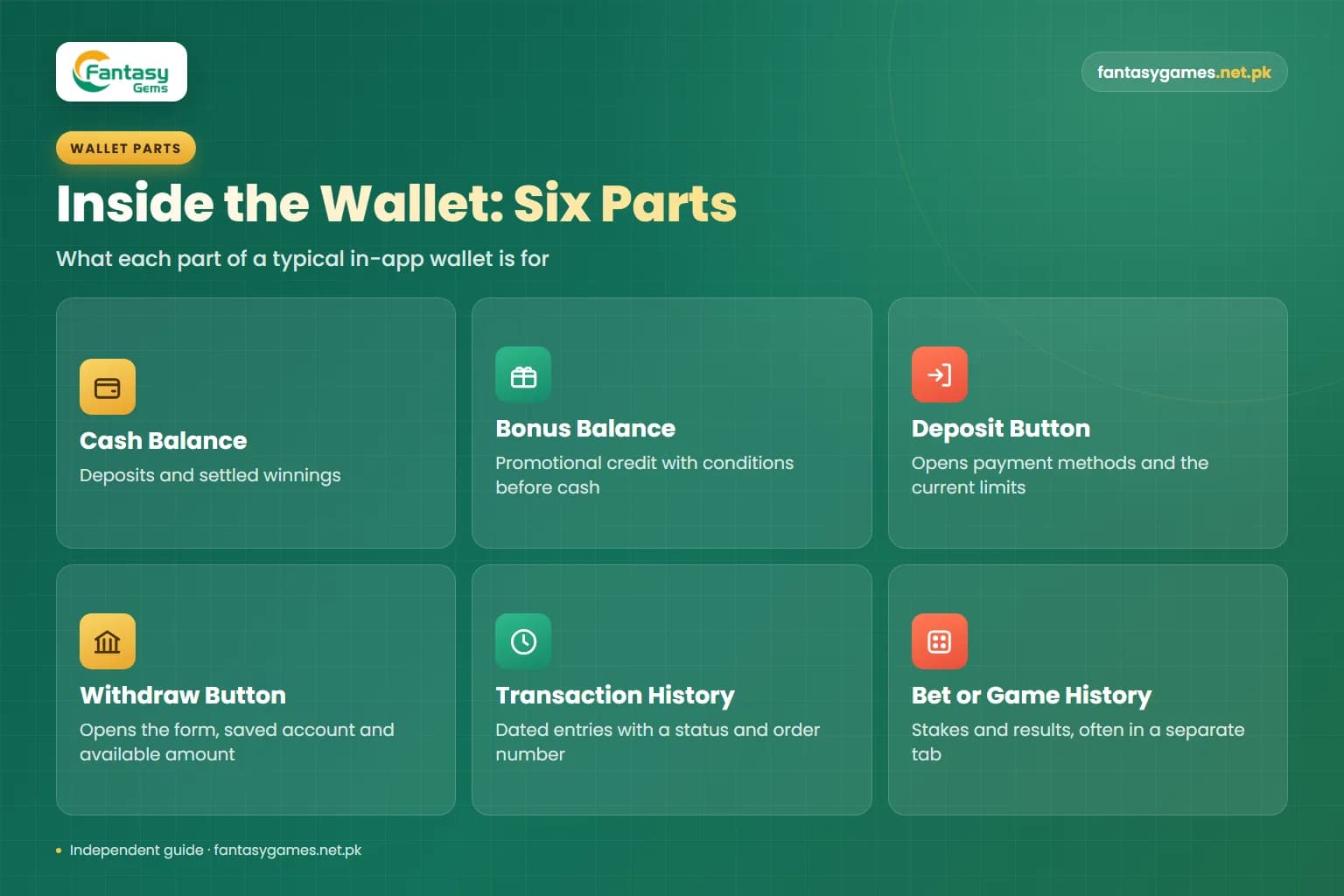
A typical in-app wallet is made of six parts. Knowing what each one is for saves a lot of confusion later.
Cash Balance
Your deposits and settled winnings. This is the figure that normally counts towards a withdrawal, subject to the app's rules.
Bonus Balance
Promotional credit from offers, gift codes or invites. It is usually shown separately and carries conditions before it can become cash.
Deposit Button
Opens the list of payment methods and the current limits. Our deposit guide walks through the payment itself.
Withdraw Button
Opens the withdrawal form, your saved payout account and the amount you are currently able to withdraw.
Transaction History
A dated list of deposits, withdrawals, bonuses and adjustments, each with a status and usually an order number.
Bet or Game History
A record of stakes and results, often kept in a separate tab or inside each game rather than in the wallet itself.
How to Check Your Fantasy Gems Wallet Balance and Transaction History
Do this before and after every session, and before you contact support about anything.
- 1
Log in with your registered mobile number and confirm the account ID or number shown on the profile is yours.
- 2
Open the wallet section. It is usually reached from the bottom menu, the profile page or the balance figure at the top of the home screen.
- 3
Read the balances one by one. Note which figure is labelled cash, main or withdrawable and which is labelled bonus.
- 4
Tap the refresh icon if there is one, or pull the screen down, so you are not reading an old number.
- 5
Open transaction history and filter by deposit, withdrawal or bonus if filters are offered.
- 6
Tap a single entry to see its status, amount, time and order number.
- 7
Open bet history and compare recent stakes and winnings with the change in your balance.
- 8
Screenshot anything that does not add up before you leave the screen.
If the balance and the history disagree, take the history to support. The headline number is only a summary of those entries.
Cash, Bonus, Locked and Pending Balance Explained
These are the balance types typically found in apps of this kind. Your wallet may show only some of them, or use different words.
| Balance type | What it means | Can you withdraw it? |
|---|---|---|
| Cash or main balance | Deposits and settled winnings held in your account | Usually yes, within the limits and any turnover rule shown on the withdraw screen |
| Bonus balance | Promotional credit from offers, codes or referrals | Not directly. Normally only after the bonus conditions are completed |
| Locked or frozen balance | Funds held because of an unmet condition, a review or an open request | No, not until the app releases it. Ask support for the reason |
| Pending deposit | A payment you made that has not yet been confirmed and credited | No. It is not part of your balance yet |
| Pending withdrawal | An amount already taken out of your balance and waiting to be paid | It is already on its way out, so it cannot be requested again or played |
| Unsettled bets | Stakes on rounds or games that have not finished | No, not until the result is settled |
The only figure that tells you how much you can take out is the withdrawable amount shown on the withdraw screen itself.
How to Read Your Fantasy Gems Transaction History
The transaction history is the most useful part of the wallet and the least read. Each line normally shows a type, an amount, a date and time, a status and a reference number. Statuses are usually some version of pending, successful, failed or rejected.
Read it like a bank statement. Start from your last known balance, add deposits and winnings, subtract stakes and withdrawals, and you should arrive at the figure on screen. When you do not, the entry that explains the gap is nearly always there: a bonus that expired, a withdrawal moved to pending, a fee, or a deposit still waiting.
History may only display a limited period, and records can become harder to reach if an account is restricted. That is the reason to keep your own screenshots rather than relying on the app to store the evidence for you.
How to Link JazzCash, Easypaisa or a Bank Account to the Wallet
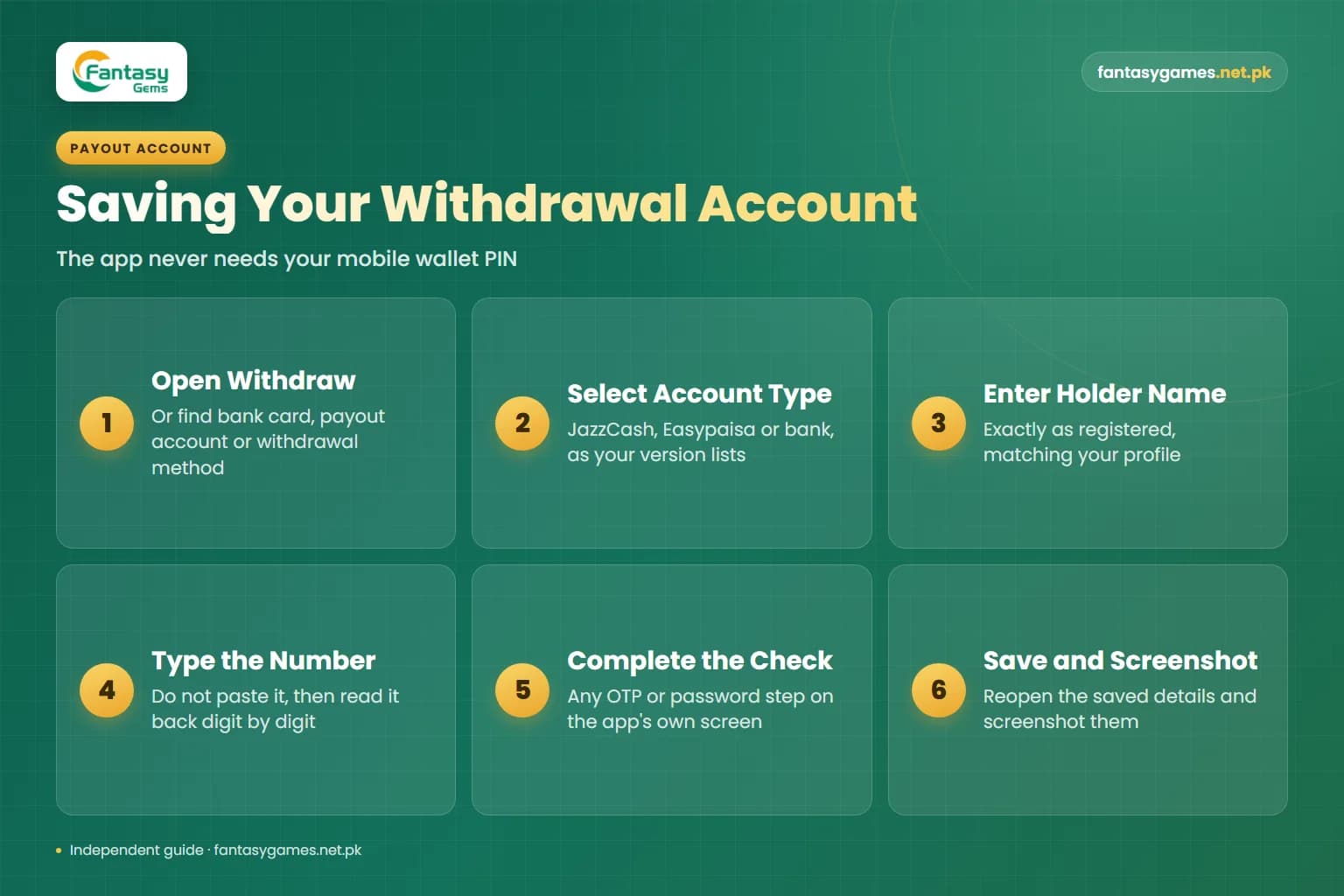
Linking here means saving the account that withdrawals are paid to. The app does not connect to your mobile wallet and never needs its PIN.
- 1
Open the wallet and choose withdraw, or look for an option such as bank card, payout account or withdrawal method.
- 2
Select the type of account: JazzCash, Easypaisa or bank, depending on what your version lists.
- 3
Enter the account holder name exactly as it is registered with the provider. The name usually has to match your Fantasy Gems profile.
- 4
Type the mobile wallet number or bank account number yourself instead of pasting it, then read it back digit by digit.
- 5
Complete any OTP or password check the app asks for on its own screen.
- 6
Save, then reopen the saved details and screenshot them.
Use an account in your own name that you control. The withdrawal guide covers name mismatches and wrong-number problems in detail.
Saved Payout Details May Be Locked
Some platforms of this kind do not let you edit a withdrawal account once it is bound, or only allow a change through support with extra checks. Treat the first entry as permanent. A single wrong digit can send your money to a stranger, and that is very hard to undo.
Fantasy Gems Wallet Not Updating After a Deposit: What to Check
A balance that has not moved is usually a delay or a display problem, not lost money. Work through these before paying again.
- Check your JazzCash, Easypaisa or bank record first. Was the payment successful, pending or reversed?
- Confirm you are logged in to the same account you deposited for, not a second account on another number.
- Open deposit history. A pending entry means the payment is being matched and has not been credited yet.
- Refresh the wallet, then log out and back in once to clear an old figure.
- Check whether the amount was credited to a different balance, such as bonus, or reduced by a fee.
- Look for a maintenance notice or announcement in the app.
- Make sure you submitted the transaction ID or proof if the deposit screen asked for it.
- If nothing changes, contact support inside the app with the transaction ID, amount, time and screenshots.
Do not send the same payment a second time. Our blog post Fantasy Gems Balance Missing After Login covers a balance that vanishes between sessions, and our deposit guide covers failed and reversed payments.
Why a Pending Withdrawal Changes Your Wallet Balance
When you submit a withdrawal, the amount is normally deducted from your balance straight away and moved to a pending state. To many players this looks like money has disappeared. It has not: it should be visible as a pending line in withdrawal history.
If the request is paid, the line changes to successful and the money should appear in your own account. If it is rejected or cancelled, the amount is typically returned to the wallet, which can make the balance jump back up without a deposit. Processing times are not guaranteed, so go by the status in the app rather than promises on third-party pages, and see the withdrawal guide if a request stays pending.
Fantasy Gems Wallet Security Checklist
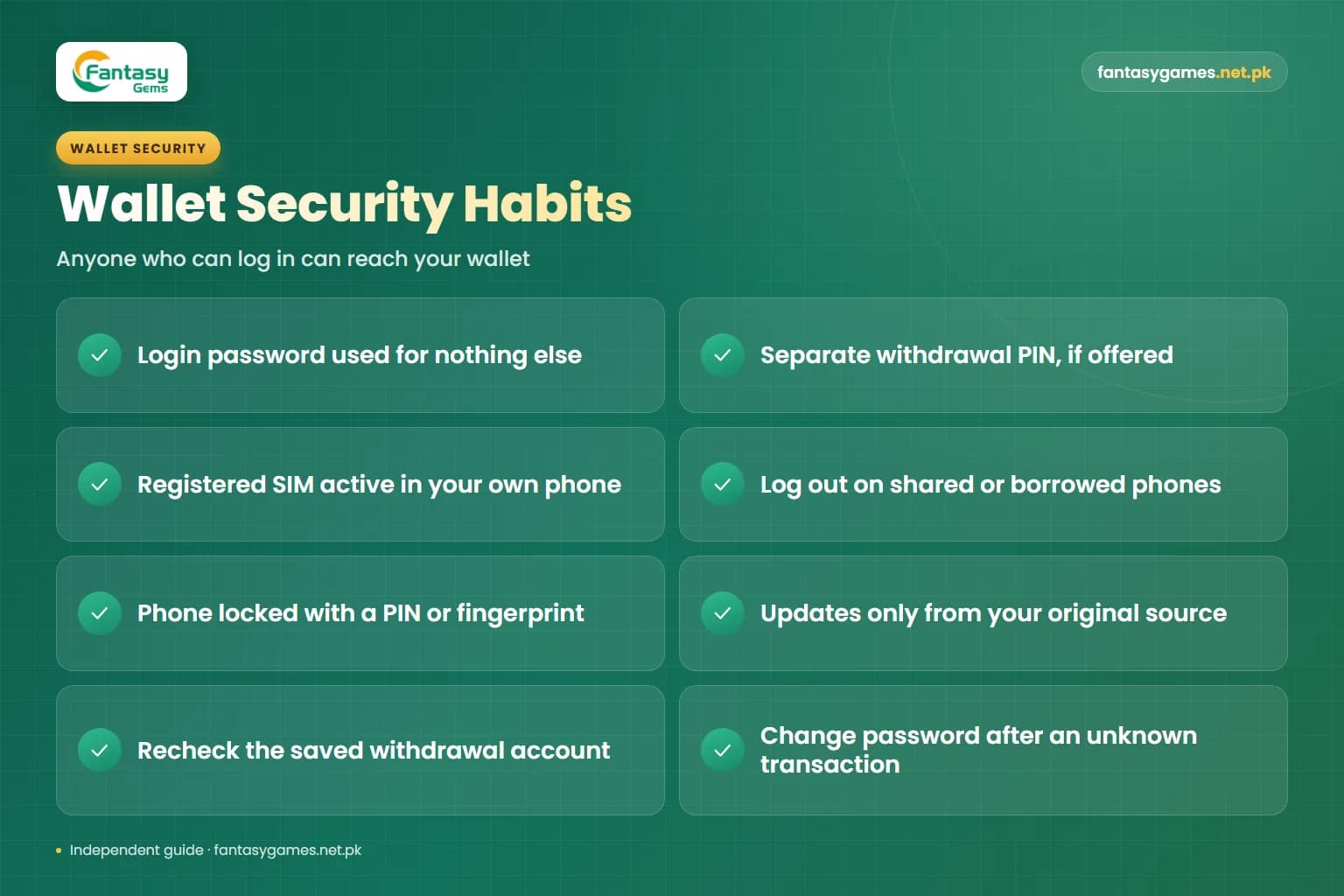
Anyone who can log in to your account can reach your wallet. These habits close the common gaps.
- Use a login password that you do not use for any other app, email or mobile wallet.
- If the app offers a separate withdrawal password or PIN, turn it on and make it different from the login password.
- Keep the registered SIM active and in your own phone, since codes are sent to it.
- Log out after playing on a shared or borrowed phone, and never save the password on someone else's device.
- Lock your phone with a PIN or fingerprint so the app cannot be opened by whoever picks it up.
- Install updates only from the source you used originally, never from a file sent in a chat.
- Check the saved withdrawal account now and then to make sure it is still yours.
- Change the password at once if you see a transaction you did not make.
Our login guide explains password resets and what to do if you lose access to your number.
Never Share an OTP, Password or PIN
No genuine support process needs your one-time code, your login password, your withdrawal PIN or your JazzCash or Easypaisa PIN. Anyone who asks for them, however helpful they sound, is trying to empty your wallet or take over the account.
Wallet Scams to Watch For
Scams built around the wallet usually arrive as a private message carrying an offer or a threat.
- Offers to top up your wallet at a discount if you pay a personal number.
- Messages saying your wallet is frozen and a fee will unlock it.
- Agents who ask you to bind their JazzCash or Easypaisa number as your withdrawal account.
- Requests to transfer balance to another player's account to activate or verify it.
- Screen-sharing or remote-access apps suggested by someone claiming to be support.
- Fake wallet pages and modified APKs that display a large balance to make you pay an unlock fee.
- Buyers and sellers of accounts with balance already loaded.
A balance you can see but cannot withdraw without paying someone first is a warning sign in itself.
A Simple Wallet Record-Keeping Routine
Five minutes a week gives you a file that no app update or account problem can erase.
- Screenshot the wallet screen at the start and end of each session.
- Save the provider SMS or receipt for every deposit, with its transaction ID.
- Screenshot each withdrawal request with its order number and status.
- Note the date, amount and reason for any bonus credited or removed.
- Keep a simple tally of total deposited and total withdrawn.
- Store support chats, including any name or ticket number you are given.
Keep these in a folder outside the app, such as your phone gallery or a notes file.
Is Money in the Fantasy Gems Wallet Safe?
A game wallet is not a bank account. Balances in apps of this kind are not covered by deposit protection, and there is no local regulator you can turn to if a platform delays a payout, restricts an account or stops operating. That is true however polished the wallet screen looks.
The practical answer is to keep the wallet small. Deposit only what you plan to play with in one session, withdraw eligible winnings rather than storing them, and keep your own records. Real-money games can lose money, are for adults aged 18 and over, and should never be played with borrowed funds. If you are still weighing up the platform, read our real-or-fake safety review.
Fantasy Gems Wallet Questions and Answers
The Fantasy Gems wallet is the balance area of the app where your deposits, winnings and bonus credit are held. It typically shows a cash balance, a bonus balance, deposit and withdraw buttons, and a transaction history. Labels can differ between versions, so it may appear as Wallet, Balance or Cashier, usually reached from the profile or bottom menu.
Need to Get Into Your Account First?
Use the login guide to reach your wallet safely, or start with the registration guide if you do not have an account yet.