
Fantasy Gems Game Login Guide and Account Help
The Fantasy Gems login page allows registered users to access their accounts, games, wallet records, promotions, and profile settings. The login screen may look slightly different depending on the app version, so follow the options displayed on your device.
Never share your password, OTP, payment PIN, wallet PIN, or account-recovery code with anyone.

Mobile Number
Login ID
Password + OTP
Security
Required for OTP
SIM Access
Before You Log In
The Fantasy Gems game login uses the mobile number and password you chose at registration, sometimes followed by an OTP sent to the same SIM. This independent guide covers the sign-in steps, the errors players report most often, browser and PC access, and the checks that keep your account and wallet in your own hands.
Before entering your password, confirm that you are using the intended Fantasy Gems app or website. Some unofficial websites and applications may use similar names, logos, or login designs to collect account details.
Fantasy Gems Login Information
| Login detail | Requirement |
|---|---|
| Account status | A registered Fantasy Gems account |
| Login ID | Registered mobile number or username |
| Password | The password created during registration |
| Internet | A stable mobile data or Wi-Fi connection |
| SIM access | Required when OTP verification is enabled |
| Device | Android phone, supported browser, or compatible device |
| App or website | Use the current verified version or intended domain |
| Security code | OTP may be required for login or account recovery |
Some versions may allow users to log in with a password, an OTP, or both. Do not assume that every page using the Fantasy Gems name is connected to the same platform.
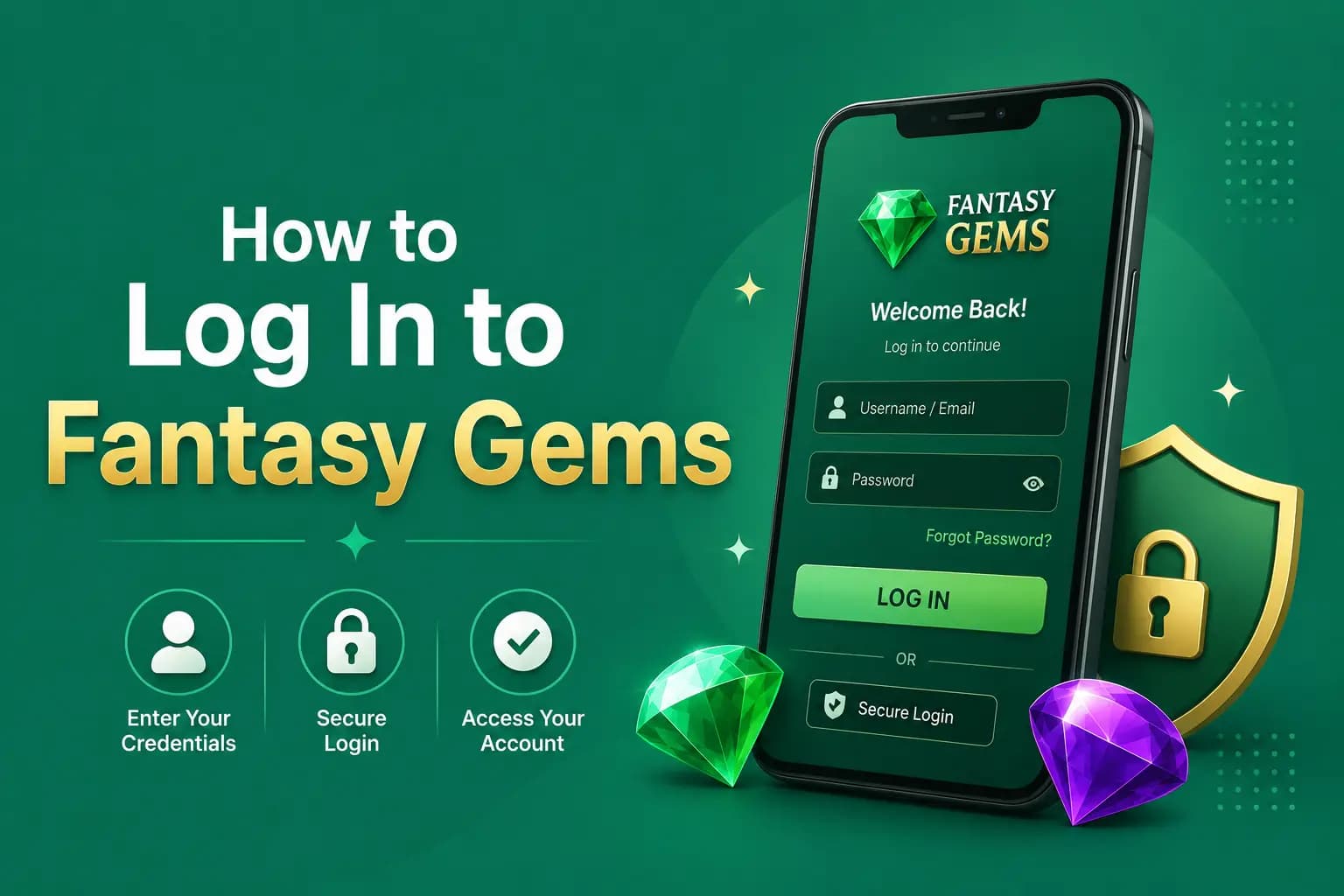
How to Log In to Fantasy Gems
- 1
Open the Fantasy Gems app or intended website.
- 2
Select the Login or Sign In option.
- 3
Enter the mobile number used during registration.
- 4
Add the country code if the login form requires it.
- 5
Enter your account password.
- 6
Complete OTP verification if requested.
- 7
Select Login.
- 8
Check that the account name, profile, and wallet history are correct.
Avoid deposits or withdrawals if the account information looks unfamiliar.
How to Enter Your Mobile Number Correctly
| Number format | Example | When to use it |
|---|---|---|
| Local format | 03XXXXXXXXX | When no country code is selected |
| International format | +923XXXXXXXXX | When the full international number is required |
| Number without zero | 3XXXXXXXXX | When +92 is already selected |
Follow the example displayed inside the input box. Entering the country code twice may result in an invalid-number error.
Fantasy Gems Login With OTP
An OTP is a temporary verification code sent to your registered mobile number. It helps confirm that the person trying to access the account controls the registered SIM.
How to Use OTP Login
- 1
Select Login with OTP if the option is available.
- 2
Enter your registered mobile number.
- 3
Request the verification code.
- 4
Wait for the SMS.
- 5
Enter the newest OTP before it expires.
- 6
Complete the login process.
A genuine OTP should only be entered on the intended login screen. Support staff, agents, payment representatives, and other players should not need this code.
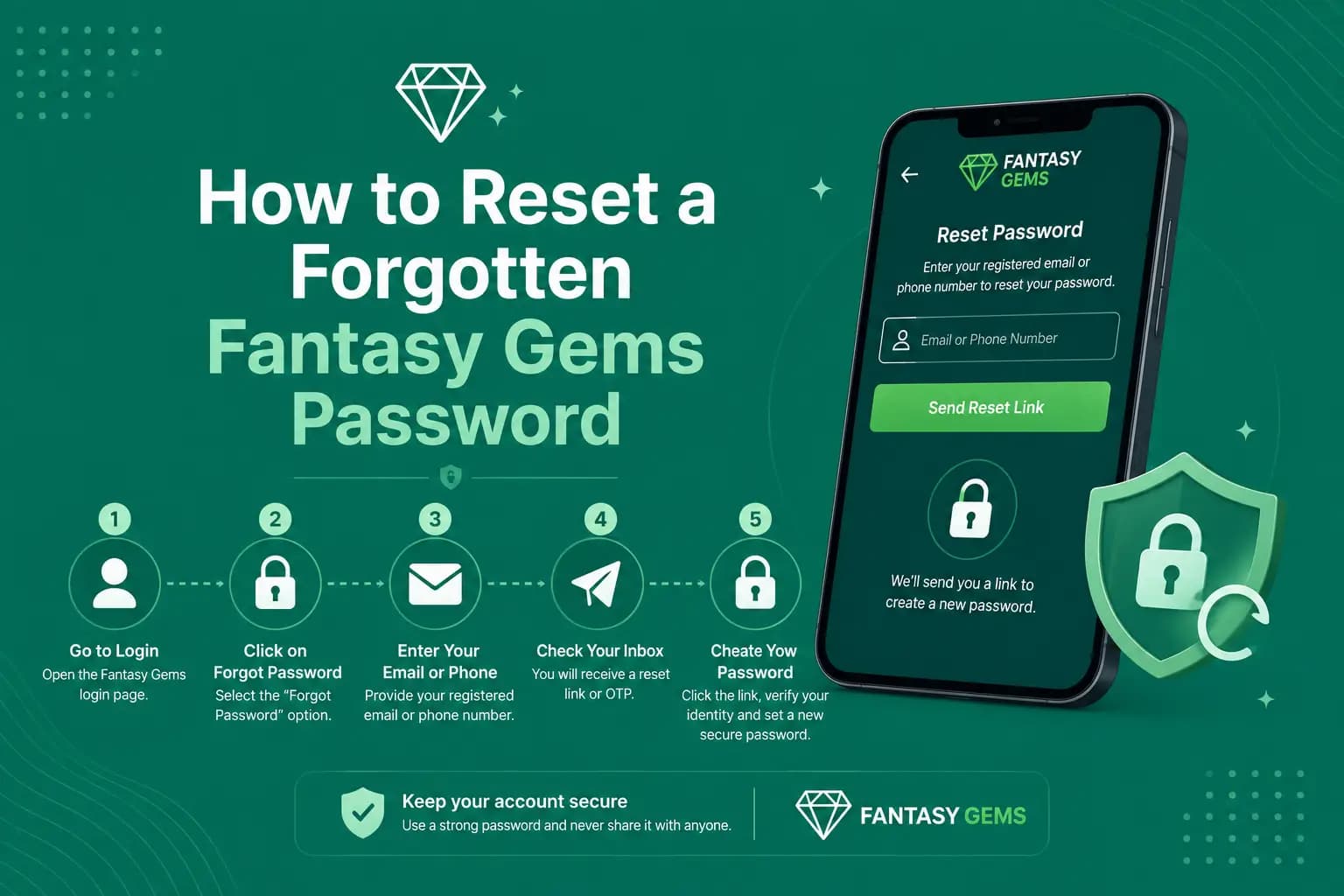
How to Reset a Forgotten Fantasy Gems Password
- 1
Select Forgot Password.
- 2
Enter your registered mobile number.
- 3
Request a verification code.
- 4
Enter the OTP received by SMS.
- 5
Create a new password.
- 6
Confirm the new password.
- 7
Return to the login page and sign in again.
Choose a Strong Password — Do Not Reuse From
Choose a password that is difficult to guess. A strong password usually contains a mixture of letters, numbers, and symbols. Do not reuse a password from your:
- Email account
- Bank account
- Mobile wallet
- Social-media account
- Other gaming accounts
Fantasy Gems Login Problems and Solutions
| Problem | Possible cause | Recommended action |
|---|---|---|
| Password rejected | Typing error or old password | Check spelling or use Forgot Password |
| OTP not received | Signal, SMS block, or wrong number | Check the SIM and request one new code |
| Account locked | Repeated failed attempts | Stop trying and contact verified support |
| Balance missing | Wrong account or syncing problem | Check profile and transaction history |
| Login page reloads | Browser or connection problem | Clear relevant cache or use an updated browser |
| Unknown account activity | Unauthorized access | Change the password and contact support |
| Number no longer active | Lost or closed SIM | Use the recovery process or verified support |
| New device not accepted | Device verification required | Complete OTP or security verification |
Fantasy Gems Login Errors: Likely Cause and Fix
The wording of an error differs between app versions, so match the message on your screen to the closest row. Each error also has its own detailed post in the blog.
| Fantasy Gems login error | Likely cause | Fix |
|---|---|---|
| Wrong or invalid password | A typing slip, an old saved password, or autofill entering outdated details | Retype it slowly with the password visible, then use Forgot Password instead of guessing. See the invalid password error post. |
| OTP not received | Weak signal, a full or filtered SMS inbox, or the wrong number entered | Check the SIM and inbox, wait for the timer to finish, then request one new code. The OTP not received post lists every check. |
| Account not found | A different number was used at registration, or the country code was entered twice | Try the number in the format shown in the input box and confirm which SIM you registered with. See the account not found post. |
| Session expired | The app signed you out after a period of inactivity, an update, or a login on another device | Sign in again with your password. If it keeps happening, check the phone's date and time and review the session expired post. |
| Login page not opening | A weak connection, an outdated app, or a maintenance period on the platform's side | Switch between Wi-Fi and mobile data, restart the app, and try again later. The login page not opening post covers browser fixes. |
| Verification failed | An expired or mistyped code, or a security check on a new device | Use only the newest code and enter it before the timer ends. Repeated failures are explained in the login verification failed post. |
| Account locked | Too many failed attempts or a security review of the account | Stop trying, screenshot the message, and contact support inside the app. The account locked post explains what to send. |
If the same error returns after these fixes, stop retrying. Repeated attempts can extend a restriction and make recovery slower.
Fantasy Gems OTP Not Received — Checks to Perform
An OTP may be delayed because of poor mobile signal, network traffic, an incorrect number, SIM restrictions, or repeated requests.
- Confirm that you entered the correct mobile number.
- Check whether the registered SIM has a signal.
- Restart your phone.
- Make sure the SMS inbox is not full.
- Check blocked-message and spam settings.
- Turn airplane mode on and off.
- Wait before requesting another code.
- Use the newest OTP because older codes may stop working.
- Confirm that the registered SIM is still active.
- Avoid pressing the resend button repeatedly.
Multiple OTP requests may invalidate earlier codes or trigger a temporary security restriction.
Password Not Working? Check These Common Typing Problems
- Caps Lock is enabled.
- Extra spaces were added.
- The wrong keyboard language is selected.
- An old saved password is being entered.
- The incorrect mobile number was used.
- Browser autofill entered outdated information.
Use the password-recovery option if the password is still rejected. Repeated guessing may temporarily lock the account.
What to Do When the Account Is Locked
An account may be temporarily restricted because of repeated login attempts, unusual device access, identity checks, or a security review.
- 1
Stop making repeated login attempts.
- 2
Save a screenshot of the error message.
- 3
Check whether an account-recovery option is available.
- 4
Contact support through the verified app or website.
- 5
Provide only the information required to identify the account.
- 6
Ask for a support ticket or reference number.
- 7
Wait for the account review instead of creating another account.
Never pay an individual who claims they can unlock the account.
Balance Missing After Fantasy Gems Login — What to Check
A missing balance may occur because you opened the wrong account, entered a different mobile number, the app did not sync correctly, a transaction is still pending, bonus and cash balances are displayed separately, or someone else accessed the account. Review:
- Profile number
- Registered mobile number
- Wallet history
- Deposit records
- Withdrawal records
- Bonus balance
- Recent login activity
Take screenshots before logging out. Change the password immediately if you notice unknown transactions, changed payment details, or unfamiliar account activity.
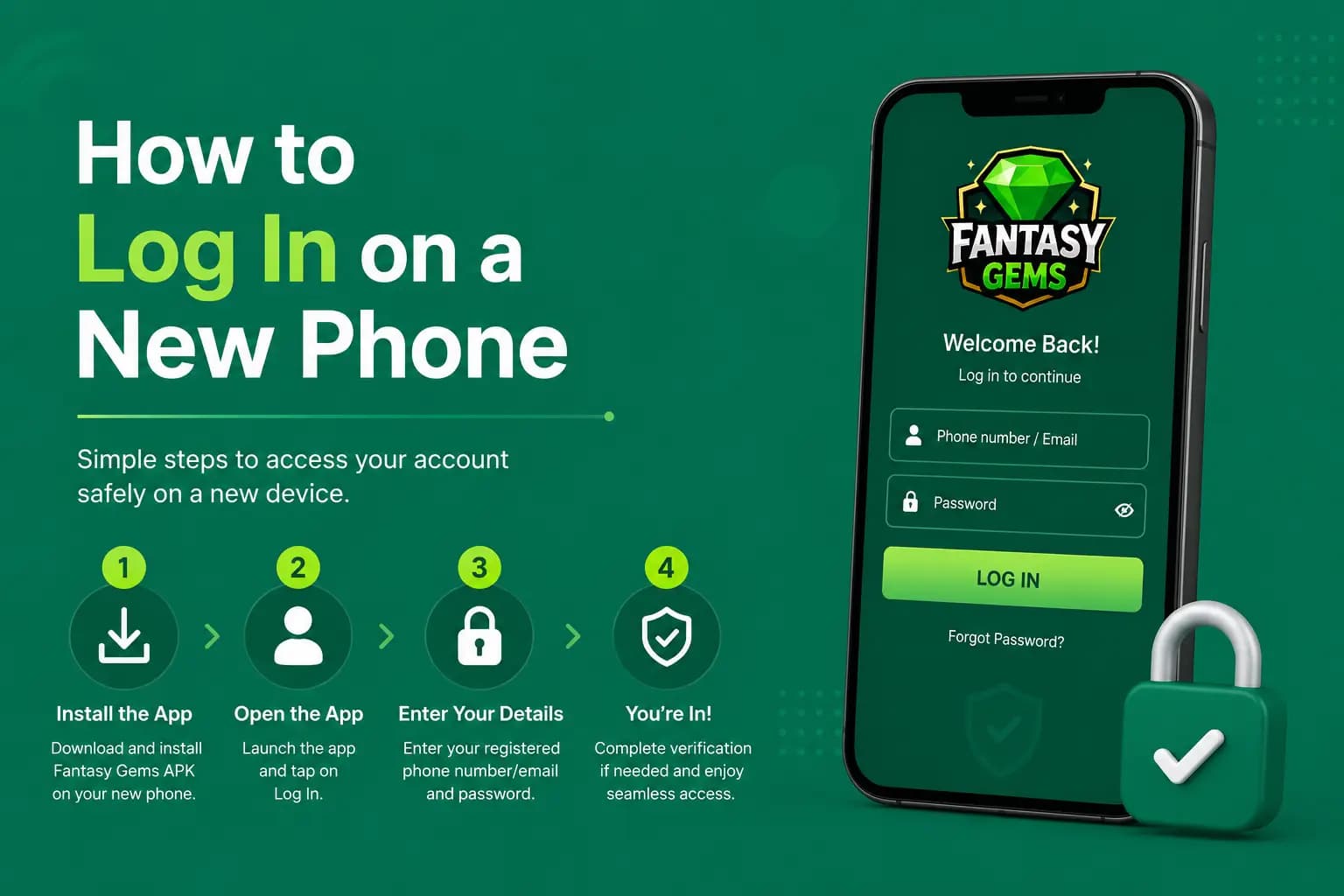
How to Log In on a New Phone
- 1
Confirm access to the registered SIM.
- 2
Save account-recovery information securely.
- 3
Log out from the old device when possible.
- 4
Install the app from the intended source.
- 5
Enter the existing account details.
- 6
Complete device or OTP verification.
- 7
Review recent login and wallet activity.
Do not create a second account simply because the old account does not open. Multiple-account restrictions may affect bonuses, payments, or withdrawals.
Fantasy Gems Online Login in a Browser or on PC
Fantasy Gems is built as an Android app, and no native Windows or Mac program has been confirmed. A Fantasy Gems online login on a computer therefore happens in one of two ways: through a web version opened in a browser, where the platform offers one, or through the Android app running inside an emulator. Whether a browser version is available to you is something to confirm from inside the app, not from a search result.
The details you enter are the same on every device: your registered mobile number, your password, and an OTP if one is requested. Keep your phone nearby, because the code still arrives by SMS on the registered SIM even when you sign in on a laptop.
A browser is also where fake login pages do their work, because a copied design looks identical on a large screen. Type or bookmark the address yourself, never follow a login link from an advert or a message, and close the tab if the page asks for a wallet PIN. The PC guide explains emulator setup, and the fake login page post shows how to spot a copy.
Browser Login Safety Checks
- Check every letter in the website address.
- Avoid links sent by unknown WhatsApp numbers.
- Avoid shortened links.
- Do not use suspicious pop-up login forms.
- Be careful with search advertisements using a different domain.
- Avoid pages that request payment details before login.
- Never enter a mobile-wallet PIN into a website form.
- Save the verified page as a bookmark.
Bookmarking the intended page is safer than searching for the login website every time.
Safety Rules for Shared Devices
Logging in on a shared phone, office computer, internet café, or public device increases account-security risks.
- Do not save the password.
- Disable browser autofill.
- Do not select Remember Me.
- Log out completely after use.
- Clear saved login information.
- Change the password afterward if the device is not trusted.
- Never open payment apps on a public computer.
- Do not upload identity documents from a shared device.
How to Protect Your Fantasy Gems Account
Use a Unique Password
Create a password that is not used on any other website or application.
Keep the Registered SIM Active
The registered SIM may be needed for OTP login, password recovery, and security verification.
Never Share OTP Codes
Anyone with your password and OTP may be able to access the account.
Check Wallet Activity Regularly
Review deposits, withdrawals, bonuses, and payment-method changes.
Avoid Screen-Sharing Applications
A fake support representative may ask you to install a remote-access or screen-sharing app. This can expose passwords, OTP messages, wallet applications, banking details, and identity documents.
Information to Provide to Support
| Information | What to provide |
|---|---|
| Registered number | Hide some digits when possible |
| Issue date | Date and approximate time |
| Error evidence | Screenshot of the message |
| Device details | Phone model or browser |
| App information | Version number if visible |
| Payment evidence | Transaction ID when relevant |
| Account information | Account ID where necessary |
| Support request | Ask for a ticket or reference number |
Do not provide your password, OTP, payment PIN, mobile-wallet PIN, or banking password.
Login Security Checklist: What to Review After Each Sign-In
Most account takeovers are noticed late. A quick look at these points after you sign in helps you catch a problem while it can still be fixed.
- The profile shows your own mobile number and account ID.
- The wallet balance matches what you remember from your last session.
- The payment account saved for withdrawals is still yours and has not been edited.
- Deposit and withdrawal history contains no request you did not make.
- Login or device records, where the app shows them, list only your own phone.
- No screen-sharing or remote-access app is running in the background.
- The password is saved nowhere except a password manager you trust.
- You sign out before handing the phone to someone else.
If anything looks wrong, change the password first, then report it through support inside the app with screenshots.
Login vs Guest Mode: Do You Need an Account to Play?
Some gaming apps let you look around the lobby before you sign in, and other websites describe a guest or demo mode for Fantasy Gems. This guide has not verified that such a mode exists in the current version. The simple way to find out is to open the app without signing in and see which screens load.
Whatever browsing is allowed, the parts that involve money need a logged-in account. Deposits, withdrawals, bonuses, gift code redemption and paid game rounds are all tied to a wallet, and a wallet belongs to a registered mobile number. A guest view, where one exists, cannot hold a balance or receive a payout.
That link works in your favour as well. An account in your own name, on your own SIM, is what lets you recover access and prove that a withdrawal is yours. Treat any offer to play on a shared or borrowed login as a warning sign, not a shortcut.
Logging In Is Not a Reason to Deposit
Signing in gives you access to real-money games, and money staked in them can be lost. The app is for adults aged 18 or over. Decide your budget before you open the wallet, and never borrow to play.
Advantages and Limitations of the Fantasy Gems Login System
Advantages
Commonly reported benefits.
- Access to the personal account dashboard
- Review of transaction history
- Access to profile and game records
- Password recovery through the registered SIM
- Possible security verification for new devices
- Access to wallet and promotional information
Limitations
Understand these before relying on login access.
- Account access may fail when the registered SIM is inactive
- Repeated attempts may trigger a temporary lock
- Unofficial pages may copy the login design
- Different app versions may use different login methods
- Account recovery may be difficult without verified support
- New-device access may require additional verification
Fantasy Gems Login Safety Checklist
| Check | Status |
|---|---|
| Correct app or website opened | Confirm before entering details |
| Domain spelling checked | Required |
| HTTPS visible | Recommended, but not proof of legitimacy |
| Unique password used | Required |
| Registered SIM available | Recommended |
| OTP kept private | Required |
| Wallet activity reviewed | Recommended |
| Shared device avoided | Recommended |
| Support channel verified | Required before sharing information |
Conclusion
The Fantasy Gems login process should begin with verifying the app or website source. Enter your account details only on the intended login screen, use a unique password, and maintain control of the registered SIM.
For OTP, password, missing-balance, or locked-account problems, save screenshots and transaction records before contacting verified support. Never share security codes or pay an individual to restore account access.
Frequently Asked Questions
Open the intended app or website, select Login, enter your registered mobile number and password, and complete OTP verification when required.
Don't Have an Account Yet?
Follow the Fantasy Gems registration guide to set up secure account access.