Fantasy Gems Login on a New Phone: How to Move Your Account Safely
A Fantasy Gems login on a new phone does not need a new account. Here is how to bring your registered SIM, password and wallet across to a new handset without losing access.
Independent guide — not an official Fantasy Gems channel.

Account Help
Category
New Handset
Focus
9 min
Read Time
Oct 2026
Updated
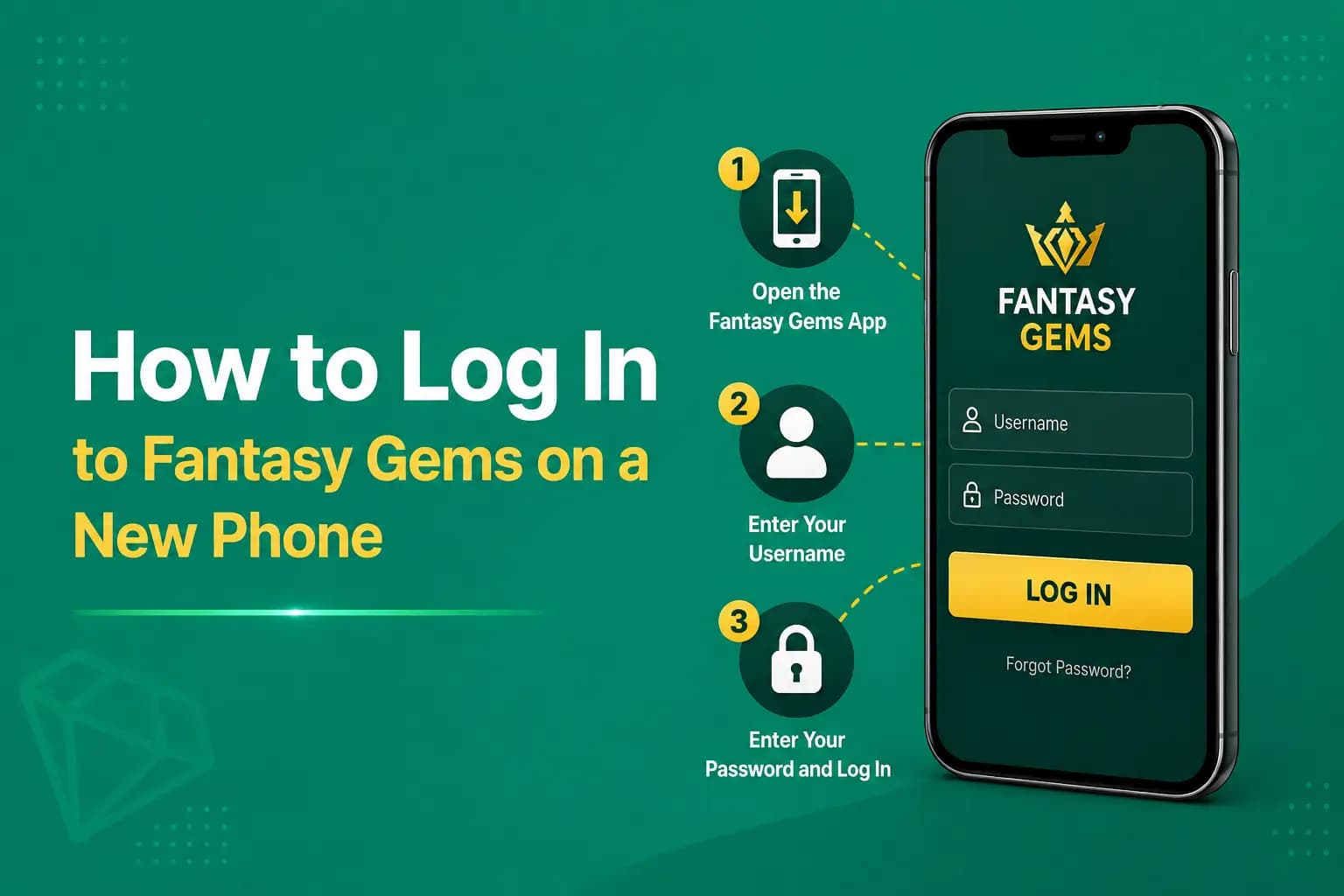
A Fantasy Gems login on a new phone is simpler than most people expect. Changing phones does not normally require a new Fantasy Gems account. An existing account may be opened on another device using the registered mobile number, password and OTP verification, because the account lives on the platform's servers rather than inside the old handset.
There is nothing to transfer in the usual sense: you install the app again and sign in. Before changing devices, make sure you still control the SIM linked with the account and that you actually know the password your old phone had been remembering for you.
This is an independent guide, not an official Fantasy Gems channel, and it covers moving to a new handset only. If your number itself has changed, see our post on Fantasy Gems login after changing mobile number, and if you plan to keep using both phones, see the post on Fantasy Gems login on multiple devices.
Quick answer: Fantasy Gems login after changing phone
The short version, for readers who just want the order of events:
- Keep the old phone switched on and signed in until the new one is working.
- Confirm your password on the old phone, or reset it there while OTPs still arrive.
- Move the registered SIM to the new phone and check that ordinary SMS messages arrive.
- Install the app on the new phone from a source you have checked.
- Sign in with the same registered number and password, then enter the OTP if one is requested.
- Confirm the account ID and wallet history match before you deposit anything.
- Log out on the old phone before you sell it, gift it or reset it.
Never register again with the same or a different number just because the app is freshly installed. Use the login option.
Do not create a second account on the new phone
Creating a second account may affect bonuses, payments, verification or withdrawals. A freshly installed app may open on a registration screen, and tapping through it leaves you with an empty new account while your balance sits untouched in the original. Look for the login option and use your existing registered number.
What you need for a Fantasy Gems new device login
Prepare these before you start. If one is missing, sort it out while the old phone still works.
- Registered mobile number, exactly as entered at signup.
- Active SIM card for that number.
- Account password, known to you and not only saved in autofill.
- Stable internet.
- Verified app or website, the same source you trusted before.
- OTP access.
- Account ID when available, noted from the old phone's profile screen.
A screenshot of the old phone's profile and wallet screens is useful proof of ownership later.
Steps to log in to Fantasy Gems on a new phone
Follow the order. Each step protects the one after it.
- 1
Confirm that the registered SIM is active by sending and receiving a normal SMS.
- 2
Log out from the old phone when possible, once you are sure of your password.
- 3
Download the app from the intended source on the new phone; our download guide covers the safe way to do this.
- 4
Check the app name and icon after installation and make sure they match what you had before.
- 5
Open the login screen, not the registration screen.
- 6
Enter the registered mobile number in the same format you used at signup.
- 7
Enter the password by typing it manually.
- 8
Complete OTP verification if the app asks for it, entering the code yourself inside the app.
- 9
Review the account name and account ID on the profile screen.
- 10
Check wallet and transaction history against what you saw on the old phone.
Do not deposit until the account details are confirmed. If anything looks unfamiliar, stop and read the section on an account that opens but looks empty.
Moving the SIM to the new phone and receiving the OTP
The OTP is normally sent to the registered SIM, so a Fantasy Gems OTP on a new phone depends on the SIM working there first. After moving the SIM:
- Check the mobile signal.
- Confirm that normal SMS messages arrive.
- Select the correct SIM on a dual-SIM phone.
- If the new phone takes a smaller SIM size, have the card replaced by your network rather than forcing it.
- Check that the messages app is not filtering the code into a spam or blocked folder.
- Request one code and wait; repeated requests can invalidate earlier codes.
Keep the old phone available until access is confirmed.
Transfer a Fantasy Gems account to a new phone: what applies to you
Find your situation in the first column. The details for each are in the sections that follow.
| Your situation | What you need | What to do |
|---|---|---|
| Old phone still works | SIM, password, old phone | Note the account ID, move the SIM, log in, then log out on the old phone |
| Old phone broken or sold | SIM and password | Log in on the new phone with number, password and OTP |
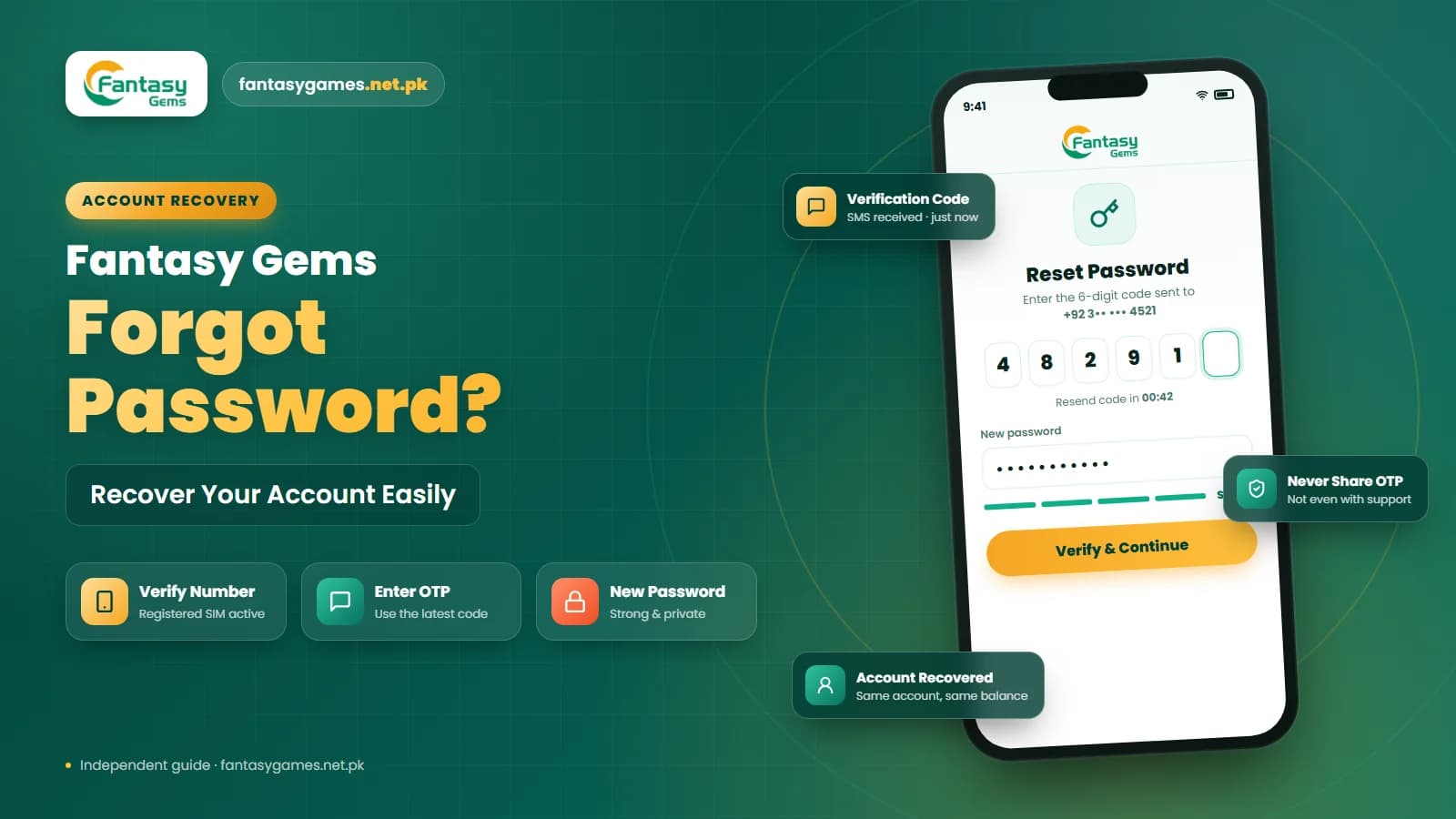
| Password forgotten | Registered SIM | Use the password reset option on the login screen |
| Registered SIM lost | CNIC for a replacement SIM | Get the same number reissued by your network, then log in |
| Phone stolen | Access to your network and support | Block the SIM, change the password, check withdrawals |
| New phone is shared | Your own login details | Do not save the password; log out after each use |
| New phone is an iPhone | A supported access method | An APK will not install; see the iOS guide |
Login without the old phone
The old device is not always required when you have:
- Registered SIM
- Correct password
- OTP access
- Verified login page
When the old phone was lost or stolen, change the password after accessing the account. A password change commonly ends sessions on other devices; our session expired post explains what that looks like on the device that gets signed out.
New device verification: what the app may ask for
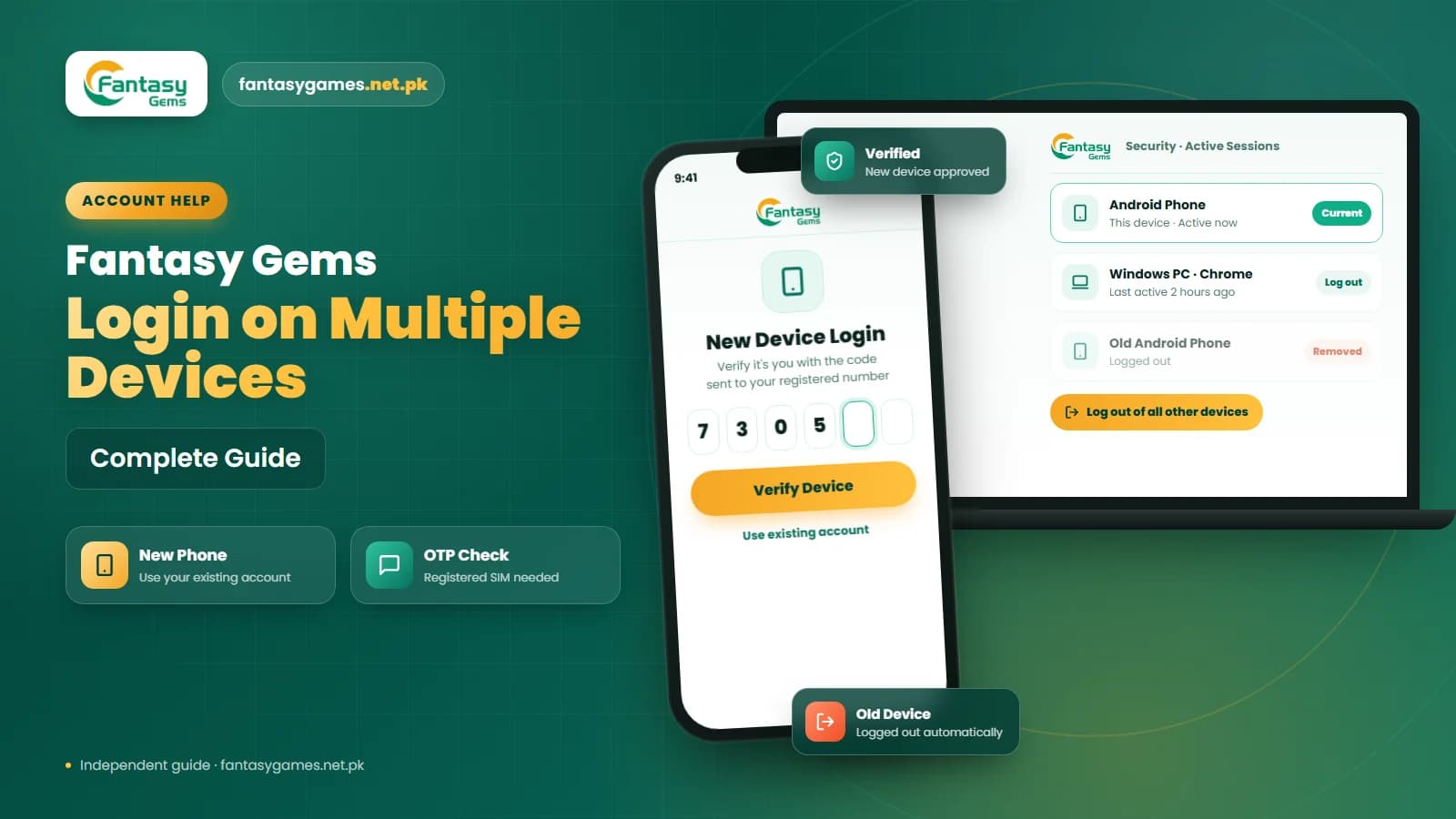
A new handset is an unfamiliar device as far as the platform is concerned. A platform may ask for:
- OTP
- Security question
- Password confirmation
- Identity check
- Support approval
This can happen when the device, location, browser or network changes. It is a normal protection, not a sign of a blocked account.
Nobody needs your OTP or wallet PIN to move your account
A message or caller offers to transfer your Fantasy Gems account to the new device, then asks for the OTP that has just arrived, a remote-access app, or your JazzCash or Easypaisa PIN. There is no transfer service: you move the account yourself by logging in. A JazzCash or Easypaisa PIN is never needed for login on any phone, and an OTP is typed only into the app by you. Anyone asking for either is phishing.
Account opens on the new phone but looks empty
You may have entered another number or created a new account accidentally. This is common on dual-SIM phones, where the second number is easy to type by habit. Check:
- Profile ID
- Registered number
- Wallet history
- Deposits
- Withdrawals
- Game history
Do not add money until the correct account is found. Our post on a Fantasy Gems balance missing after login goes through the other causes.
Login on a new Android phone
Most readers in Pakistan install the app as an APK. For an APK installation:
- Verify the download source.
- Scan the file, for example with Google Play Protect, before opening it.
- Review requested permissions and refuse anything a game app has no need for, such as reading SMS.
- Avoid modified APKs.
- Disable unknown-app installation permission after use, in the Install unknown apps section of Android settings.
Also set date and time to automatic and exclude the app from battery optimization to avoid repeated logouts.
Login on iPhone or on a shared new phone
An Android APK cannot run on an iPhone. If you have moved from Android to iOS, use a verified App Store listing or supported Safari access when available. Read the Fantasy Gems for iOS guide.
Do not save the password or select Remember Me on a phone controlled by another person, such as a family handset. Log out and clear saved login details after use.
Old SIM is lost: getting the OTP number back
Contact the mobile network provider about replacing the SIM with the same number. In Pakistan a duplicate SIM is normally issued at the operator's franchise or service centre to the person the number is registered to, with their CNIC and biometric verification, so the number must be in your own name. Once the replacement is active, OTPs arrive as before and you can log in on the new phone.
When that is not possible, for instance because the number was registered to someone else, contact verified Fantasy Gems support and ask about changing the registered number. Our post on Fantasy Gems login after changing mobile number covers that process and what proof is usually requested.
Phone was stolen: secure the account first
If the old phone was stolen while still signed in, treat it as urgent. The thief holds both the app and the SIM that receives the OTP.
- 1
Secure the mobile number by asking your network to block the SIM, then get it reissued.
- 2
Change the Fantasy Gems password from another device as soon as you can sign in.
- 3
Review payment accounts, including changing your JazzCash or Easypaisa PIN if those apps were on the phone.
- 4
Check withdrawal history and the saved withdrawal number.
- 5
Contact support through the app.
- 6
Ask for unfamiliar sessions to be closed.
Do not send identity documents to an unknown agent. Share them only through the support option inside the app, and only when the app's own process asks for them.
When to contact support and what to send
Contact support if the correct number and password are rejected on the new phone, if device verification will not complete, if the OTP never arrives on a working SIM, or if you see activity you did not make. Send:
- Account ID, and the registered number with some digits hidden.
- The model of the old phone and the new phone.
- The date you switched and the exact message the app shows.
- A screenshot of the error and, if you have one, of the old profile screen.
- A recent deposit or withdrawal transaction ID as proof of ownership.
- Whether the old phone was sold, lost or stolen.
Never send your password, an OTP or a wallet PIN. The customer care guide lists the safe ways to reach support.
Final Words on Fantasy Gems login on a new phone
To log in to Fantasy Gems on a new phone, use the existing registered number, password and OTP. Verify the app source and review the account and wallet before making payments. If the account ID and history match what you had on the old handset, the move is complete.
Do not create another account simply because the old device is unavailable. The SIM and the password are what carry your account from one phone to the next, so protect both, and keep the old phone until the new one is proven to work.
As this is a real-money app, the usual caution applies on any device: 18 and over only, play with money you can afford to lose, and never borrow to play.
New Phone? Log In, Do Not Re-Register
Install the app from a source you trust and sign in with your existing registered number.
Related Guides
Fantasy Gems new phone login FAQs
Install the app on the new phone and sign in with your existing details. Move the registered SIM across first, check that SMS messages arrive, then open the login screen, enter the same mobile number and password, and type in the OTP if one is requested. Confirm the account ID and wallet history match your old phone before you deposit or play.