How to Change Your Fantasy Gems Login Password Safely
Change Fantasy Gems login password the safe way: open account settings, confirm the old password, create a strong new one and keep it away from fake reset pages.
Independent guide — not an official Fantasy Gems channel.

Account Security
Category
Password Safety
Focus
9 min
Read Time
Sep 2026
Published
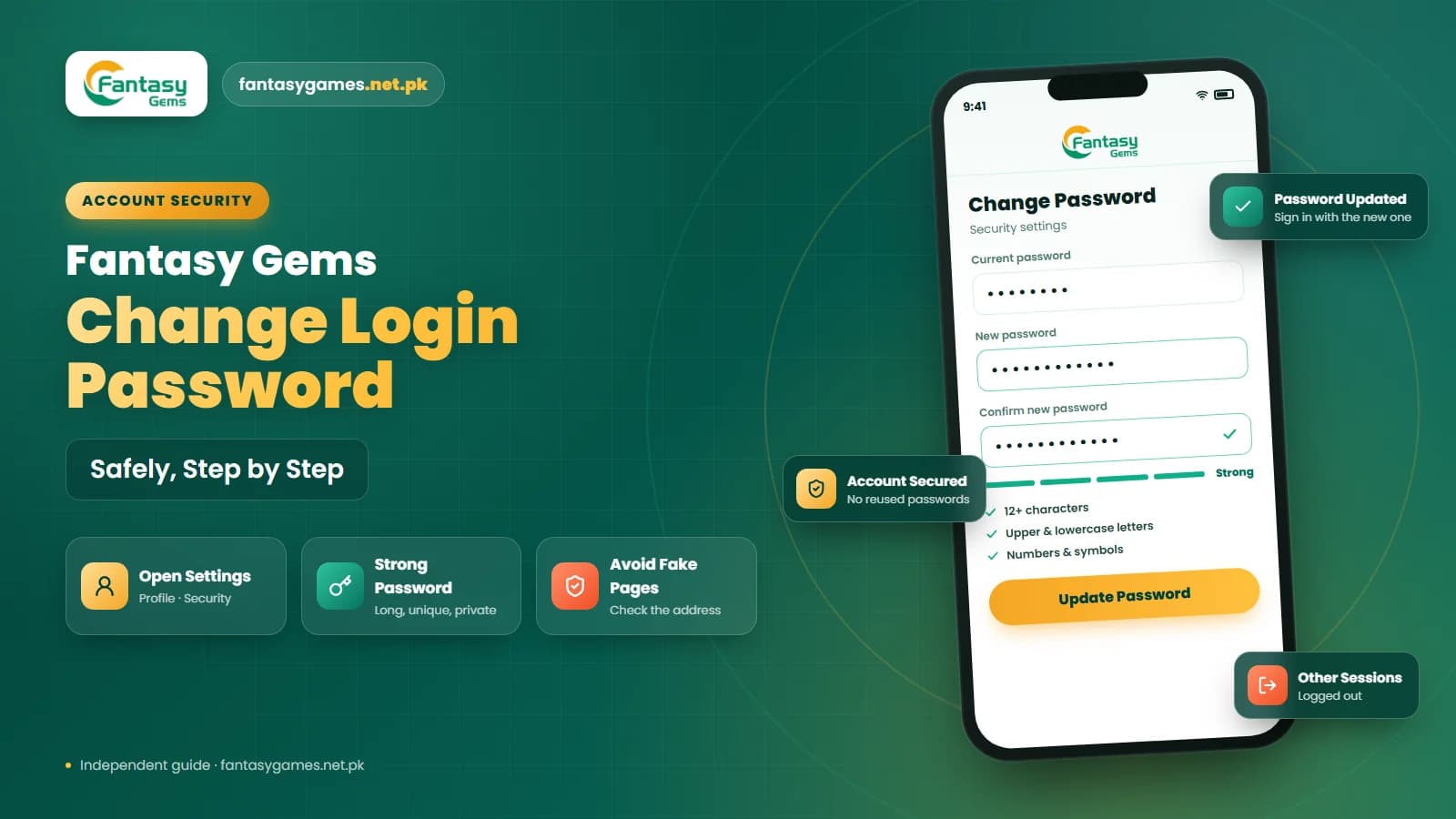
Knowing how to change Fantasy Gems login password takes about two minutes once you know where to look, and it is the single most useful habit for keeping a Fantasy Gems login out of someone else's hands. People usually do it after signing in on a friend's phone, after a suspicious message, or simply because the password they picked at registration was too easy.
A password change is not the same as a reset. Changing means you still know the current password and update it from inside the app. Resetting means you have forgotten it and need to prove ownership with an OTP first. This guide covers the change, points you to the reset when that is what you actually need, and explains what to do afterwards so the new password sticks on every device.
Everything below is written as the process usually appears in the app. Menu names may differ slightly between versions, so treat the labels here as a description of what to look for rather than exact wording.
Quick steps to change your Fantasy Gems password
The short version, for anyone who just wants the sequence. The rest of the guide explains each step in detail.
- Sign in to the Fantasy Gems app or login page you normally use, never through a link someone sent you.
- Open the profile, account or security area and look for the change password option.
- Enter the current password once, then type the new password twice exactly the same way.
- Pick a password you do not use for email, JazzCash, Easypaisa or any other service.
- Save, sign out, and sign back in with the new password to confirm it works.
- Update or delete the old password saved in your phone, browser or emulator.
If you cannot remember the current password, skip to the reset section further down. The change option will not work without it.
When you should change your Fantasy Gems password
Change it straight away if you signed in on a shared or borrowed device, if you shared an OTP with anyone by mistake, if you see a deposit or withdrawal request in the Fantasy Gems wallet you do not recognise, or if the same password is used on another site that was leaked. Any of these on their own is enough reason.
Change it soon if the password is short, contains your phone number or name, or is a simple sequence like 123456. These are the first things anyone trying to break into a Fantasy Gems account will try, and the wallet balance makes the account worth trying.
Beyond that, there is no rule that forces you to change on a schedule. Most security advice now favours one strong, unique password kept private over frequent changes that push people towards weaker, more predictable choices. Changing every few months is reasonable; changing every week usually is not.
How to change Fantasy Gems login password
This is the standard route for someone who still knows the current password. Take it slowly and read each screen before tapping.
- 1
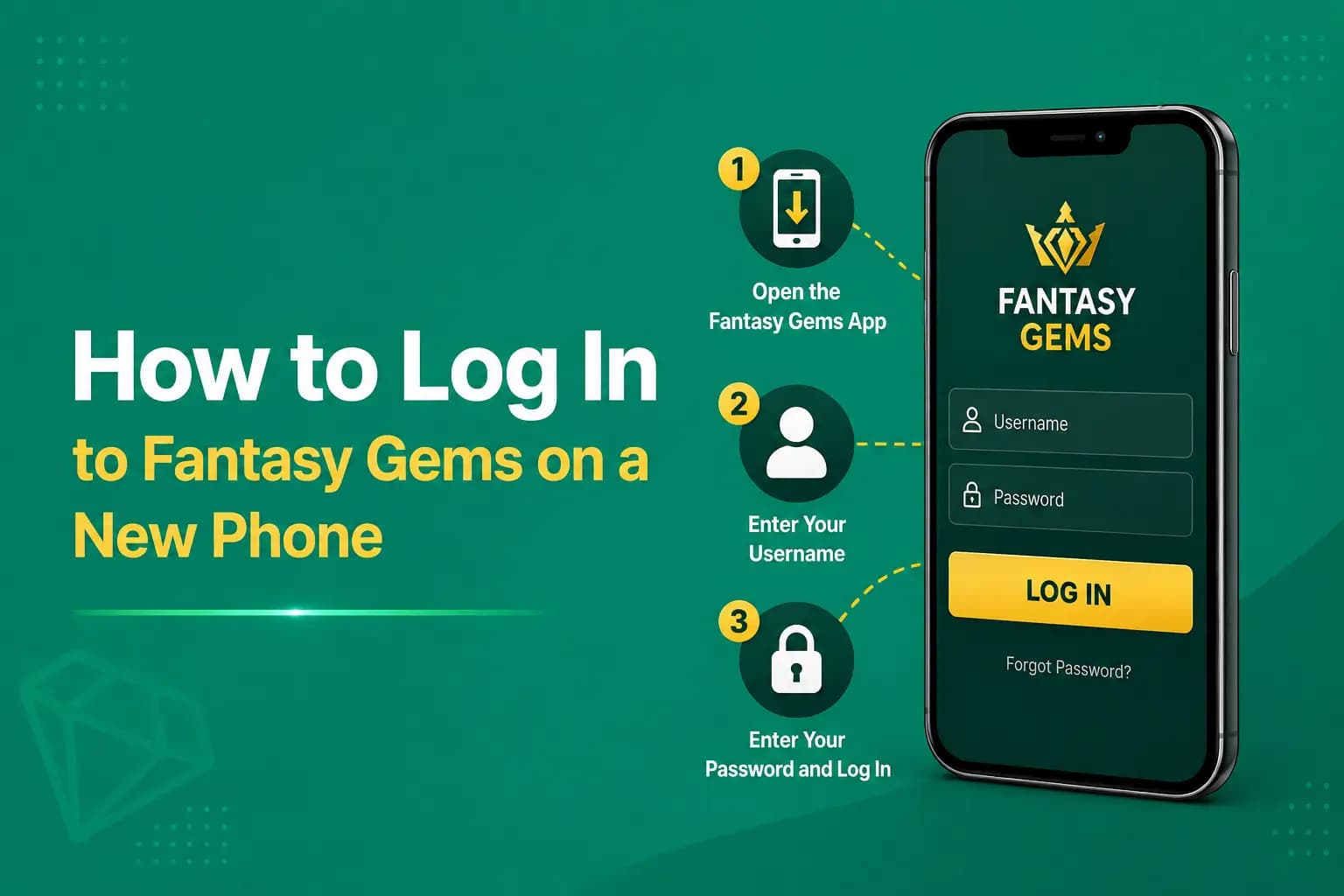
Open the Fantasy Gems app, or the Fantasy Gems login page in a browser, and sign in with your current details. Confirm the web address if you are on a browser.
- 2
Find the profile or account area. It is usually behind an avatar icon, a menu button or a tab labelled account, settings or security.
- 3
Tap the Fantasy Gems change password option. It may be called Change Password, Login Password, Security Settings or something similar.
- 4
Enter your current password in the first field. The app asks for this to confirm that the person making the change already has access.
- 5
Type the new password in the second field, then repeat it exactly in the confirmation field. Use the reveal icon if one is offered so you can compare them.
- 6
Save or confirm the change. Some versions send a Fantasy Gems OTP to the registered number at this point; enter it promptly if asked.
- 7
Sign out, then sign in again with the new password. If the login succeeds, the change is complete and you can update your saved passwords.
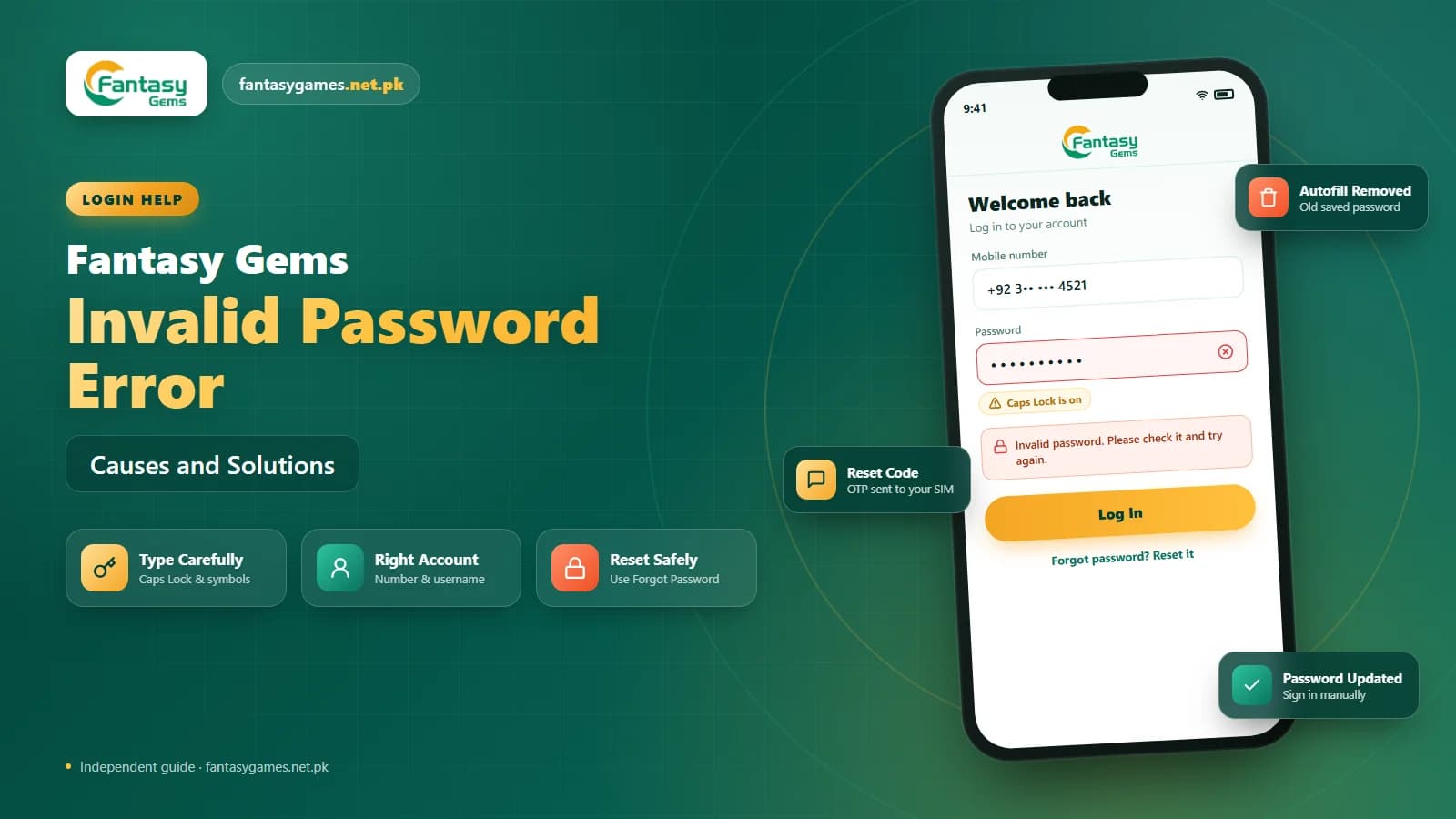
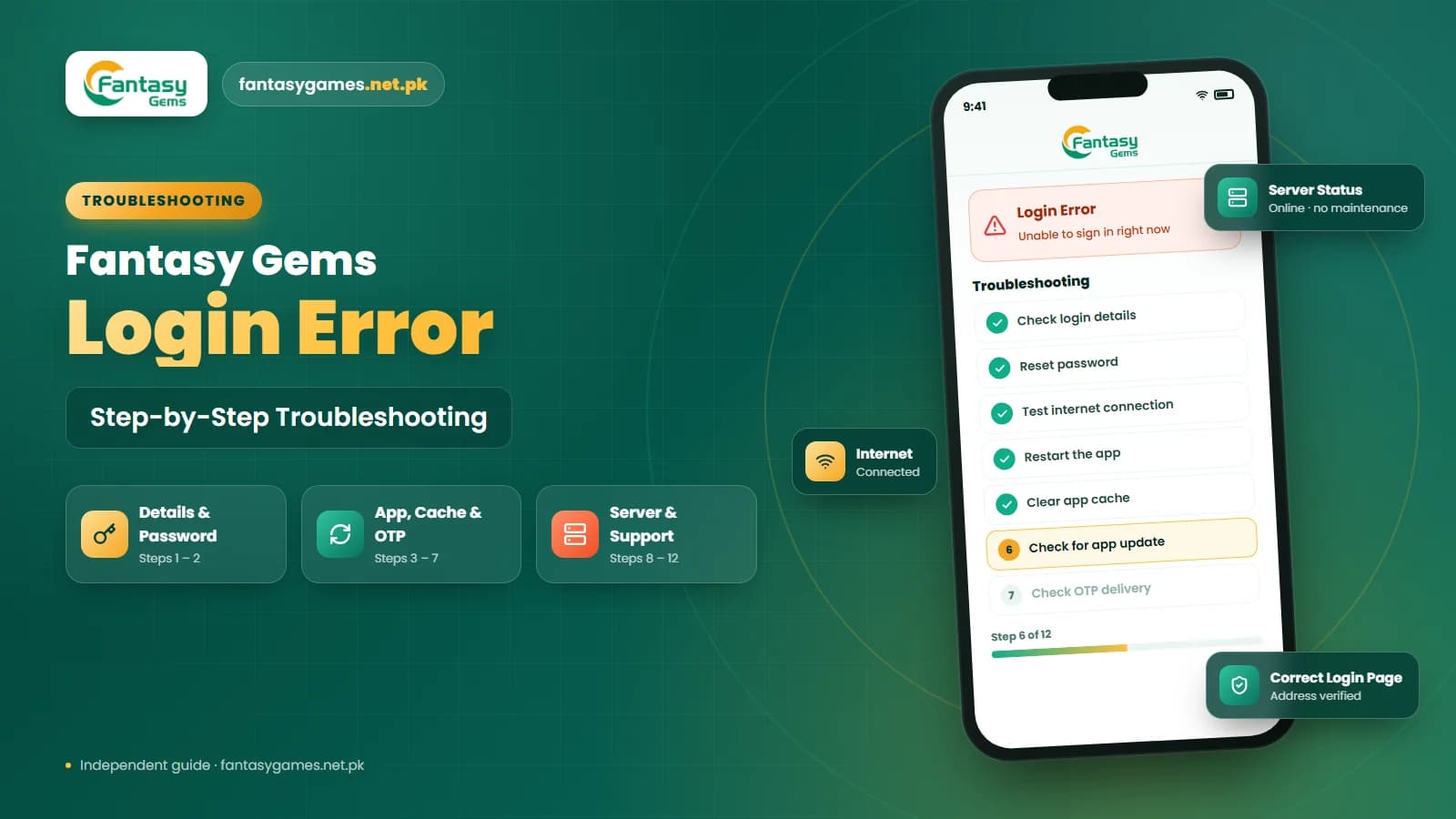
If the app rejects the current password, check for autofill, Caps Lock and keyboard language before assuming the account has a problem. If you genuinely cannot recall it, use the password reset instead.
Create a strong new Fantasy Gems password
The change only improves Fantasy Gems account security if the new password is actually better than the old one. Avoid anything from this list:
- Your name, username, or a family member's name.
- Your mobile number, CNIC digits or date of birth in any form.
- Sequences and repeats such as 123456, 000000, abcdef or qwerty.
- The old password with a single character changed or a number added at the end.
- A password you already use for email, your bank, JazzCash, Easypaisa or social media.
- Anything you have typed into a public Wi-Fi hotspot or a shared computer.
Where the app supports it, use a mix of uppercase, lowercase, numbers and symbols, and aim for length over cleverness. Three or four unrelated words strung together are easy for you to remember and slow for anyone else to guess.
Forgot the old one? Use Fantasy Gems password reset
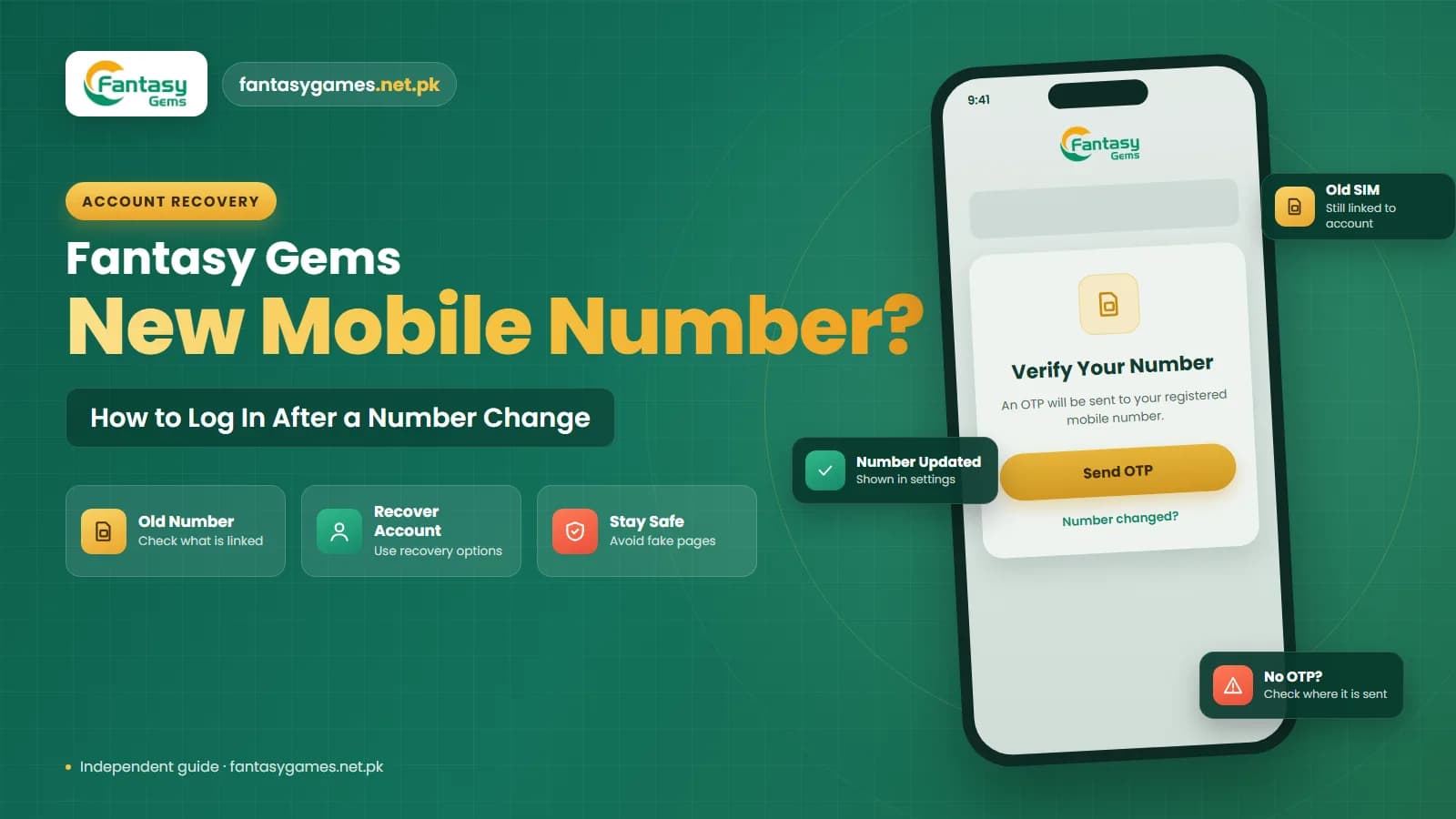
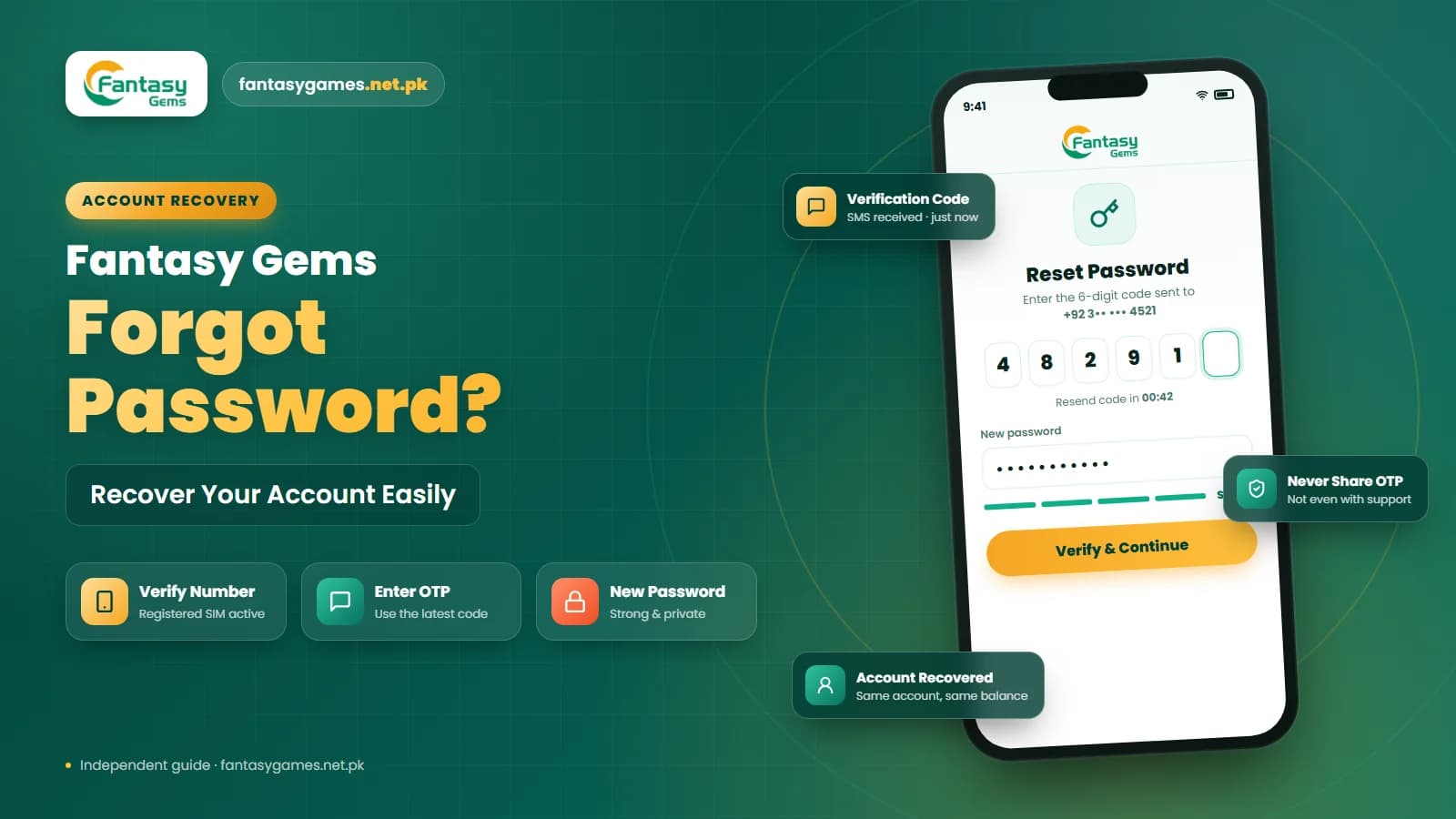
The change screen needs your current password, so if you cannot remember it the route is different. Sign out, go to the Fantasy Gems login page, and tap the forgot or reset password option. The app sends an OTP to your registered mobile number, and once you enter it you can set a new password without the old one.
Keep the phone with the registered SIM nearby, request the code once, and enter it as soon as it arrives. If the OTP never shows up, check signal, airplane mode and a full inbox before requesting another, because a fresh request can cancel the earlier code.
The reset achieves the same end result as a change. Whichever route you take, finish by updating the saved password on your devices, otherwise the next login will quietly submit the old one and you will be back where you started.
Fantasy Gems password changes and your wallet
Changing the login password does not touch the wallet. Your PKR balance, deposit history and any pending withdrawal stay exactly as they were, because they belong to the account, not to the password. If the balance looks different after a change, the change is not the cause and you should contact support.
The reason a strong login password matters so much is precisely that wallet. Deposits through JazzCash or Easypaisa land in an account protected by nothing more than the number and the password. Anyone who learns the password can request a withdrawal to their own details, so the login password is effectively guarding real money.
Some versions of the app add a separate wallet or transaction PIN for withdrawals. If yours does, treat it as a second lock: never make it the same as the login password, and never share it with anyone, including people claiming to be support.
Fake Fantasy Gems password expiry messages
A message saying your Fantasy Gems password has expired and must be changed through a link is almost always a scam. The link opens a copied page that records whatever you type, including the new password. Change your password only from inside the app or the login page you normally use, and never hand over an OTP, wallet PIN, JazzCash PIN or Easypaisa PIN to anyone.
Changing your Fantasy Gems password on PC
If you use Fantasy Gems for PC through an Android emulator on Windows, or open Fantasy Gems online in a desktop browser, the change password option is in the same place and works the same way. Any OTP still arrives on the phone that holds your registered SIM, so keep it within reach.
The difference comes afterwards. The browser or emulator on the PC keeps its own saved copy of the password, separate from your phone. Update it on the computer as well, otherwise the PC will keep submitting the old password and you will see a confusing rejection there while the phone works fine.
Some users search for Fantasy Game login on desktop and mean this same app. The advice is identical: one account, one password, updated everywhere the same day.
Update the saved password on every device
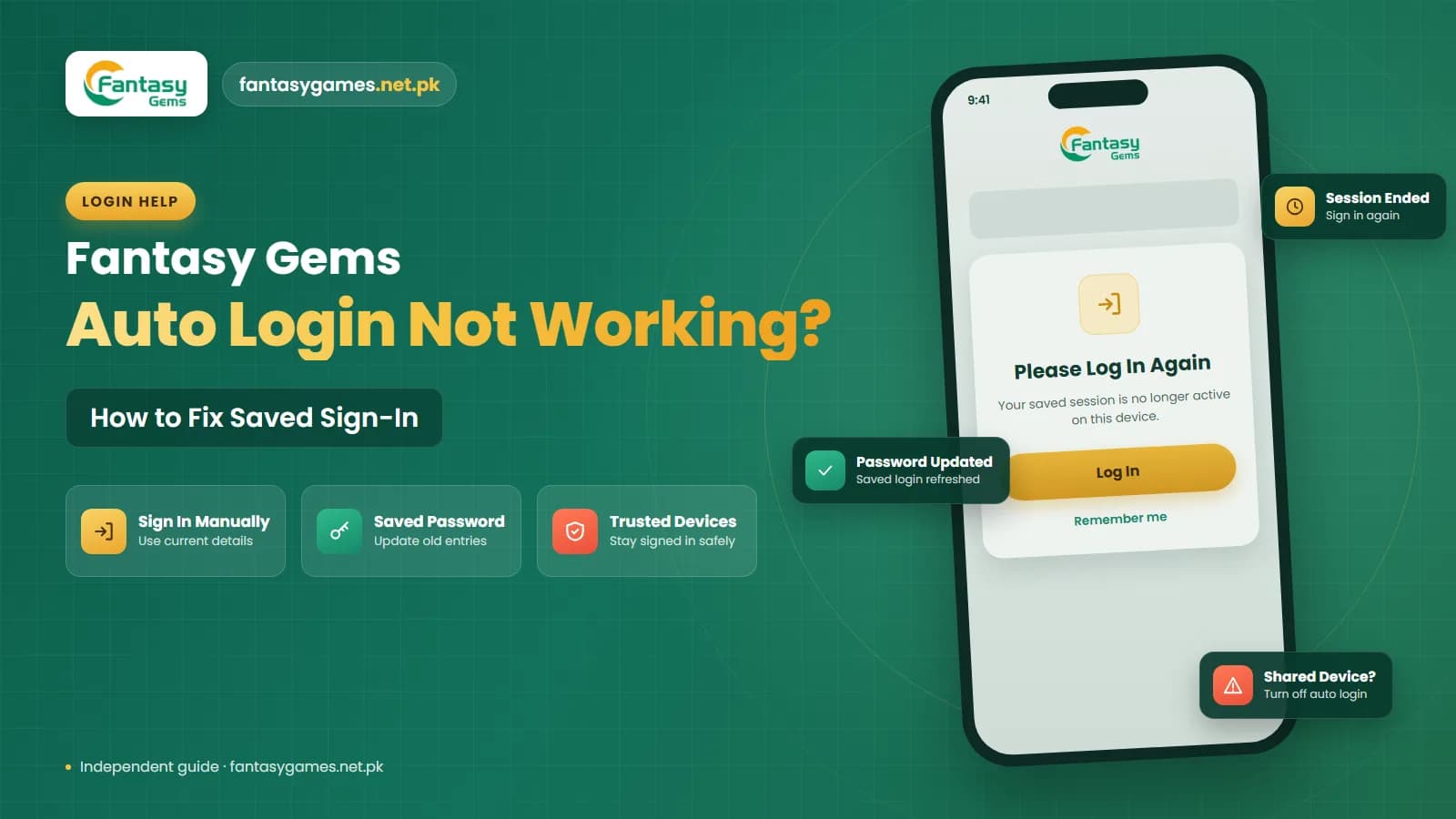
This is the step people skip, and it is the reason so many searches read something like new Fantasy Gems password not working. Password managers, browser autofill and keyboard suggestions all remember the old password and keep offering it. Nothing tells them you changed it.
On your phone, open the password manager or the browser's saved passwords, find the Fantasy Gems entry and update it. Do the same in any emulator or desktop browser you use. If you are unsure whether an entry is current, delete it and save it fresh the next time you sign in successfully.
If you had shared the old password with a family member so they could top up or check something, tell them it has changed, or better, stop sharing it altogether. One account, one person, one password is the arrangement that stays secure.
Do not lock yourself out of Fantasy Gems
Before you save a new password, make sure you have it written somewhere private or stored in a password manager. Changing it, forgetting it and then discovering the registered SIM is inactive is the fastest way to lose access to a Fantasy Gems account. Confirm the registered number still receives SMS before you make the change.
Keep your Fantasy Gems account secure long term
A password change is a good moment to tidy up the rest of your account habits. A few minutes on these prevents most of the login problems people write in about:
- Use the registered mobile number you actually control, and update it in the app if you change SIM.
- Never share the Fantasy Gems OTP, the wallet PIN or the login password with anyone, including support.
- Sign in only through the Fantasy Gems app or the login page you normally use, not through adverts or chat links.
- Sign out on any device that is not yours, and avoid saving the password on shared computers.
- Install the Fantasy Gems APK only from the download page you trust, since modified apps can capture passwords.
- Check the wallet occasionally for deposits or withdrawals you did not make, and report anything odd immediately.
None of this requires technical skill. It mostly comes down to keeping the password unique, the number current and the OTP private.
Final words on changing your Fantasy Gems login password
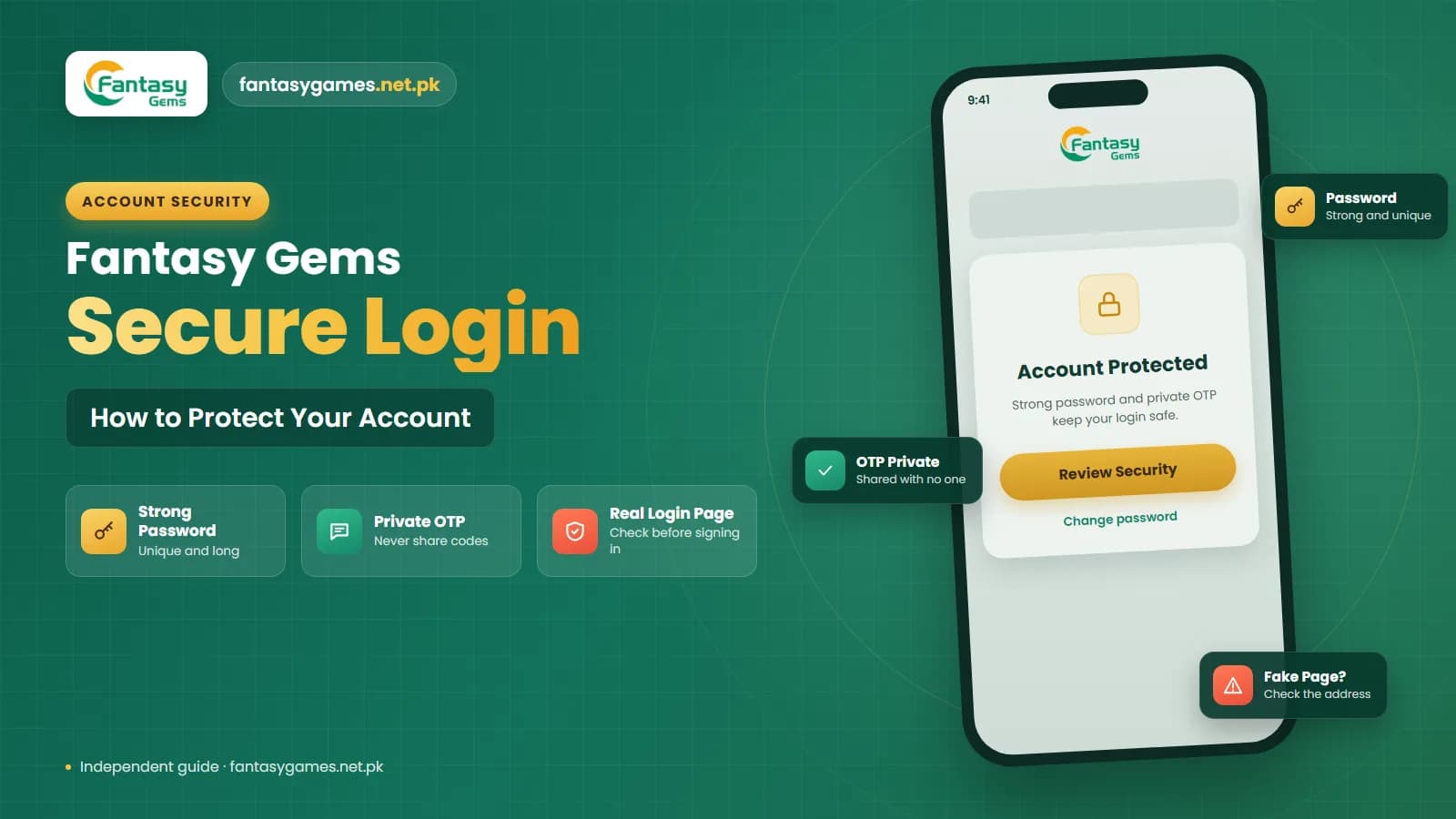
To change Fantasy Gems login password safely: sign in through the app or login page you normally use, open the account or security settings, enter the current password, set a strong new one and confirm it, then sign out and back in to prove it works.
If you have forgotten the current password, use the reset with your registered number and OTP instead. Either way, update the saved password on your phone, browser and any emulator the same day.
Keep the new password unique, ignore any message telling you it has expired, and never give your OTP or payment PIN to anyone. That is most of Fantasy Gems account security in one paragraph.
Keep Your Account Secure
Update your password from the Fantasy Gems app or login page you normally use.
Change Fantasy Gems login password FAQs
Sign in to the Fantasy Gems app or login page you normally use, open the profile or account area and look for the change password option. Enter your current password, type the new one twice, and save. Some versions send an OTP to your registered number first. Sign out and back in to confirm the change worked.