How to Log Out of Fantasy Gems on All Devices
Learn how to log out of Fantasy Gems on all devices: end sessions on an old or lost phone, change your password, check for unknown logins and keep your wallet secure.
Independent guide — not an official Fantasy Gems channel.

Account Security
Category
Device Logout
Focus
17 min
Read Time
Oct 2026
Published
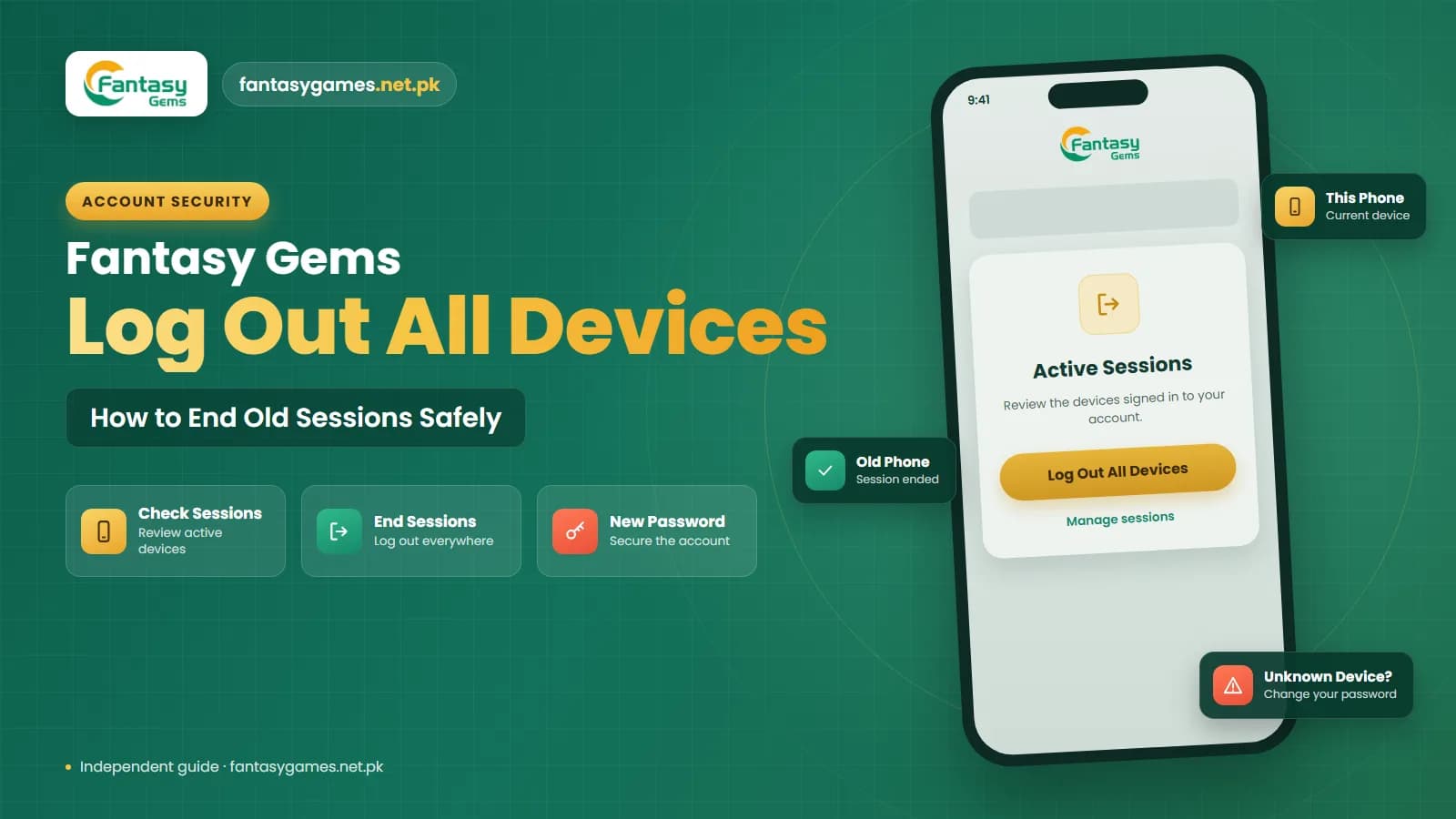
Understanding how to log out of Fantasy Gems on all devices can be helpful when you have used your account on more than one phone, changed devices, lost an old phone, or think someone else might still have access to your account. Because the account holds a real-money wallet, an open session on a phone you no longer control is worth closing properly.
Logging out from your current device may only close the session on that phone. If Fantasy Gems allows multiple active sessions, another device could remain signed in until its session expires or is closed manually.
The exact account and security options can differ depending on the app or website version. If a direct Fantasy Gems Log Out of All Devices option is not available, changing your password and reviewing active sessions may help improve account security. This guide explains the steps you can take when you want to end Fantasy Gems login sessions on multiple devices. It is an independent guide, so we describe what to look for rather than promise a particular menu.
Quick answer: how to sign out of Fantasy Gems everywhere
If you are in a hurry, this is the short version. Each point is explained further down.
- Log in on the phone you trust and open the profile, settings or security area of the app.
- If you see Log Out of All Devices or End All Sessions, use it and confirm.
- If there is no such option, change your login password, which is the strongest step available to you.
- On any device you still hold, tap Log Out yourself and delete the saved password from that phone or browser.
- If a phone is lost with the registered SIM inside, ask your mobile operator to block the SIM, then have the same number reissued.
- Check your wallet and transaction history for anything you did not do.
- Report anything unfamiliar through the support option inside the app.
Have your registered mobile number, current password and registered SIM ready before you start, because you will be signing in again afterwards.
Open your Fantasy Gems account settings
Begin by logging in to the Fantasy Gems account you normally use. Look for an area such as:
- Profile
- Account
- Settings
- Security
- Login Settings
- Device Management
The exact menu name may be different depending on the version of the Fantasy Gems app or website. Search for options related to Fantasy Gems account security, devices, login sessions, or active sessions. If you find a Log Out of All Devices option, read the confirmation message carefully before continuing.
Check active Fantasy Gems login sessions
Some platforms show a list of devices or sessions connected to an account. If Fantasy Gems provides this feature, you may see details such as:
- Device type
- Login time
- Recent activity
- Browser or app session
- Current device
Review the list carefully. If you recognize all the devices, there may not be an immediate security issue. If you see an unknown device, unfamiliar session, or unexpected login activity, it is better to secure your Fantasy Gems account rather than ignore it.
Use Fantasy Gems Log Out of All Devices if available
If Fantasy Gems provides a Log Out of All Devices or End All Sessions option, select it. You may need to confirm the action. After confirmation, other active sessions may be closed, and you may need to sign in again on your current phone. Before using this option, make sure you know:
- Your registered mobile number
- Username
- Current password
- Account recovery information
If OTP verification is required during your next login, make sure you still have access to the registered SIM.
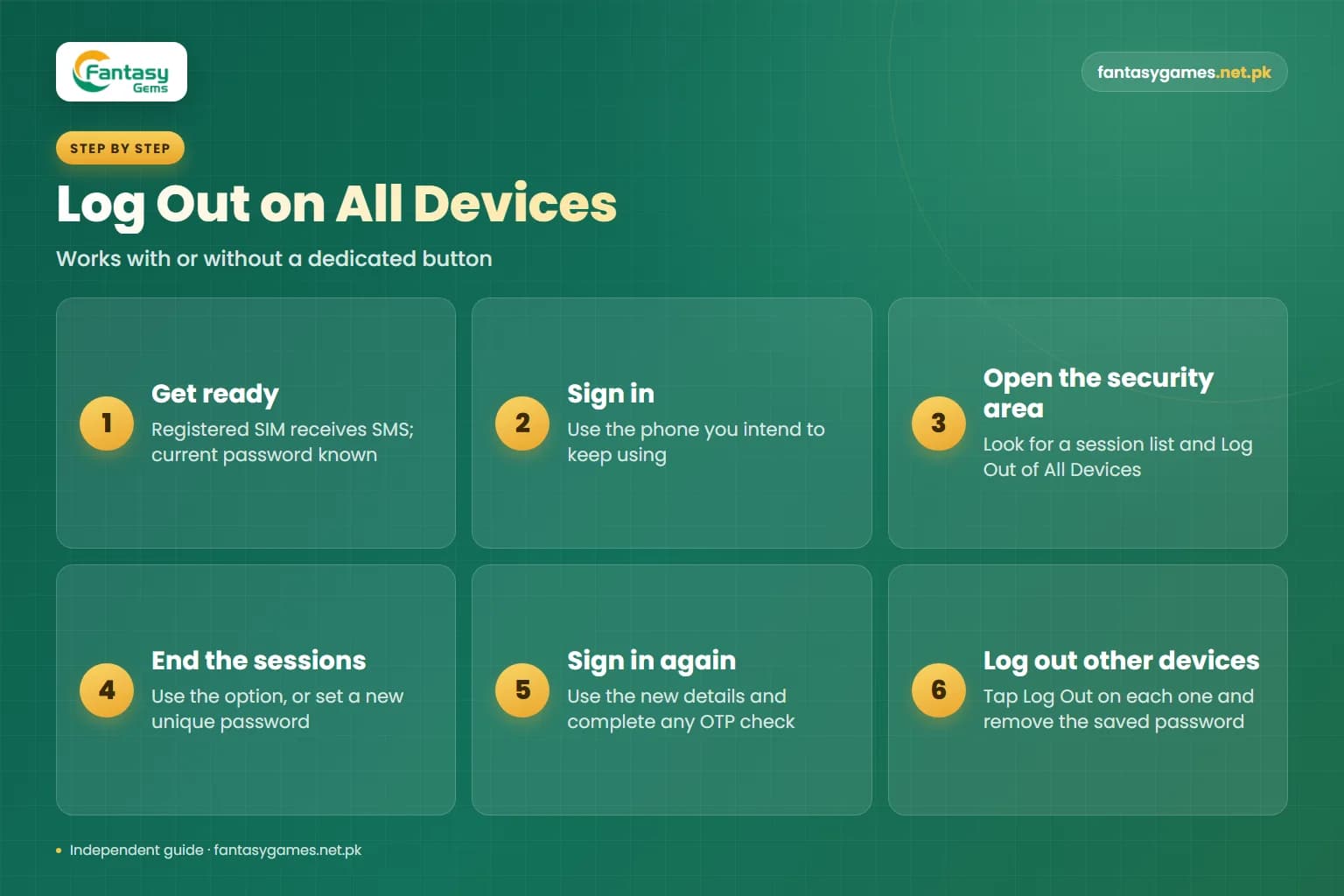
How to log out of Fantasy Gems on all devices step by step
This order works whether or not the app shows a dedicated button, and it avoids locking yourself out along the way.
- 1
Confirm you can receive SMS on your registered SIM and that you know your current password.
- 2
Sign in on the phone you intend to keep using, through the app or login page you normally use.
- 3
Open the profile or security area and look for a list of devices or sessions, and for a Log Out of All Devices option.
- 4
If the option exists, use it. If it does not, go to the change password screen and set a new, unique password.
- 5
Sign in again on your own phone with the new details and complete any OTP check.
- 6
Pick up each other device you own, open the app and tap Log Out, then remove the saved password from that device.
- 7
Over the next day or two, watch your wallet history and SMS inbox for activity you did not start.
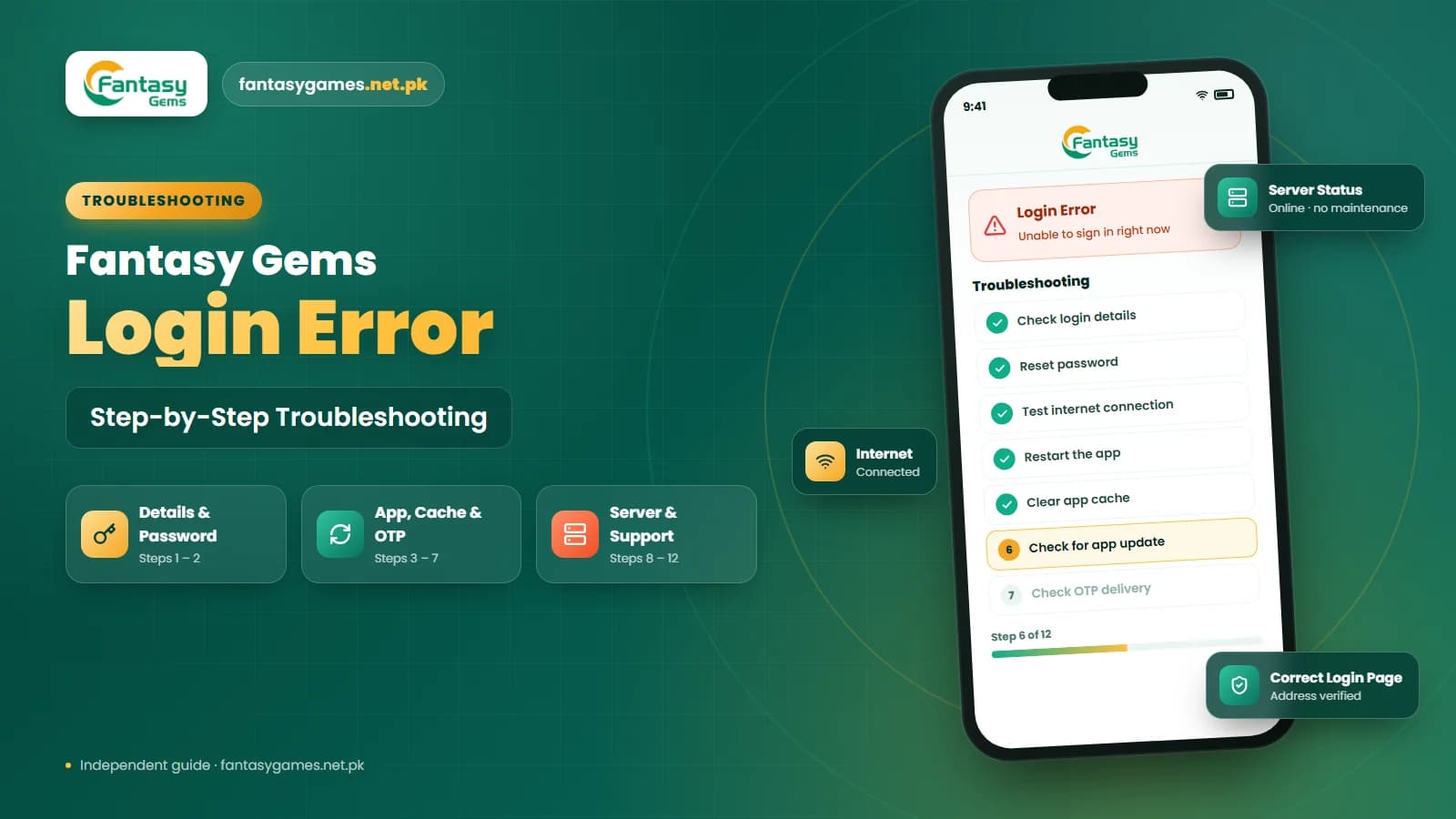
If you cannot complete step four because the app rejects your current password, use the forgot password option first; our forgot password guide covers it.
What if Fantasy Gems does not show Log Out of All Devices?
Not every app provides a visible option for ending all login sessions. If you cannot find one, changing your Fantasy Gems login password may help protect the account. Some platforms end older sessions after a password change, while others may keep them active until they expire.
Because session behavior can vary, changing the password should be treated as an account-security step rather than a guaranteed replacement for a dedicated Fantasy Gems logout all devices feature. After changing your password, review your account again and check whether other sessions remain active.
A practical test, if you still hold the second device, is to open the app on it after the change. If it asks you to sign in, the old session was closed. If it opens straight to your account, log out on that device by hand and tell support what you found.
Change your Fantasy Gems login password
If you think another person may have access to your account, create a new and stronger password. Avoid using:
- Your name
- Mobile number
- Date of birth
- 123456
- Repeated numbers
- Your username
- A password used on another website
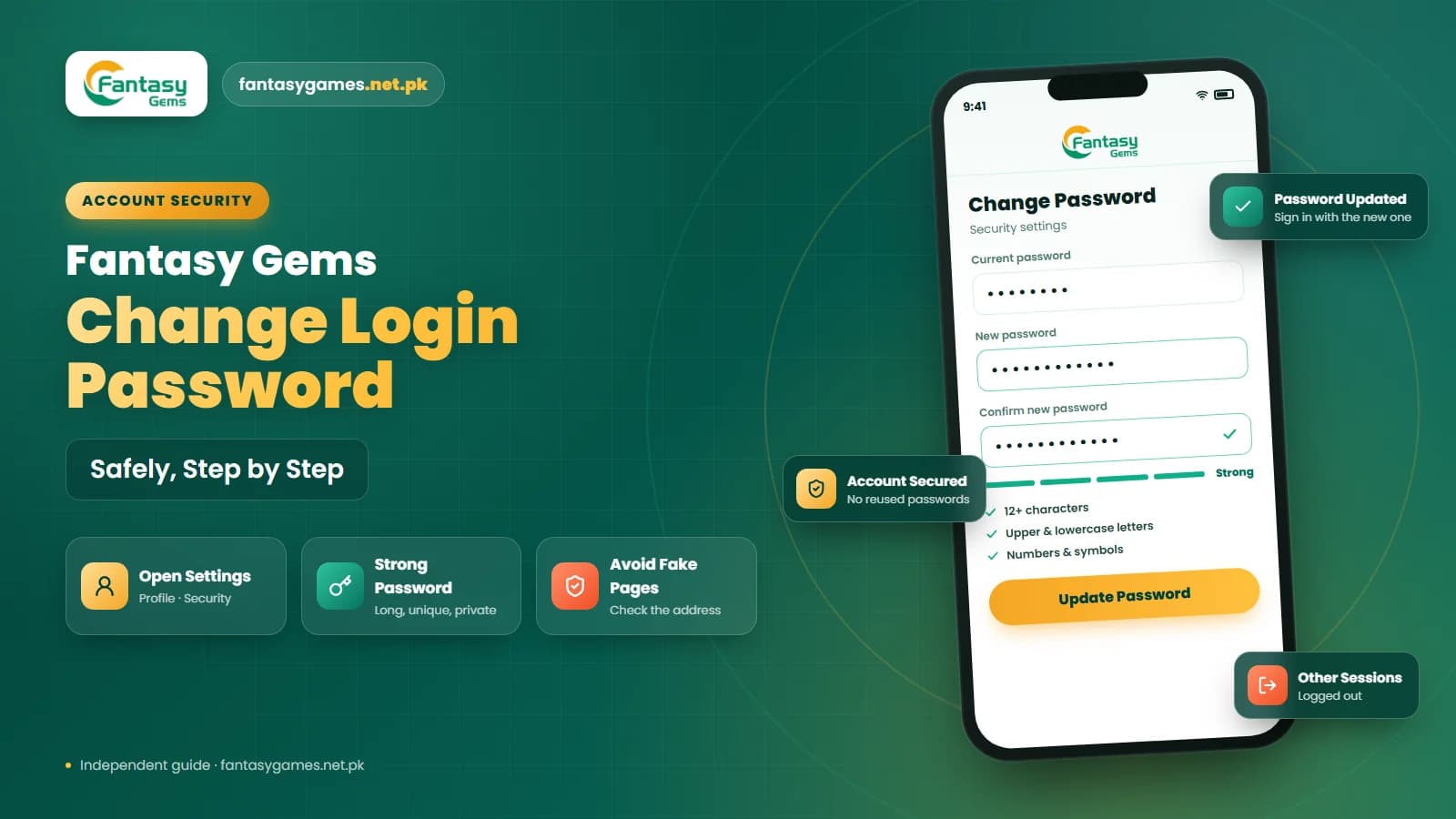
Where supported, use a combination of letters, numbers, and symbols. Do not reuse your email, Easypaisa, JazzCash, or social media password for Fantasy Gems. A unique password can reduce the risk of unauthorized Fantasy Gems account access. Our guide on how to change your Fantasy Gems login password shows where the option usually sits.
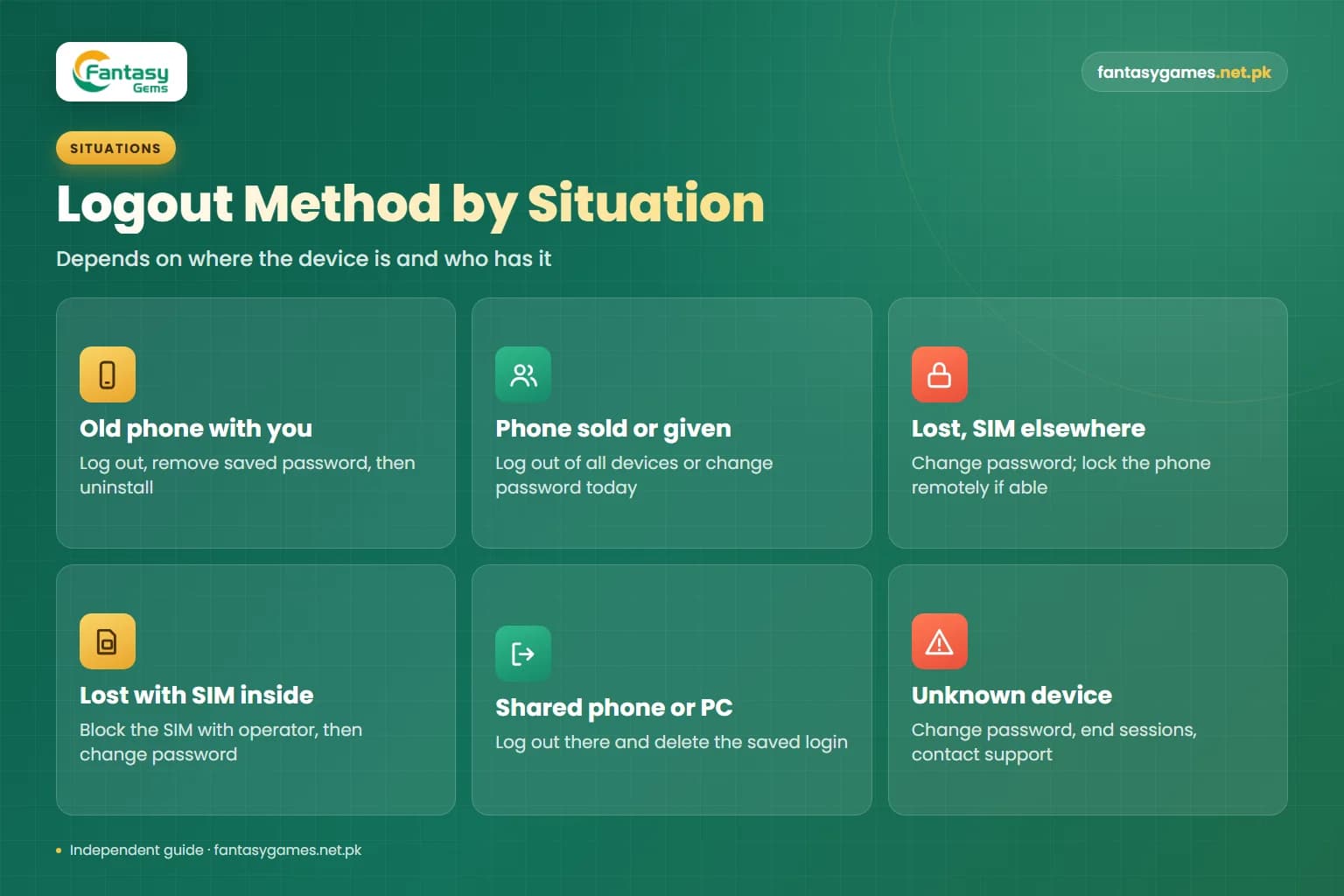
Which Fantasy Gems logout method fits your situation?
The right action depends on where the other device is and who has it.
| Situation | What it means | What to do |
|---|---|---|
| Old phone is still with you | You can close that session yourself | Log out in the app, remove the saved password, then uninstall |
| Phone sold or given away without logging out | The new owner may open the app and find it signed in | Use Log Out of All Devices or change the password today |
| Phone lost or stolen, SIM in a different phone | The app may be open but OTPs still reach you | Change the password and lock the phone remotely if you can |
| Phone lost or stolen with the registered SIM inside | Both the session and your OTPs are exposed | Block the SIM with your operator, then change the password |
| Logged in on a friend's phone or a shared PC | A saved session or password may remain there | Log out on that device and delete the saved login |
| Unknown device or OTPs you did not request | Someone may know or be guessing your details | Change the password, end sessions and contact support |
When more than one row applies, deal with the SIM first, the password second and the individual devices last.
How to log out of Fantasy Gems on an old phone
If you still have access to your old device, open Fantasy Gems and use the normal logout option. Look for Log Out, Sign Out, or a similar option under your profile or account settings. After logging out, check whether the device has saved your username or password.
If you are selling, giving away, or returning the phone, remove saved account information before handing over the device. On Android that means deleting the saved Fantasy Gems entry from Google Password Manager or the browser, removing your Google account from the phone, and then doing a factory reset from the phone's settings. A reset alone is not a substitute for logging out first, but together they leave nothing for the next owner.
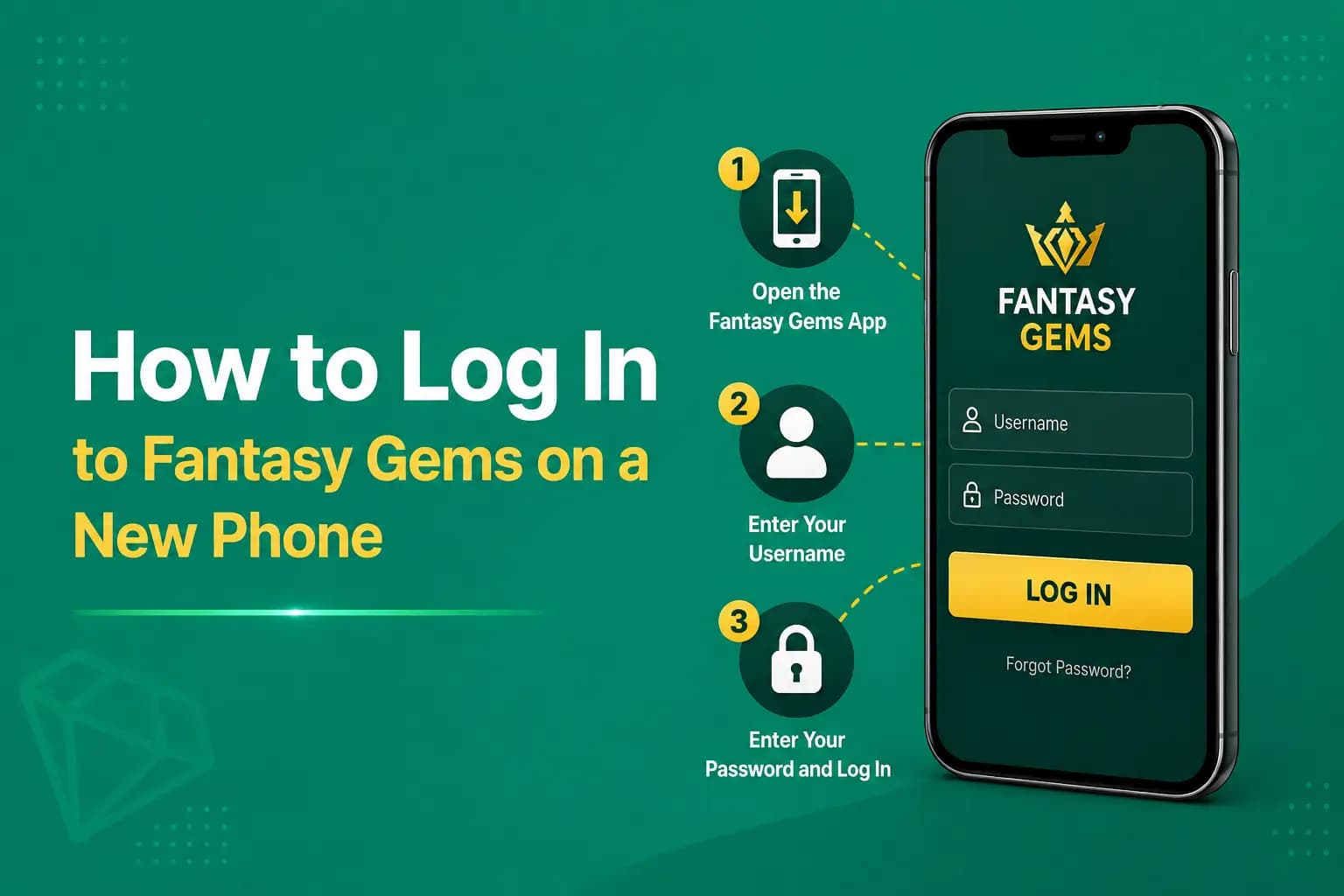
You may also want to remove the app after confirming that your account works properly on your new phone. Our guide on Fantasy Gems login on a new phone covers the move itself.
What if you lost your old phone?
If you no longer have access to your old phone, you cannot manually log out through that device. In this situation:
- 1
Check for a Fantasy Gems Log Out of All Devices option.
- 2
Change your Fantasy Gems password.
- 3
Do not approve unexpected OTP requests.
- 4
Review your account for unusual activity.
- 5
Contact support if something looks suspicious.
If the lost phone contains the SIM linked to your Fantasy Gems account, contact your mobile network provider when appropriate to protect the number. Your registered mobile number may be important for password recovery and OTP verification.
Lost phone with your registered SIM: protect the number first
In Pakistan the SIM is usually the more urgent problem. Whoever holds it can receive the OTPs sent to your number, and not only for Fantasy Gems: JazzCash and Easypaisa accounts are tied to the mobile number as well. Call your operator's helpline from another phone, or visit a franchise, and ask for the SIM to be blocked.
You can then have the same number reissued on a new SIM. Operators generally do this at their franchises or service centres for the person the number is registered to, against the original CNIC and biometric verification. Once the replacement SIM is active, OTPs come to you again and you can change your Fantasy Gems password and sign in normally.
If the phone itself is an Android device linked to your Google account, Google's Find My Device service can lock or erase it remotely, provided the phone is switched on and online. Erasing the phone removes the app and its saved login along with everything else on it.
Fantasy Gems logged in on multiple devices
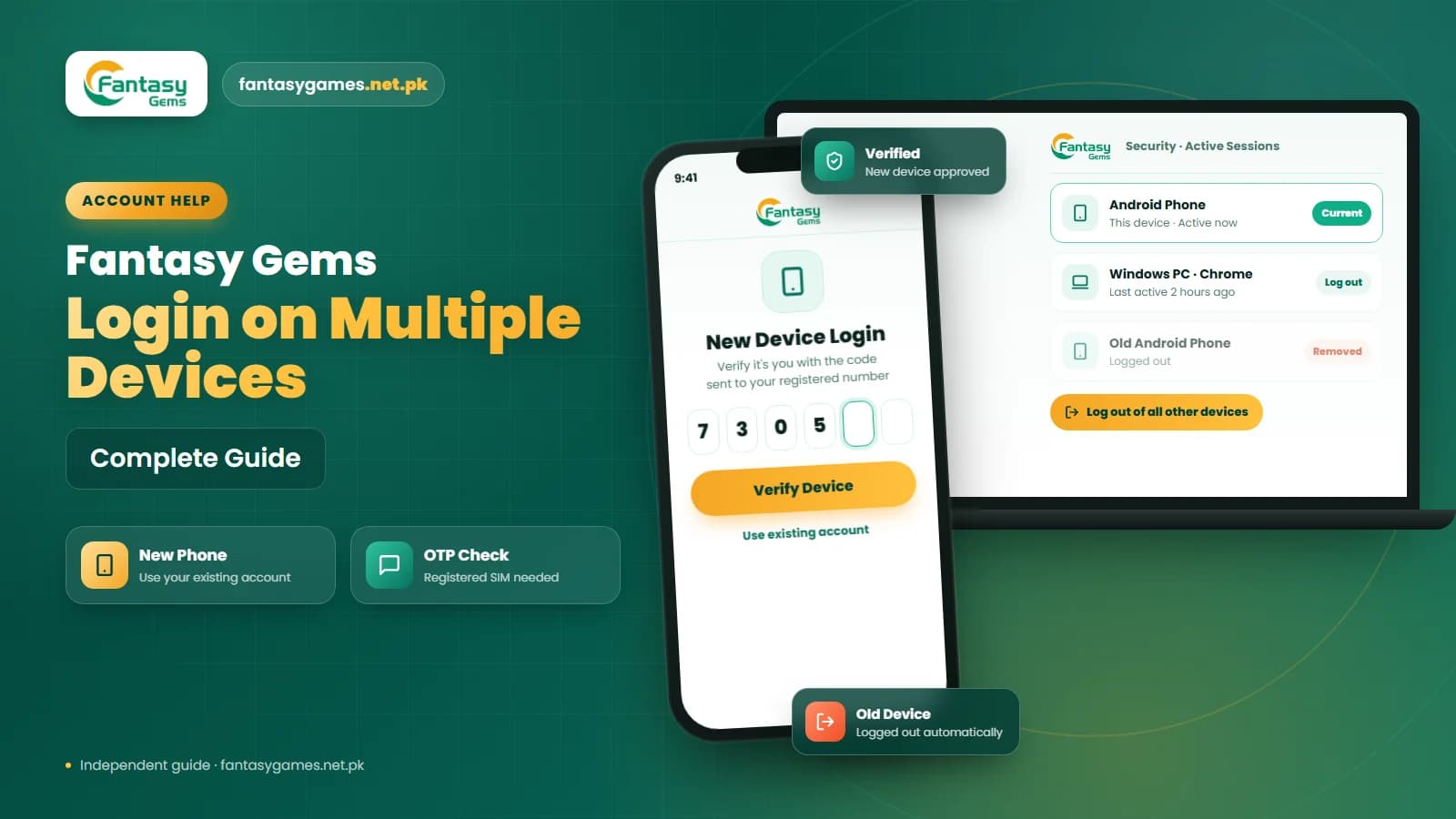
A Fantasy Gems logged in on multiple devices situation may happen if you use the same account on two or more phones. Depending on the platform's current session rules, signing in on another device may:
- Keep both sessions active
- Log out the old phone
- Ask for an OTP
- Require additional verification
- End the previous session
If you want to use only one device, log out from phones you no longer use. This can reduce confusion and make unexpected account activity easier to identify. Our separate guide on Fantasy Gems login on multiple devices explains day-to-day use across phones in more detail.
Log out of Fantasy Gems on a PC, browser or emulator
Phones are not the only place a session can linger. If you ever signed in through a browser on a laptop, an office computer or a net cafe PC, open the site there, log out, and then clear the saved password and the site's cookies from the browser settings. Closing the tab does not log you out, and a browser that saved your password will hand it to the next person who clicks the login box.
An Android emulator on a PC counts as a device of its own. Log out inside the emulator's copy of the app, or remove that emulator instance altogether if you no longer use it. If you cannot get back to a shared computer, treat it like a lost phone and change your password from your own device.
Watch for unauthorized Fantasy Gems login activity
Unusual login activity may indicate that someone else is trying to use your account. Warning signs can include:
- OTP messages you did not request
- Password reset messages
- Unknown login notifications
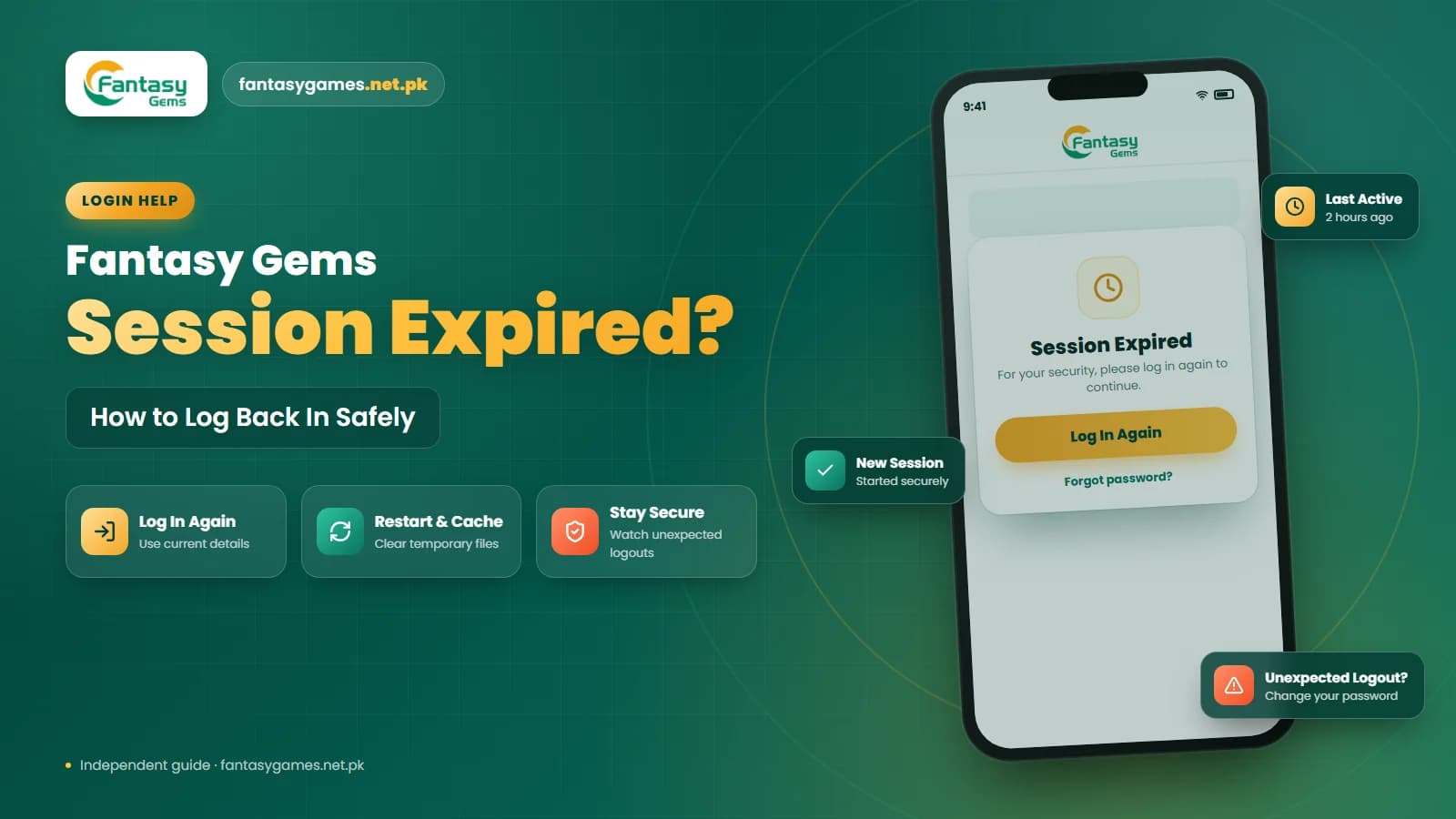
- Unexpected session expiry
- Changes to account information
- Transactions you do not recognize
If you notice any of these signs, change your password and end other Fantasy Gems login sessions where possible. Do not send your OTP or password to someone who claims they need it to secure your account.
Do not share your Fantasy Gems login details
Your Fantasy Gems login details should remain private. Never share your password or OTP through:
- Telegram
- SMS
- Social media
- Screenshots
Be especially careful if someone claims they can remotely log out another device for you. A third party should not need your complete password or OTP to provide general troubleshooting help. Use the account-security and Fantasy Gems device management options available through the platform instead.
Be careful with fake Fantasy Gems device management pages
Users searching for ways to remove an old device may come across fake account-security or device-management pages. Before entering your account details, check the website address carefully. Be suspicious if a page asks for:
- Easypaisa PIN
- JazzCash PIN
- Wallet PIN
- Banking password
- Payment before logout
- OTP to be shared with another person
A normal Fantasy Gems logout or device-management process should not require private payment credentials. Do not assume a page is genuine simply because it displays the Fantasy Gems logo.
Nobody can remove a device for you in exchange for an OTP
A common scam targets people who have just lost a phone. Someone on WhatsApp, Telegram or a phone call offers to remove the unknown device or secure the account, and asks you to read out the OTP you are about to receive, or to pay a small fee. That OTP is what lets them sign in or reset your password. Logging out and changing a password are free and are done by you inside the app. A JazzCash PIN, Easypaisa PIN or bank password is never part of the process.
After you end other Fantasy Gems sessions: what to check
Closing the sessions is half the job. Once you are signed in again on your own phone, confirm that nothing was changed while the other device had access.
- The wallet balance matches what you expect.
- Deposit and withdrawal history shows no entries you did not make.
- The registered mobile number on your profile is still yours.
- Any saved payout account details shown on the withdrawal screen are still your own.
- Your phone has a screen lock, and the new password is saved only on devices you control.
If a withdrawal you did not request appears in the history, contact support at once with a screenshot, and check your JazzCash or Easypaisa account separately.
Do not abandon the account and register a new one
When an unknown device shows up, some players walk away and open a fresh account. That leaves the original account, its balance and its history exactly where the other person can still reach them, and it does nothing to close the session. Secure the account you have: change the password, end the other sessions and report the activity to support. A second account can also make any later ownership check harder.
Contact Fantasy Gems support for device logout problems
If you cannot remove an unknown device or believe someone still has access to your account, use the support option available through the platform. Explain:
- Which device you currently use
- Whether an old device is still logged in
- Whether the old phone is lost
- Whether you changed your password
- Whether you noticed unusual login activity
- The date and time of any transaction you do not recognize
A screenshot of any device or session information may also help. Use only the support option inside the app or on the site you normally use; our customer care guide explains how to recognise it. Never provide your full password, OTP, Easypaisa PIN, JazzCash PIN, wallet PIN, or bank password to someone claiming to provide support.
Final Words
Learning how to log out of Fantasy Gems on all devices can help you manage active login sessions and improve account security. Start by checking the Fantasy Gems security, device management, or session settings for a Log Out of All Devices option. If it is available, use it to end unwanted sessions.
If that option is not available, change your password, manually log out from devices you still control, and monitor your account for unexpected login activity. If a lost phone carried your registered SIM, have the number blocked and reissued before anything else.
Most importantly, keep your Fantasy Gems password and OTP private, avoid fake account-security pages, and contact the available support channel if you believe an unknown device still has access to your account.
End Old Fantasy Gems Sessions
Sign in through the Fantasy Gems app or login page you normally use to review your account.
Fantasy Gems logout FAQs
Sign in on the phone you trust and look in the profile, settings or security area for a Log Out of All Devices or End All Sessions option. If your version of the app shows it, confirm and sign in again. If it does not, change your login password and then log out by hand on every device you still hold, deleting the saved password on each.