Fantasy Gems Login on Multiple Devices: What to Know
One Fantasy Gems account on two phones or a PC? See how Fantasy Gems login on multiple devices works, why old phones get logged out and how to keep your wallet safe.
Independent guide — not an official Fantasy Gems channel.

Account Help
Category
Devices & Sessions
Focus
10 min
Read Time
Sep 2026
Published
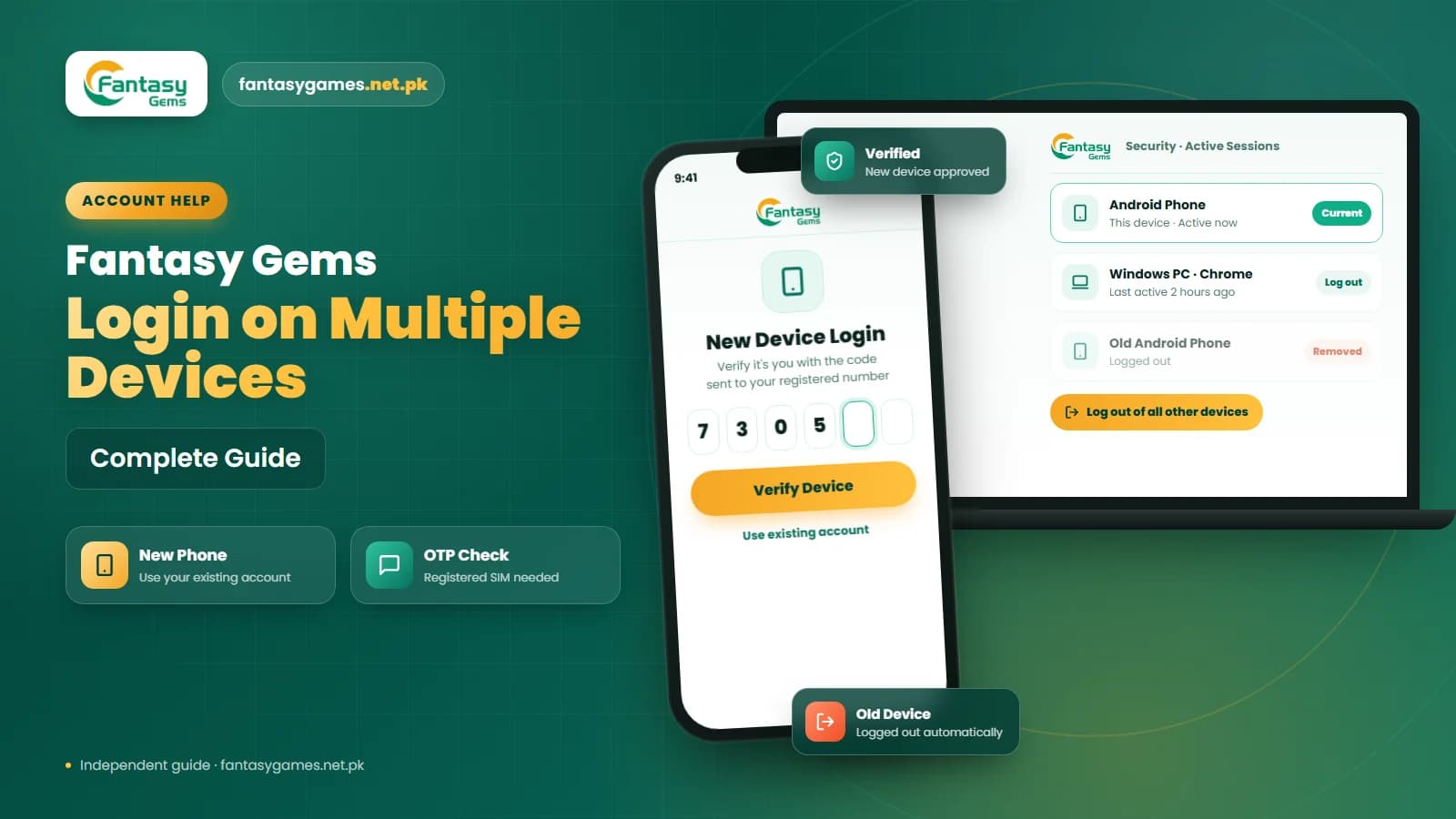
Fantasy Gems login on multiple devices is one of the questions we hear most from readers who own two phones or want to play on a laptop after work. The short version: your Fantasy Gems login is tied to one account, not to one handset, so you can usually sign in wherever the app or website runs. The catch is that the platform may limit how many sessions stay active at once, may ask for OTP verification on an unfamiliar device, and may log your old phone out the moment a new one signs in.
None of that is a fault. It is how most account systems protect a wallet that holds real PKR. But it does catch people out, especially when they change phones and suddenly see a session expired message on the device they still use.
This guide comes from an independent site, not the official Fantasy Gems team, so we describe what usually happens rather than promise exact behaviour. You will learn how to move your account to a new phone, what to expect on PC or an emulator, why two people should not share one account, and how to spot fake login pages aimed at people switching devices.
Quick fixes for Fantasy Gems multi-device login
If you are stuck right now, work through these in order. Most multiple-device login problems clear up by the second or third step.
- Sign in with your existing account details on the new device; never register a fresh account.
- Keep the SIM with your registered number in a phone that can receive SMS, because an OTP may be requested.
- If the old phone was logged out, that is normal; simply sign in again on whichever device you want to use.
- Update the Fantasy Gems app on both devices so they are on the same version.
- Delete any saved password from the phone's autofill if you changed it recently.
- On PC, use the web login or a trusted emulator with the normal APK, not a modified file.
- If nothing works, use account recovery or the in-app support option rather than guessing passwords.
How Fantasy Gems handles more than one device
A Fantasy Gems account is identified by the mobile number and password you used at registration. That means the app on your new phone, the browser on your laptop and the emulator on your Windows PC all reach the same account, the same wallet and the same history.
What may differ is how many of those sessions are allowed to stay open at once. Some platforms permit several, some allow one and quietly close the others, and some allow several but send an OTP the first time a new device appears. Fantasy Gems does not publish a fixed number, and the behaviour may change with app updates, so treat any specific figure you read elsewhere with caution. Readers usually report either that both devices keep working, or that the older one shows a session expired message within a minute of the new login. Both are consistent with a healthy account.
Move your Fantasy Gems login to a new phone
Switching phones is the most common reason people search for this topic. Here is the safest order to do it in.
- 1
Before you retire the old phone, open the Fantasy Gems app and confirm the mobile number and username shown on your profile. Write them down.
- 2
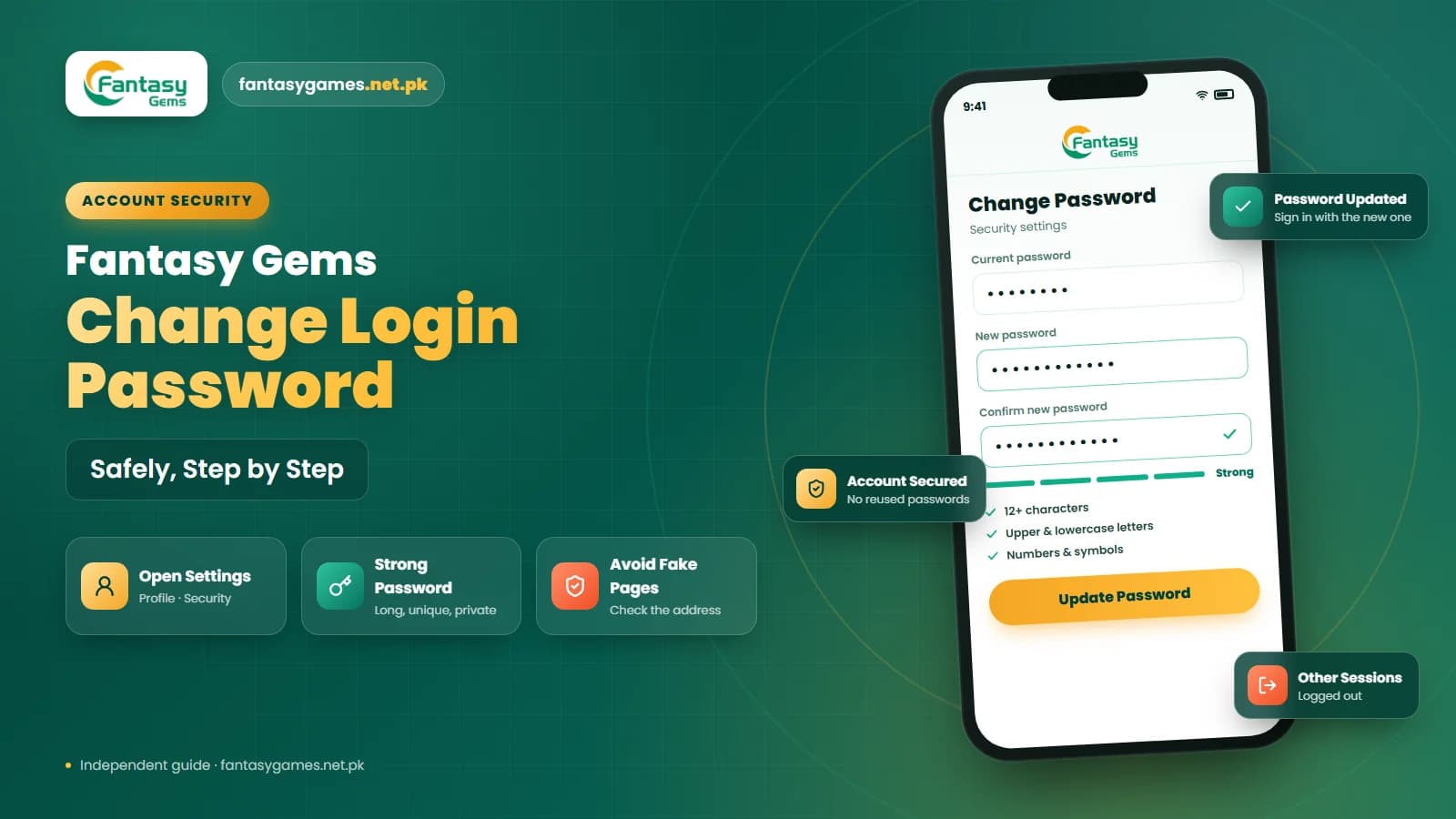
Make sure you remember your current password. If not, change it on the old phone while you still have access.
- 3
Move your SIM to the new phone, or keep the old phone powered on and able to receive SMS until the switch is complete.
- 4
Install the app on the new phone using the download page you trust or the Fantasy Gems APK download you originally used. Avoid links forwarded in WhatsApp groups.
- 5
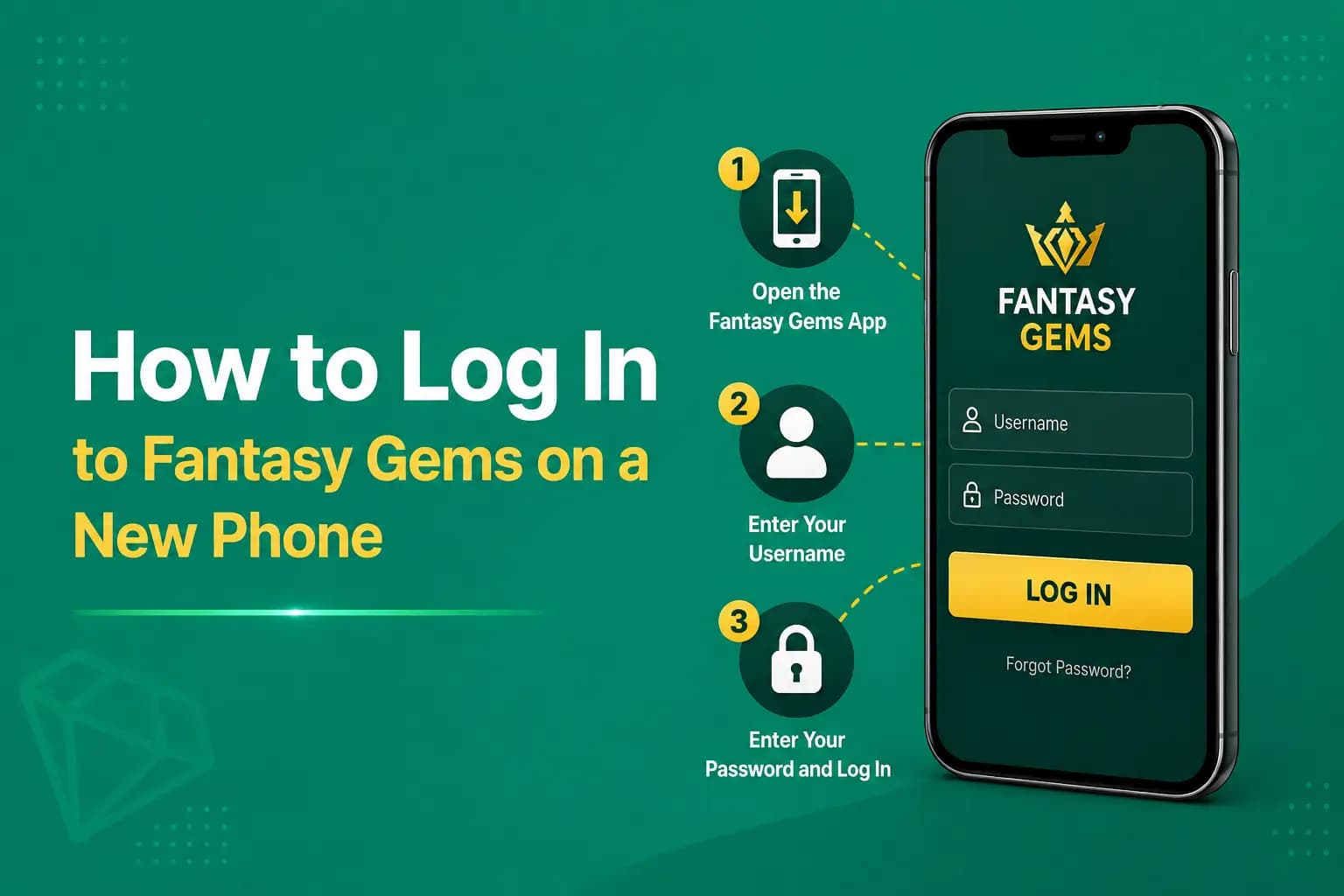
Open the app, tap the login option shown, and enter the same mobile number and password. Do not tap register.
- 6
If an OTP is requested, wait for the SMS and enter it in the app. Do not request a second code straight away, because the first may still be on its way.
- 7
Once you are in, check your wallet balance and recent transactions. If they match what you saw on the old phone, the move is complete and you can log out of the old device.
If step five fails, read the troubleshooting section below before creating anything new.
Why Fantasy Gems logged out your old phone
Many readers ask why they were logged out of Fantasy Gems on the old phone the moment they signed in on the new one. The likely explanation is a limited-session policy: when a new device authenticates, the server may end the previous session so that only one place holds a live login.
This is a security feature rather than a bug. If someone got hold of your password, signing in on your own phone would push them out, and their attempt would push you out and warn you that something is wrong. Being logged out when you did not sign in anywhere else is therefore worth taking seriously, and we cover that below. If you genuinely want both devices active, sign back in on the old one and see whether the new one survives; if it does not, pick a primary device.
Fantasy Gems for PC, Windows and emulators
Yes, you can usually use your Fantasy Gems account on PC. There is no separate Fantasy Gems for PC account; you sign in with the same mobile number and password you use on your phone. The two common routes are the web login in a desktop browser and an Android emulator such as BlueStacks on Windows 10 or 11 running the standard Fantasy Gems APK.
The emulator route feels closest to the phone experience, and our PC guide walks through it. Remember that an emulator counts as a new device, so expect an OTP on first login and, depending on session limits, expect your phone to be logged out while the PC session is active.
A few cautions apply. Only install the APK you would install on a real phone, never a so-called PC version from a random site. Do not save the password inside the emulator on a shared or office computer, and log out when you finish, since an emulator session left open on a family PC is effectively a shared account.
Keep your registered number ready for OTP checks
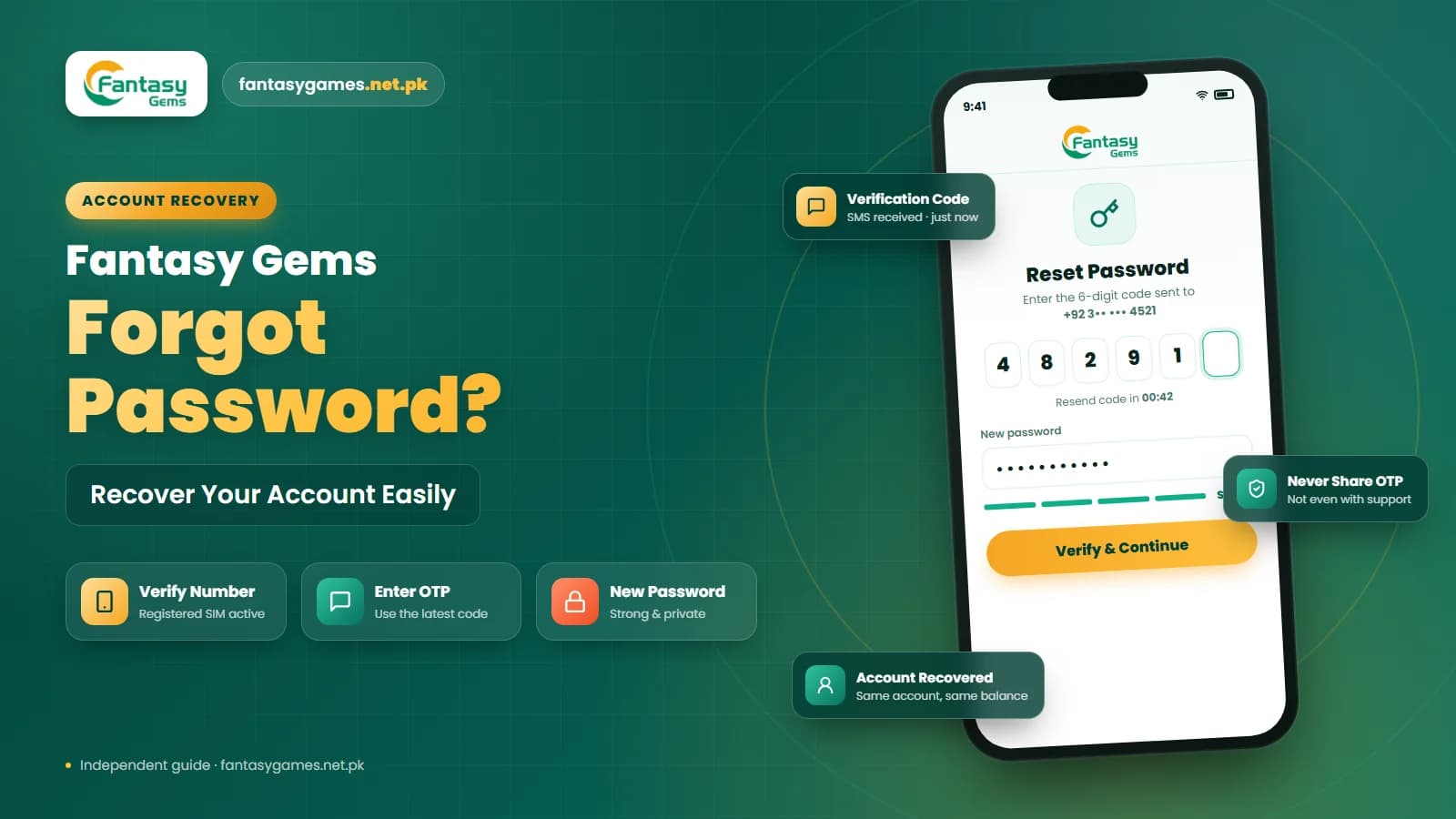
Fantasy Gems OTP verification is the step that most often blocks a multi-device login. Before you sign in anywhere new, confirm that your registered SIM is:
- Active and not expired or blocked by the network.
- In a phone that is switched on and has signal.
- Able to receive ordinary SMS, with the inbox not full.
- Not in airplane mode or a do-not-disturb profile that hides messages.
- The same number that appears on your Fantasy Gems profile, not an old one.
If you have lost access to that number entirely, use the account recovery option first; a new-device login without the OTP number is unlikely to succeed.
Your Fantasy Gems wallet is tied to one account
The reason all of this matters is money. Your Fantasy Gems wallet, with its PKR balance, its JazzCash and Easypaisa deposit history and any pending withdrawal, belongs to the account, not to the phone. Switching devices does not move, freeze or reset that balance; it simply shows the same figure wherever you sign in.
That is reassuring, but it cuts both ways. If you register a second account on the new phone because the first login failed, the wallet stays with the old account and the new one starts empty. Readers then ask why their deposit disappeared, when it is sitting safely in the account they stopped using. It also means a device that stays logged in can spend or withdraw, so treat a logged-in old phone or emulator the way you would treat a JazzCash app left open.
Fake Fantasy Gems login pages target device switchers
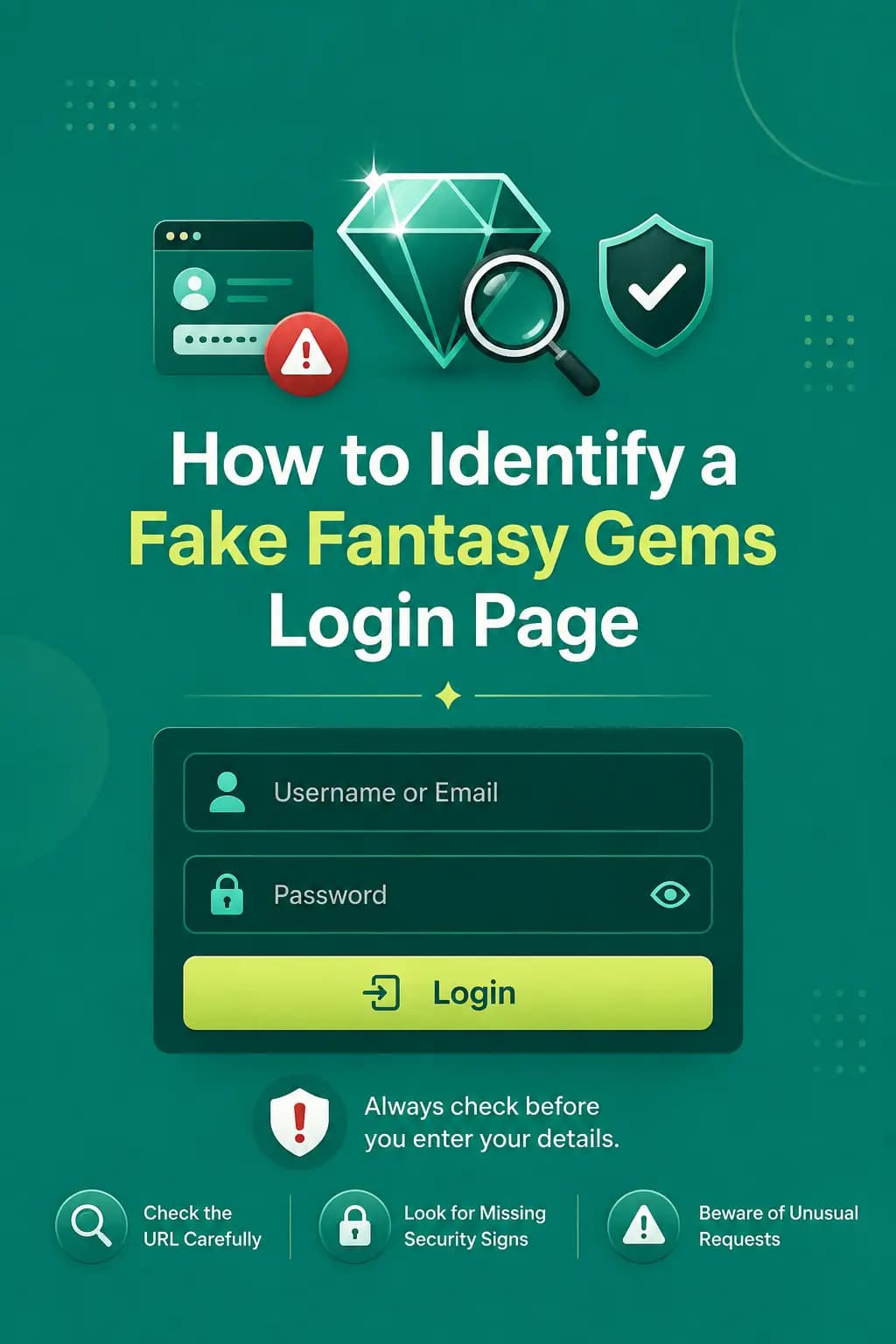
People setting up a new phone or PC often search for a Fantasy Gems login link and land on copied pages. A real login only asks for your mobile number, password and, sometimes, an OTP. Any page or so-called agent asking for your JazzCash PIN, Easypaisa PIN, bank password, a payment before login, or an OTP read out over the phone is a scam. Close it, and change your password if you already entered anything.
Sharing one Fantasy Gems account between two people
Can two people share one Fantasy Gems account? Technically the login works on both phones until one session pushes out the other. Practically, it is a bad idea:
- Session limits mean you will keep logging each other out mid-game.
- OTP codes go to one number only, so the other person is stuck whenever verification triggers.
- Both people can deposit and withdraw from the same wallet, with no way to separate the money afterwards.
- Verification and account recovery are tied to one identity.
- The platform's terms usually expect one person per account, so a rule broken by either of you affects both.
A friend who wants to play can use the register page and get their own wallet in minutes.
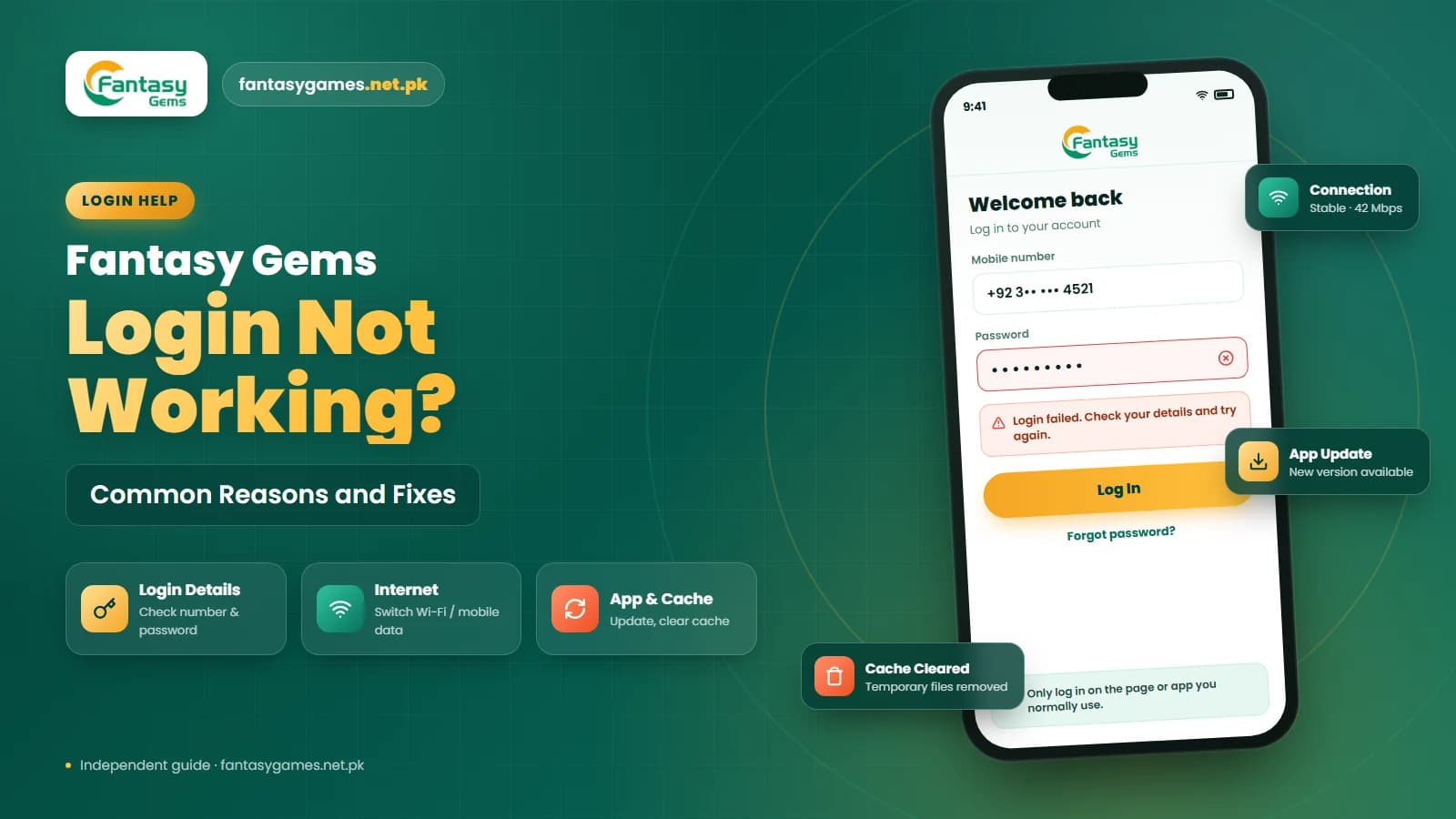
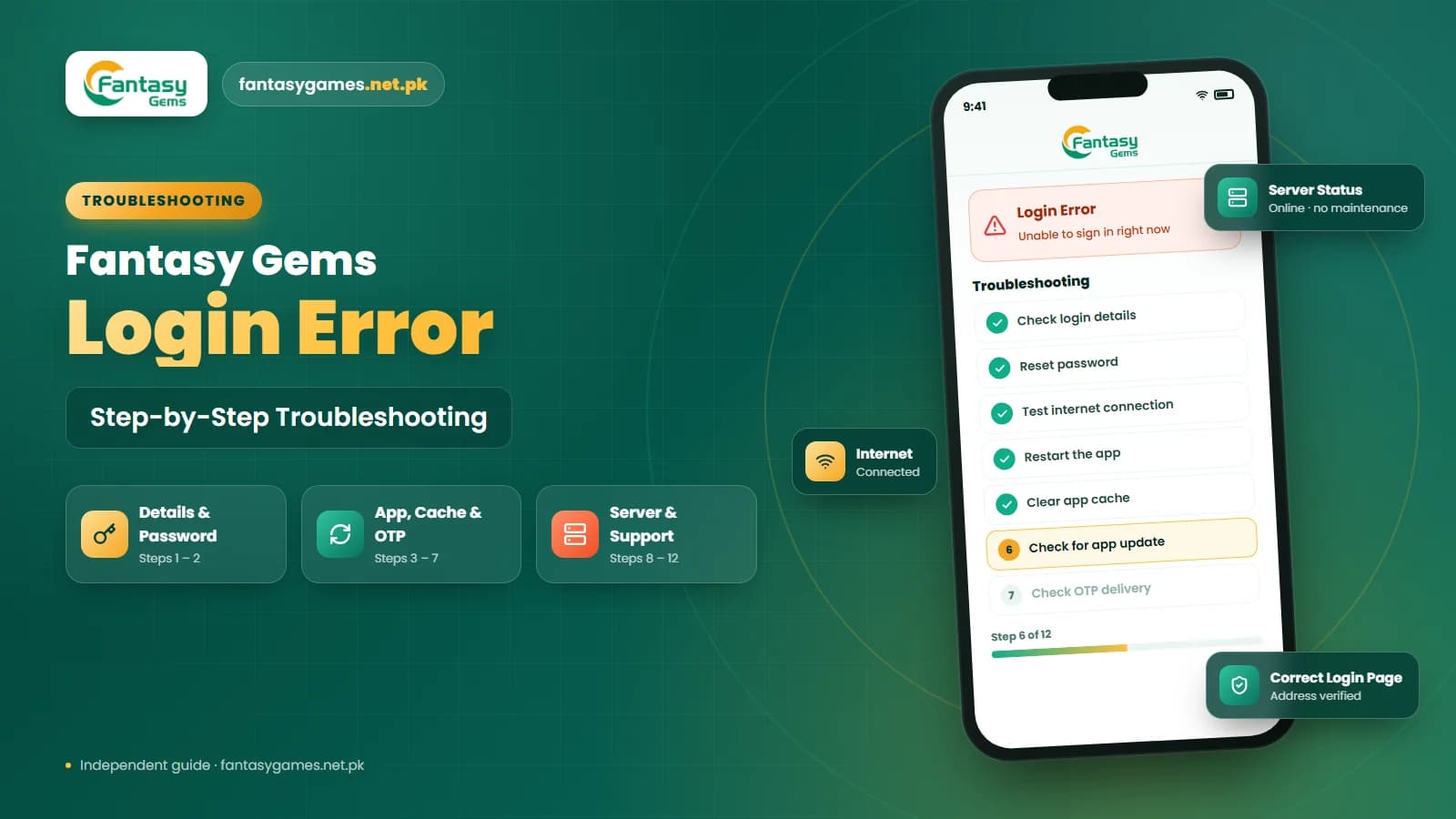
Fantasy Gems login not working after changing devices
If the login itself fails on the new device, the cause is usually one of these:
- A password saved in autofill that is older than your last password change.
- OTP going to a SIM that is no longer in a working phone.
- A different or outdated Fantasy Gems app version on the new device.
- Typing the number in a different format, for example with or without the country code.
- A temporary security hold after several failed attempts.
- A modified or unofficial APK that the server rejects.
Work down the list, closing the app fully after each fix. If everything fails, the in-app support option with a clear description of both devices usually beats repeated attempts.
Do not open a second Fantasy Gems account
It is tempting to register again when the login fails on a new phone, because registration is quick. Resist it. Two accounts under one person can confuse verification, split your deposits and may breach the platform's terms. Use the Fantasy Gems password reset and account recovery options first; they exist precisely for this situation.
Signs of unauthorized Fantasy Gems device access
Multiple-device access is only safe if all of those devices are yours. Act quickly if an OTP arrives that you did not request, you are logged out for no reason, or a wallet transaction appears that you did not make.
- 1
Sign in from a device you trust and change your Fantasy Gems password immediately.
- 2
Use the log out of all devices or manage sessions option if the app offers one.
- 3
Check the wallet, deposit and withdrawal history for anything unfamiliar and screenshot it.
- 4
Never share an OTP with anyone, including someone claiming to be support.
- 5
Contact support through the app with the screenshots.
- 6
Change the password on any other service where you reused the same one.
Final Words on Fantasy Gems multi-device login
Fantasy Gems login on multiple devices usually works, as long as you remember that the account, not the device, is what matters. Sign in with the same details everywhere, keep your registered number reachable for OTP checks, and accept that an older session may close when a new one opens.
Your wallet balance travels with the account, so never create a second account to work around a login problem; recover the first one instead. Keep shared devices and emulators logged out when you are done, and treat any request for a payment PIN as a scam.
Some people search for Fantasy Game login and mean this same app; the advice above applies just the same. If you are still stuck, the login page and the Fantasy Gems account recovery guide cover the next options.
Switching to a New Device?
Sign in with your existing account details — no need to create a new account.
Fantasy Gems login on multiple devices FAQs
Usually yes. There is no separate PC account; you sign in with the same mobile number and password through the web login in a desktop browser or through an Android emulator running the normal Fantasy Gems APK. Expect an OTP the first time, and be aware that your phone may be logged out while the PC session is active if the platform limits simultaneous sessions.