Fantasy Gems Auto Login Not Working: How to Fix It
Fantasy Gems auto login not working? See why the app keeps asking you to sign in, and fix saved passwords, sessions, battery settings and cookies so it remembers you again.
Independent guide — not an official Fantasy Gems channel.

Login Help
Category
Saved Login
Focus
17 min
Read Time
Oct 2026
Published
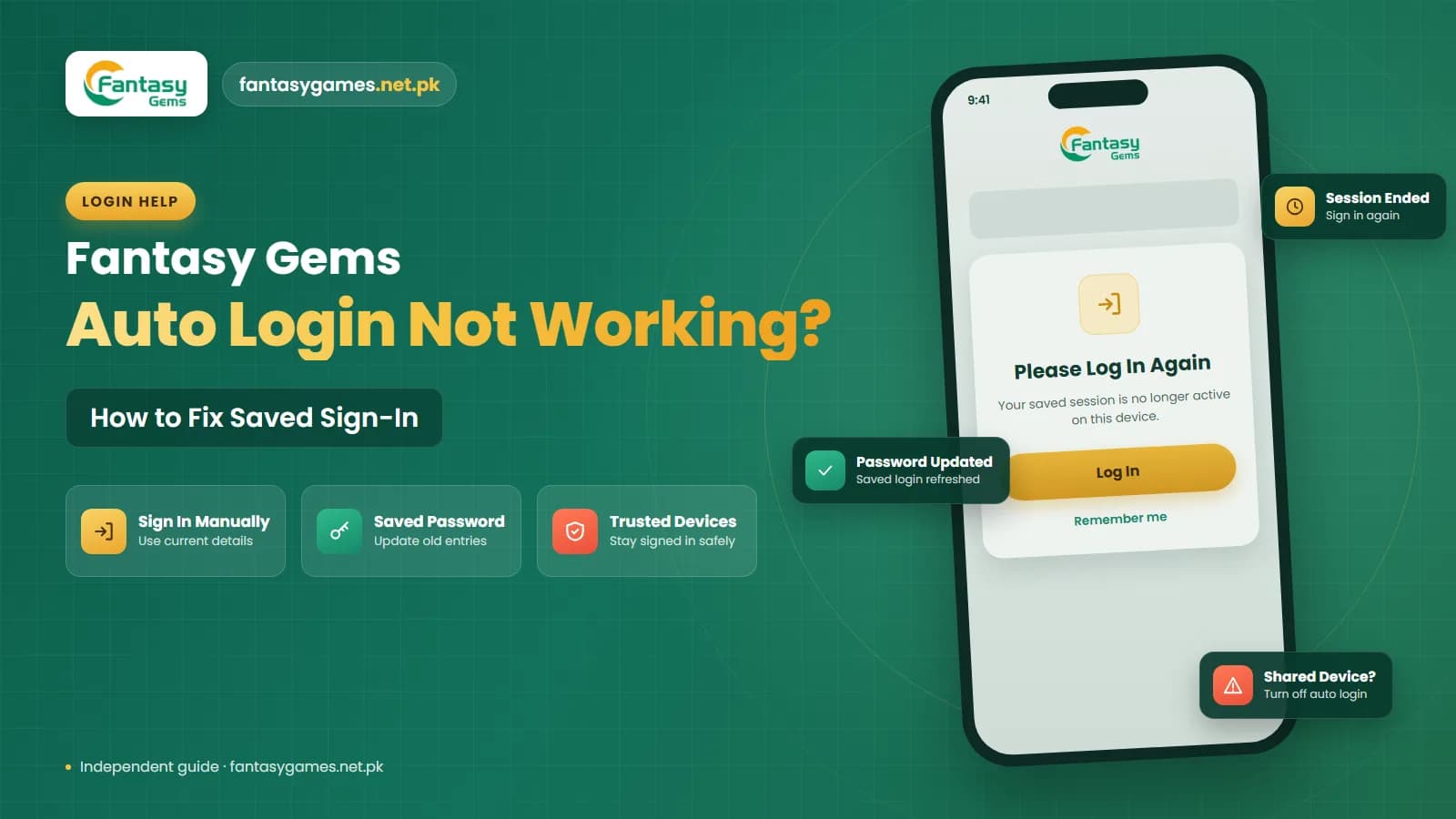
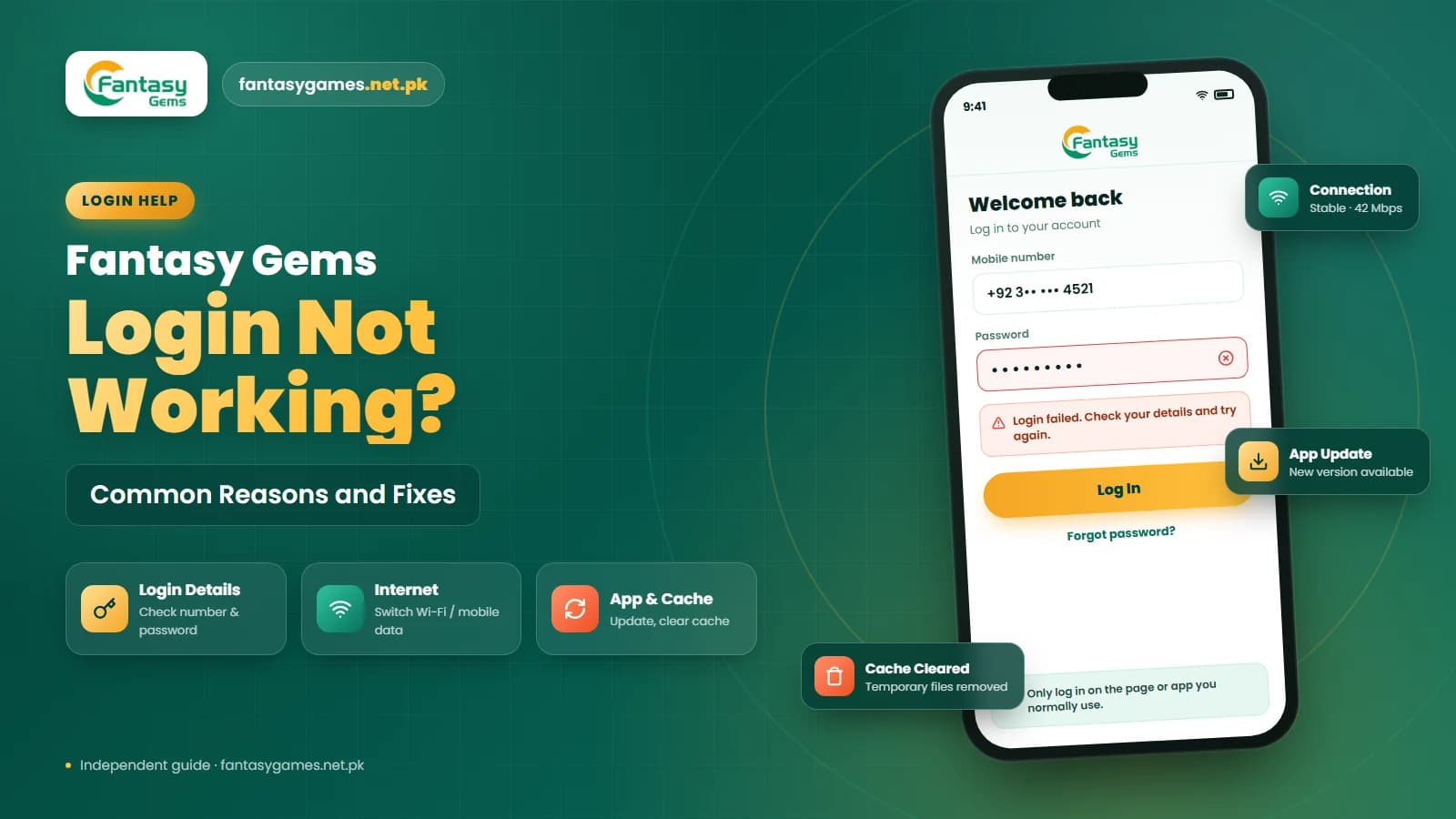
A Fantasy Gems auto login not working problem happens when the app or browser stops signing you in automatically even though it worked before. Instead of opening directly to your account, Fantasy Gems shows the login screen and asks for your mobile number, username or password again.
This does not always mean that your Fantasy Gems account has a serious problem. Auto login can stop working after a password change, an app update, a cleared cache, an expired session, a browser setting change or a login from another device. Before creating another account, it is better to check why your Fantasy Gems saved login is not working, because your balance and history stay with the original account.
This guide explains the common causes of a Fantasy Gems automatic login problem and the steps you can try to restore normal account access. It is an independent guide, not an official Fantasy Gems channel, so where the app's own behaviour may differ between versions we say so and tell you where to check.
Quick fixes when Fantasy Gems auto login stops working
Work through these in order. For most readers the first three are enough.
- Sign in manually once with your registered mobile number and current password, so the app has a fresh session to remember.
- If the login screen shows a Remember Me or keep me signed in option, select it before you tap login.
- Delete any old Fantasy Gems password saved in your phone or browser and save the current one instead.
- Close the app completely, reopen it, and restart the phone if it still asks for your details.
- Exclude Fantasy Gems from battery optimisation and cleaner apps so its saved login is not wiped in the background.
- Clear the app cache (not the app data) and update to the current version of the app.
- In a browser, use a normal window rather than private or incognito mode, and allow cookies for the site.
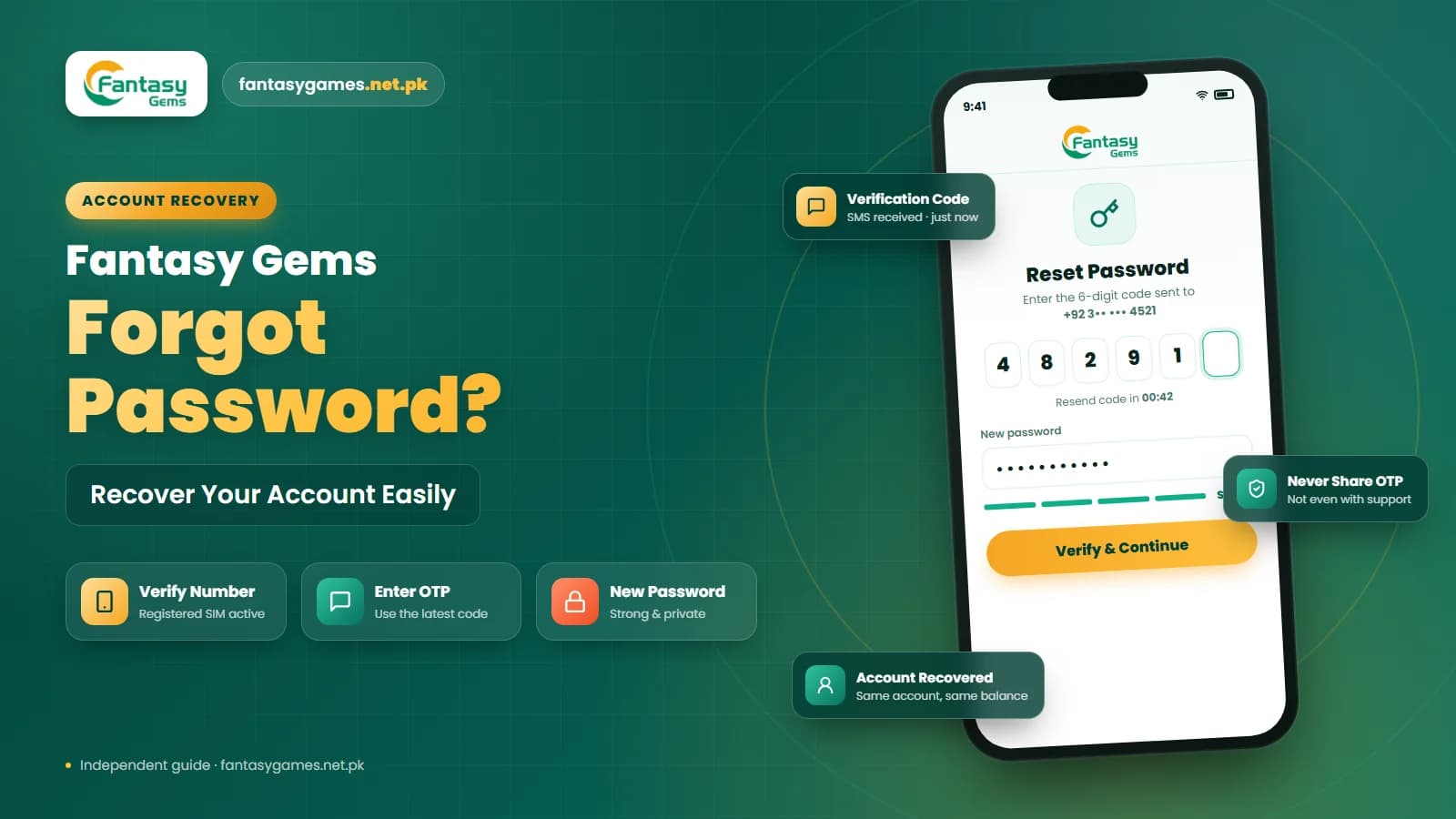
If the app rejects your password during the manual sign-in, auto login is not the real problem. Our forgot password guide covers that case.
How Fantasy Gems automatic login works
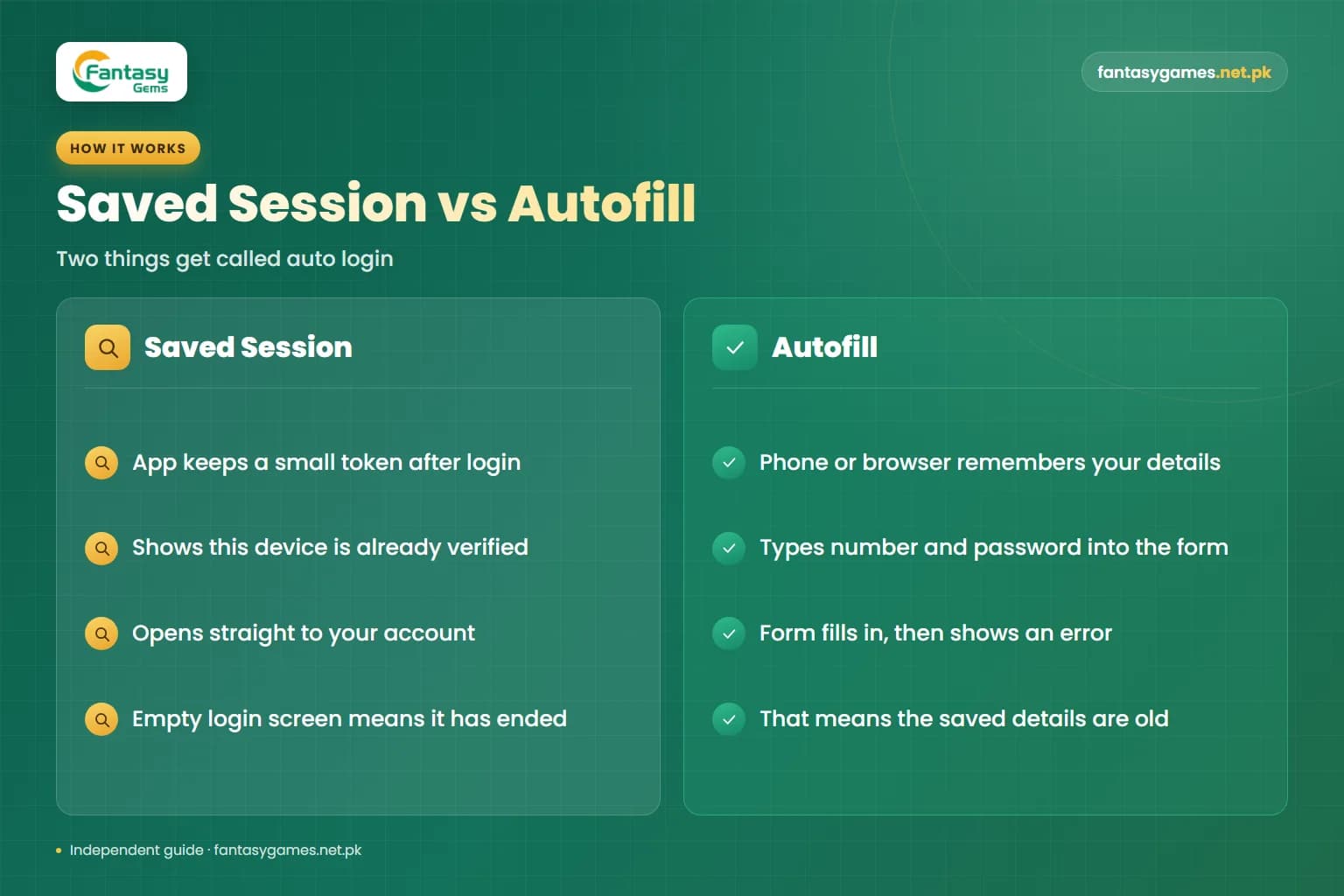
Two different things get called auto login, and it helps to know which one has failed. The first is the saved session: after a successful Fantasy Gems game login, the app or browser keeps a small token that proves this device has already been verified, so the next time you open it you go straight to your account. The second is autofill: your phone or browser remembers your number and password and types them into the login form for you.
If the app opens to a login screen that is empty, the saved session has ended. If the login screen opens, fills itself in and then shows an error, autofill is supplying outdated details. The fixes are different, which is why the sections below treat them separately.
Why Fantasy Gems keeps asking you to log in: causes and fixes
Match what changed on your phone to the most likely cause.
| What changed | What it means | What to do |
|---|---|---|
| You changed or reset your password | Older sessions were ended and autofill still holds the old password | Type the new password by hand, then update the saved entry |
| The app was updated or reinstalled | The stored session was refreshed or removed with the old install | Sign in once manually and complete any OTP check |
| Clear Data or a cleaner app was used | The saved login was deleted from the phone | Log in again and stop the cleaner from touching the app |
| You signed in on another phone or emulator | The platform may have closed the older session | Sign in on the device you actually want to use |
| The app was unused for a long time | The session reached its time limit | Log in again; this is normal behaviour |
| Private browsing, or cookies were cleared | The browser threw away the session when it closed | Use a normal window and keep site data for the page |
| Battery saver is closing the app | Android is restricting the app in the background | Set the app's battery usage to unrestricted |
Session rules are set by the platform and can change between versions, so treat this as a guide to likely causes rather than a fixed rulebook.
Check whether your Fantasy Gems session expired
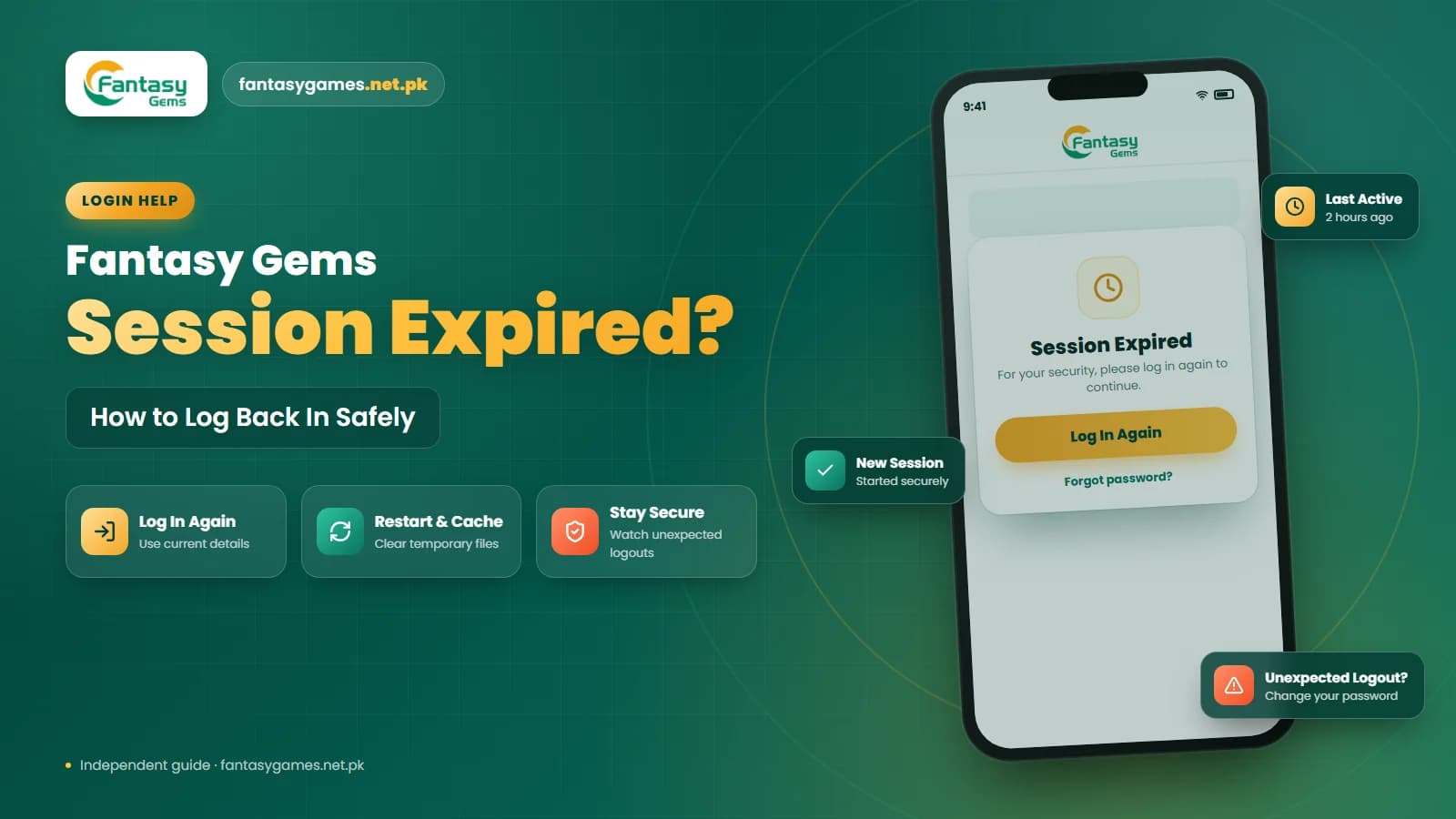
One of the most common reasons auto login stops working is an expired session. A login session allows Fantasy Gems to remember that your account has already been verified. When that session expires, the app may ask you to log in again. A Fantasy Gems session expired issue may happen because of:
- Long periods of inactivity
- App restart
- Password change
- Login on another device
- App update
- Cleared app data
- Temporary server changes
If you see the login screen again, enter your account details and sign in normally. After a successful login, auto login may begin working again if the app stores the new session. If the session ends again within minutes, our Fantasy Gems session expired guide explains the clock and network causes in detail.
Check your saved Fantasy Gems login details and autofill
Your phone or browser may be trying to use outdated login information. This is especially common after changing your password. Check whether the saved details include:
- Correct mobile number
- Correct username
- Current password
- Correct country code
- No extra spaces
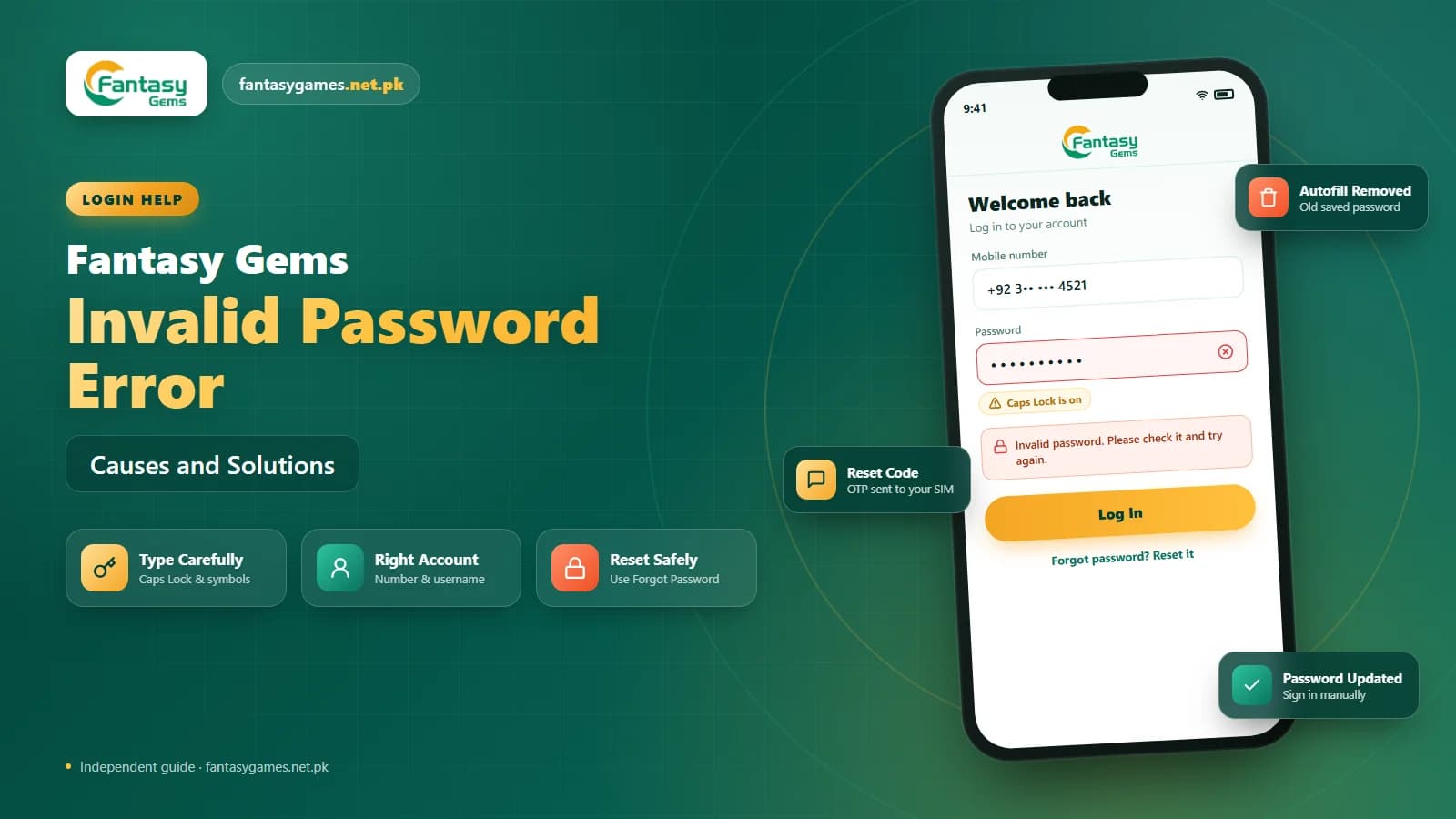
If your device automatically fills in an old password, delete the saved entry and type your current password manually. After logging in successfully, update the saved password in your browser or password manager. An outdated saved credential is a common cause of Fantasy Gems saved login not working.
Why your saved Fantasy Gems password is not filling in on Android
On most Android phones, saved passwords live in Google Password Manager or in the phone maker's own autofill service. Autofill only works when one service is switched on in the phone's settings, usually under Passwords or Autofill service, and when you are signed in to the same Google account that saved the password. If you changed Google accounts or moved to a new phone, the entry may simply not be there.
Autofill also treats an app and a website as two different places. A password saved while using Fantasy Gems in Chrome may not be offered inside the app, and the reverse is also true. Some apps use login fields that autofill services do not recognise at all, in which case nothing will be suggested and you have to type the details yourself.
On a dual-SIM phone, check the number that is being filled in. Android may suggest the number of either SIM, and only the one you registered with will match your account. If you have more than one saved entry for Fantasy Gems, delete the duplicates so the phone cannot pick the wrong one.
Check the Fantasy Gems Remember Me option
Some login pages include a Remember Me, Keep Me Signed In or similar option. If this option is available and not selected, Fantasy Gems may ask for your login details each time you open the app or website. Check the Fantasy Gems login page before signing in.
If you are using a shared device, staying signed in may not be a good idea. Use automatic login only on a device you personally control. Anyone who can unlock a phone that stays signed in can open your account and your wallet without knowing the password, so a screen lock matters as much as the password itself.
Restart the Fantasy Gems app and your phone
Temporary app problems can interrupt saved sessions and prevent automatic login. Close Fantasy Gems completely instead of leaving it running in the background, then reopen the app.
If the Fantasy Gems app login still does not work automatically, restart your phone. A device restart may clear temporary processes and refresh the app session.
Clear the Fantasy Gems app cache, not the app data
Damaged or outdated cache files may affect Fantasy Gems auto login. Android users can usually clear the Fantasy Gems cache through device settings. The path may look similar to: Settings > Apps > Fantasy Gems > Storage > Clear Cache. After clearing the cache, reopen the app and log in manually.
Avoid selecting Clear Data unless necessary because it may remove saved login information completely. Make sure you know your mobile number, username and password before deleting all app data. Neither option touches your account itself; your balance and history are held on the platform's side, not in the phone's storage.
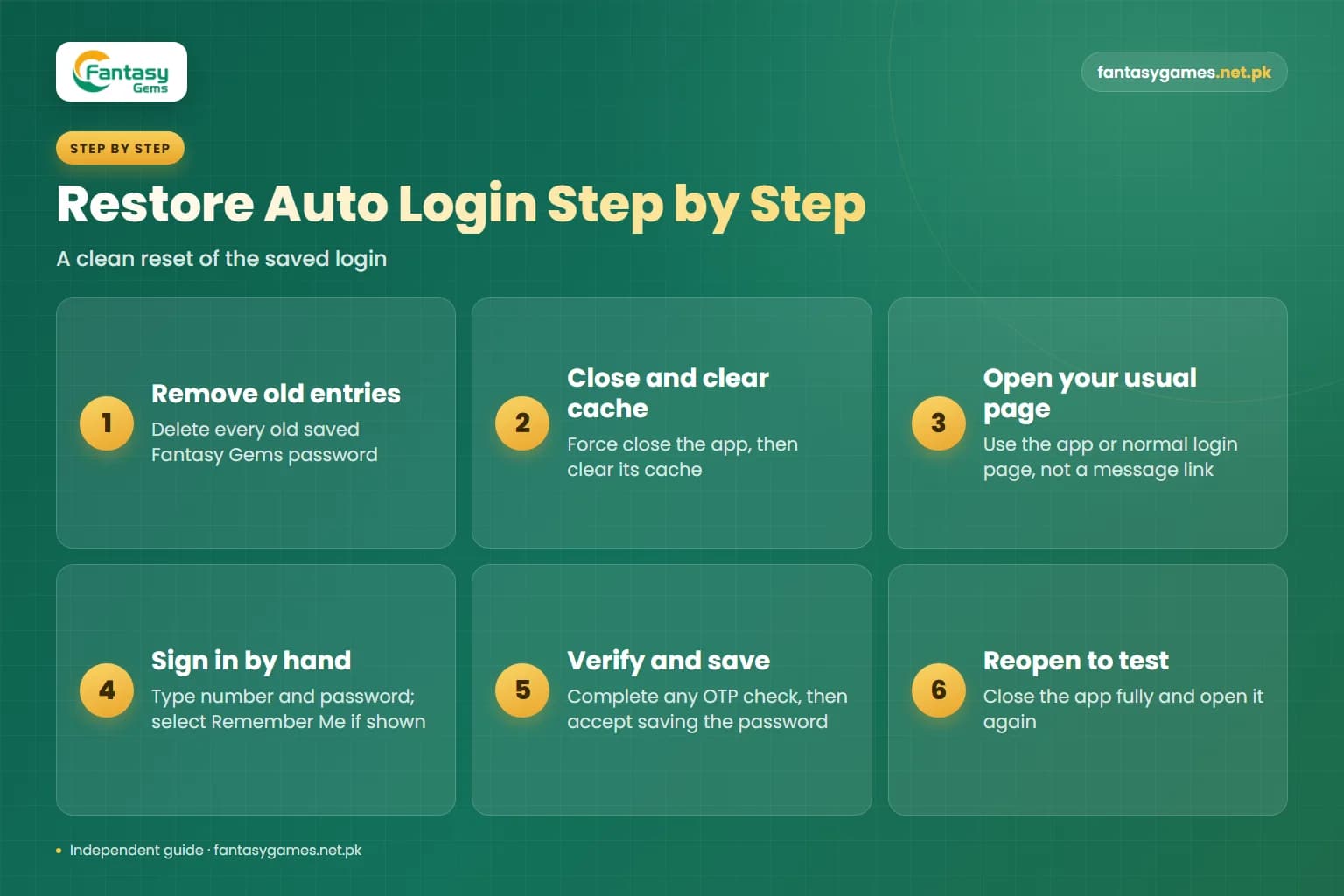
How to restore Fantasy Gems auto login step by step
If the quick fixes did not hold, do a clean reset of the saved login in this order.
- 1
Open your phone's password settings or your browser's saved passwords and remove every old Fantasy Gems entry.
- 2
Force close the app, then clear its cache from the phone's app settings.
- 3
Open the app or the login page you normally use. Do not reach it through a link in a message or an advert.
- 4
Type your registered mobile number and current password by hand, and select Remember Me if the screen offers it.
- 5
Complete the OTP check if one is requested, using the SMS that arrives on your registered SIM.
- 6
When the phone offers to save the password, accept, so that autofill now holds the correct details.
- 7
Close the app fully and open it again. If you land in your account, the saved session is working.
If step seven fails every time on the same phone, the cause is usually the battery or cleaner settings covered in the next section.
Stop battery optimisation from breaking Fantasy Gems saved login
Many Android phones sold in Pakistan ship with aggressive battery management. Brands such as Xiaomi, Infinix, Tecno, Vivo and Oppo add their own power-saving layers that close background apps, and some bundled cleaner or phone manager tools clear app storage to free up space. When that happens the saved session can disappear and the app asks you to log in again.
Open the battery section of your phone's settings, find Fantasy Gems in the app list and set it to unrestricted, or not optimised, depending on the wording your phone uses. Then open any cleaner or booster app and remove Fantasy Gems from its automatic clean-up list. Also keep date and time on automatic, because a wrong clock can make a valid session look expired.
Fantasy Gems auto login stopped after an app update
An app update may refresh or remove an existing login session. If Fantasy Gems auto login stopped after update, this does not necessarily mean the update is faulty. The app may simply require you to verify your login again.
Open the Fantasy Gems login page and enter your account details manually. If an OTP is required, complete the verification process. After signing in successfully, check whether the app remembers your session when you reopen it.
Check whether you changed your Fantasy Gems password
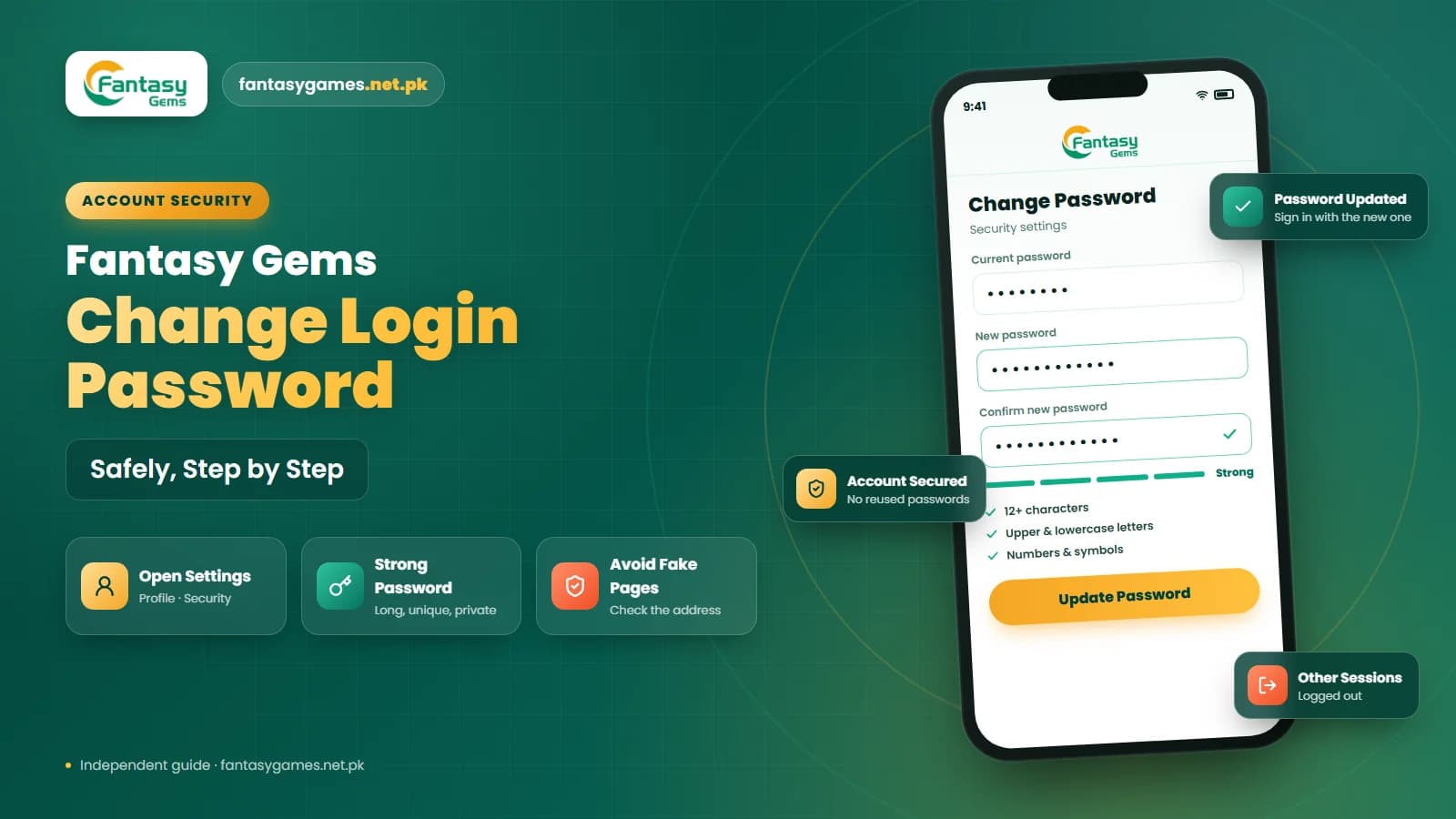
A password change can invalidate older login sessions. If you recently completed a Fantasy Gems password reset, your device may still be trying to use the previous password. Delete any saved password and enter the new one manually.
If the app continues showing the login screen after a successful sign-in, restart Fantasy Gems and check whether the new session remains active. Do not repeatedly reset the password unless your current password is actually being rejected.
Check browser cookie settings for Fantasy Gems auto login
If you use Fantasy Gems through a web browser, automatic login may depend on cookies or stored site data. The Fantasy Gems automatic login problem may appear if:
- Browser cookies were cleared
- Private browsing is enabled
- Site data is blocked
- The browser was reset
- Security settings changed
Try opening Fantasy Gems in normal browser mode rather than private or incognito mode. If you regularly clear browser cookies, you may need to sign in again afterward. Avoid changing advanced browser settings unless you understand how they affect saved sessions.
Fantasy Gems auto login on PC, browser or an emulator
On a computer the same rules apply with a few extras. A browser set to clear cookies on exit will forget your login every time you close it, and so will a privacy extension that deletes site data. Signing in on a shared or office PC and letting the browser save your password is risky, because the next person can open your account.
If you run the Android app inside an emulator, remember that the emulator is a separate device with its own storage. Resetting it, or creating a new instance, removes the saved login just as Clear Data does on a phone. Our PC guide explains the setup, and the guide on Fantasy Gems login on multiple devices covers what to expect when the phone and the PC share one account.
Check your internet connection
A poor internet connection may prevent the app from restoring your saved login session. If a Fantasy Gems login problem appears when opening the app, test your connection. Try:
- Switching from Wi-Fi to mobile data
- Switching from mobile data to Wi-Fi
- Restarting your router
- Turning airplane mode on and off
- Restarting your phone
If other online services are also slow, the issue may be related to your network rather than Fantasy Gems.
Check whether you logged in on another device
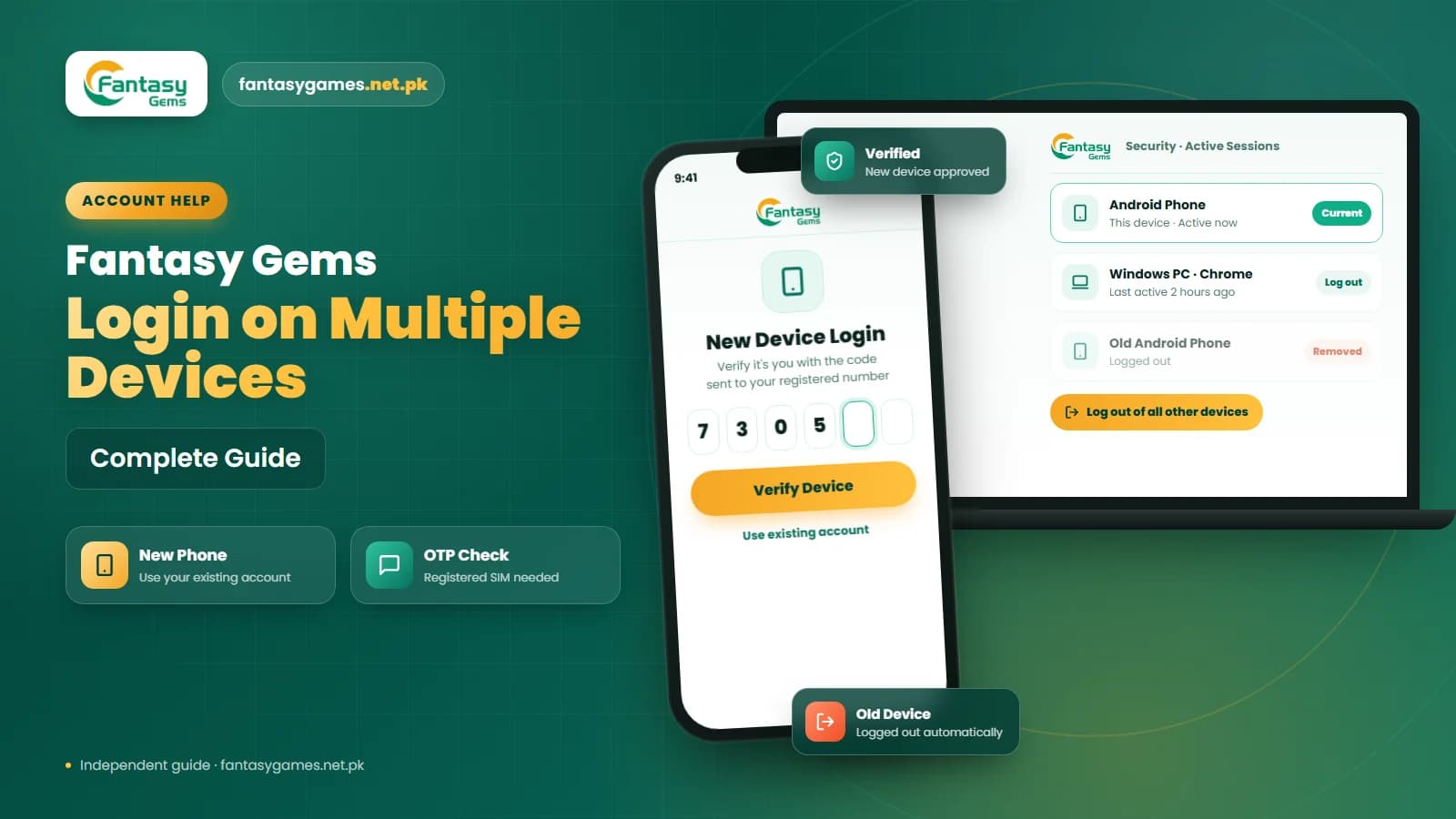
Some platforms may end an older session after the same account is used on another phone. If you recently logged into Fantasy Gems on a different device, your first device may no longer auto login. Sign in again on the device you want to use.
If the platform provides options such as Manage Sessions or Log Out of All Devices, review them if you think another device may still be connected with your account. If you did not sign in anywhere else yourself, change your password; our guide on how to log out of Fantasy Gems on all devices walks through the rest.
Check the Fantasy Gems app version
An outdated Fantasy Gems app may cause session or login problems. If you installed the application through a Fantasy Gems APK, check whether the installed version is still suitable for your device. Avoid modified APK files that claim to provide:
- Permanent login
- Login bypass
- Unlimited sessions
- Account unlocking
- Hacks
Unknown APK files may create security problems or expose your Fantasy Gems login information. No modified app can keep you signed in against the platform's own session rules; what such files can do is read the number and password you type into them.
Be careful with fake Fantasy Gems auto login pages
If auto login stops working, you may search online for another Fantasy Gems login page. Be cautious. A fake login page may claim that you need to reactivate automatic login by entering sensitive information. Do not provide:
- Easypaisa PIN
- JazzCash PIN
- Wallet PIN
- Banking password
- OTP to another person
- Payment before login
A normal Fantasy Gems login process should not require your private payment credentials.
No genuine login asks for your JazzCash or Easypaisa PIN
Messages offering to reactivate auto login, unlock your saved session or verify your device through a link are phishing, whatever logo they carry. Logging in needs your mobile number, your password and sometimes an OTP that you type into the app yourself. It never needs a JazzCash PIN, an Easypaisa PIN, a bank password or a fee. If you have already entered a PIN on such a page, change your Fantasy Gems password and contact your mobile wallet provider's helpline straight away.
Do not register a second account because auto login failed
Being asked to sign in again is an inconvenience, not a lost account. Registering a new account leaves your wallet balance, deposit history and any pending withdrawal behind in the original one, and holding more than one account may be against the platform's rules. Sign in manually to the account you already have, and use the password reset option if the password is the part you cannot remember.
Contact Fantasy Gems support for auto login problems
If Fantasy Gems auto login is not working even after signing in manually, checking the app, and restarting your device, use the support option available through the platform. Explain:
- Whether manual login works
- When auto login stopped working
- Whether you recently changed your password
- Whether the app was updated
- Whether you logged in on another device
- Your phone model and Android version, and whether you use the app or a browser
A screenshot of any error message may also help. Reach support only through the option inside the app or on the site you normally use, not through numbers posted in social media groups. Never provide your complete password, OTP, Easypaisa PIN, JazzCash PIN, wallet PIN, or banking password to anyone claiming to provide support.
Final Words
A Fantasy Gems auto login not working issue can be caused by an expired session, outdated saved password, app update, cleared cache, browser cookie settings, or login from another device.
Start by signing in manually with your current account details. Then check whether the Remember Me option is enabled, restart the app, review saved passwords, and confirm that your Fantasy Gems version is suitable. If the Fantasy Gems automatic login problem continues, check browser settings, battery settings, internet connection, and active device sessions.
Most importantly, use auto login only on trusted personal devices and avoid fake login pages or third-party tools claiming they can bypass Fantasy Gems account security. The app is a real-money platform for adults, so a phone that stays signed in deserves a screen lock and a password nobody else knows.
Auto Login Stopped? Sign In Manually
Log in with your current details through the Fantasy Gems app or login page you normally use.
Related Guides
Fantasy Gems auto login FAQs
Fantasy Gems auto login usually stops because the saved session on your phone has ended or been deleted. Common triggers are a password change, an app update, Clear Data, a cleaner app, a login on another device or a long period without use. Sign in manually once with your current details; in most cases the app then stores a new session and opens normally again.