Fantasy Gems Forgot Password: How to Recover Your Account
Fantasy Gems forgot password fix: use the reset option, verify your registered number, sort out OTP delays and set a secure new password safely.
Independent guide — not an official Fantasy Gems channel.

Account Recovery
Category
Password Reset
Focus
10 min
Read Time
Sep 2026
Published
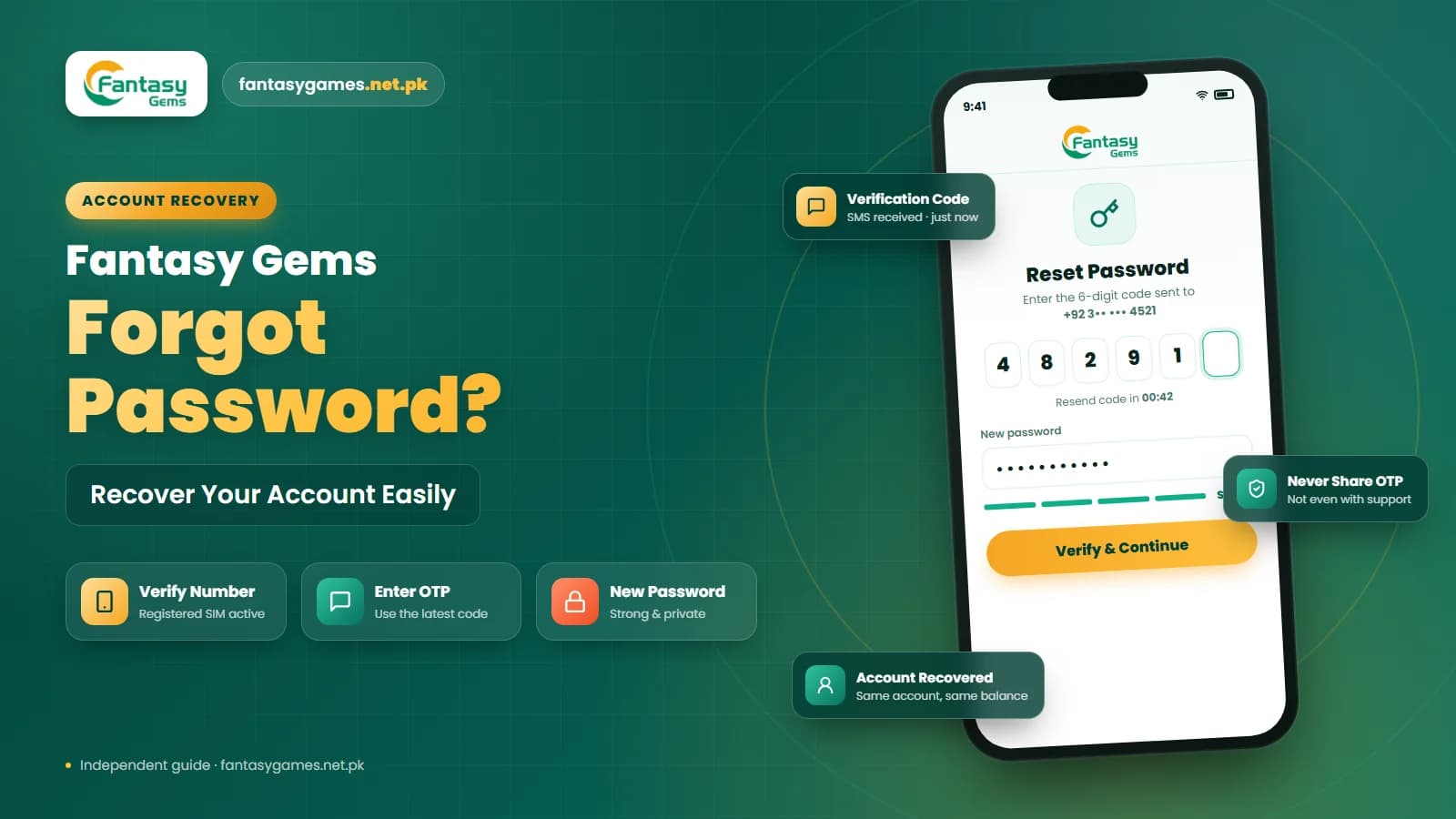
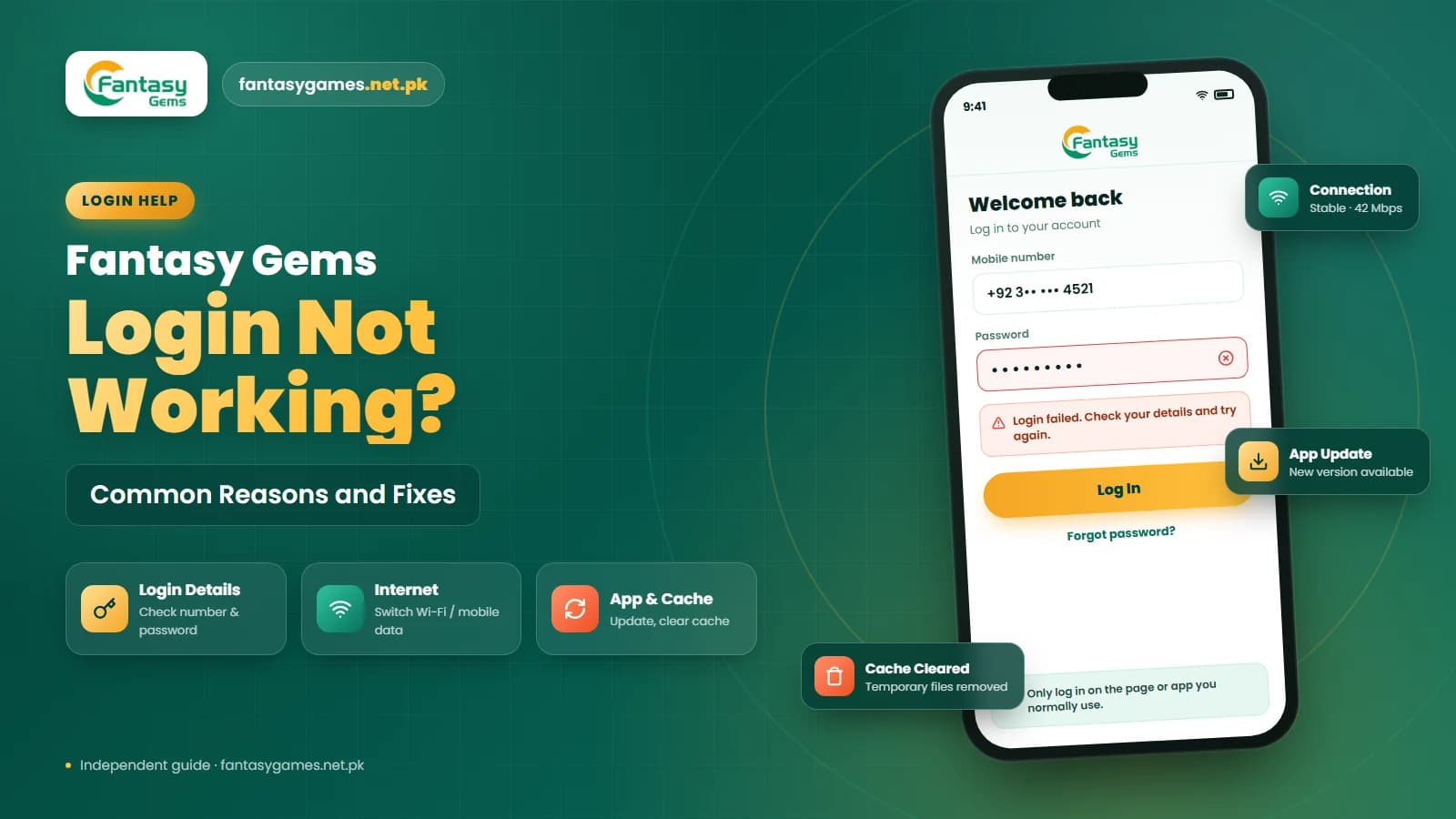
A Fantasy Gems forgot password moment usually arrives at the worst time: you open the app to check a contest, the Fantasy Gems login screen asks for a password, and nothing you type is accepted. The good news is that a forgotten password is one of the most common account problems there is, and the app usually includes a recovery option built for exactly this situation.
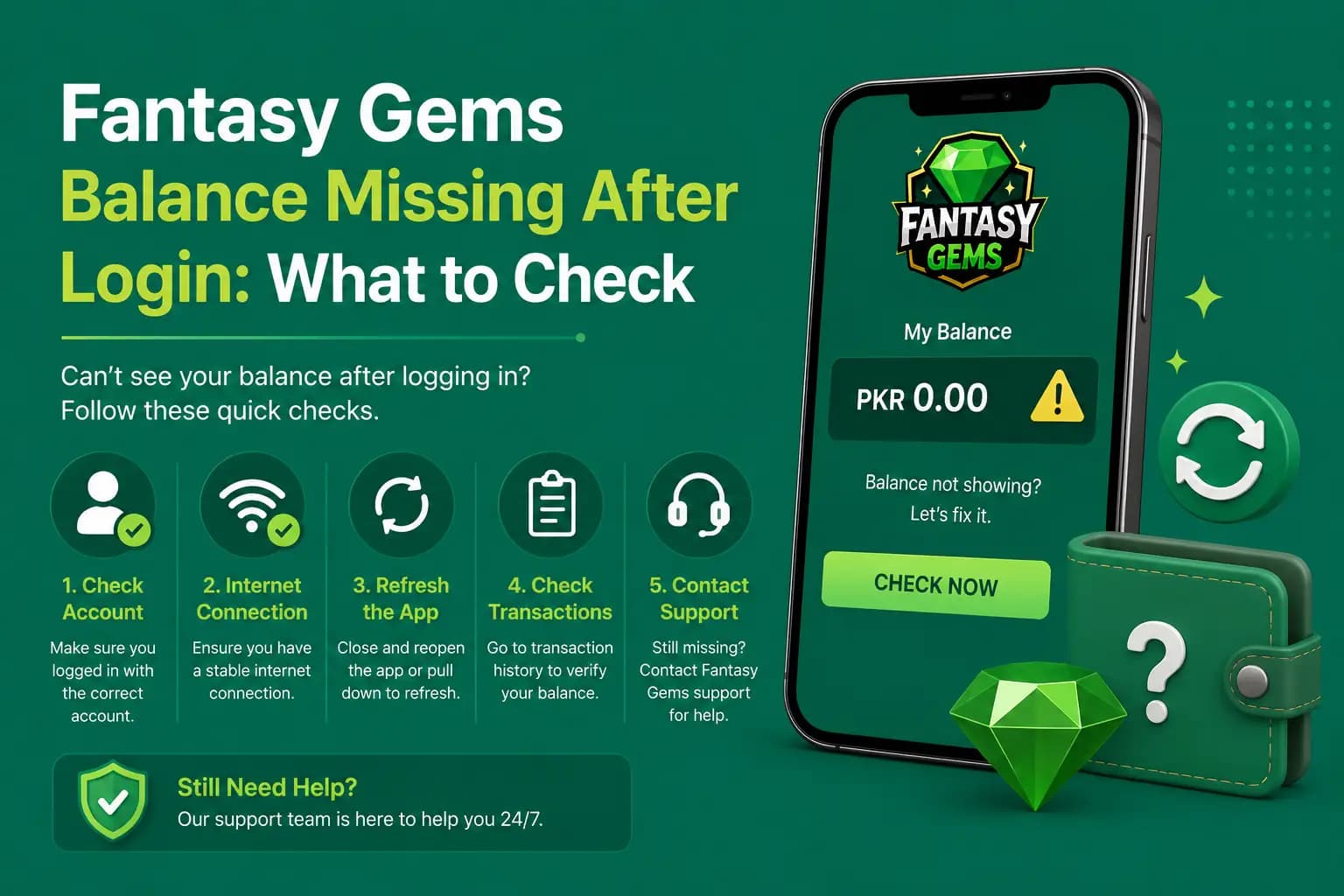
Before you create another account, try to recover the one you already use. Your registered mobile number, wallet balance, deposit history and withdrawal records are usually tied to that single account, and a fresh registration will not bring any of it across.
This guide walks through the Fantasy Gems password reset process as it usually appears in the app, what to check when the OTP does not arrive, how to handle recovery when you no longer have the registered SIM, and how to keep the new password safe once you are back in.
Quick fixes for Fantasy Gems forgot password
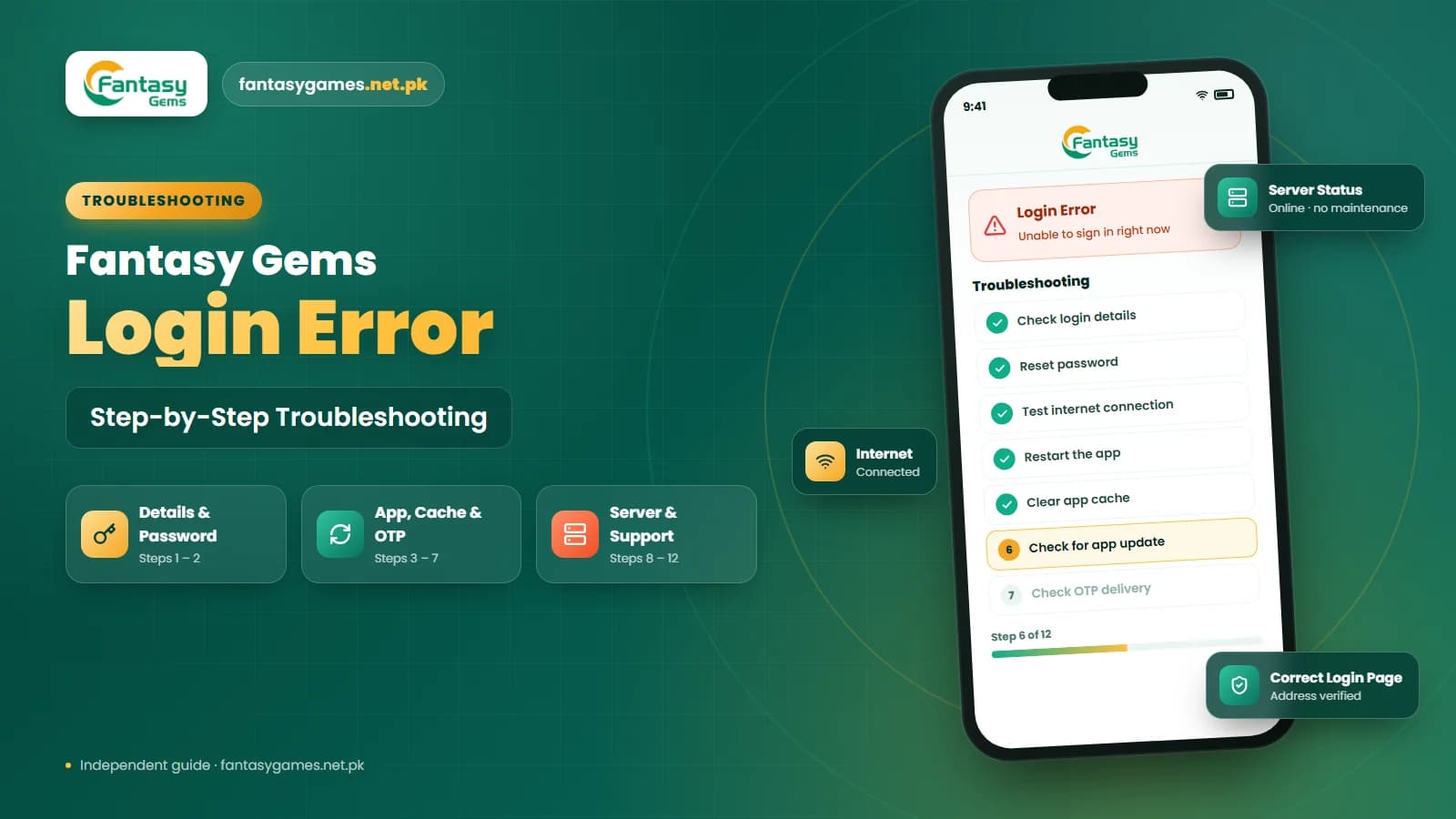
If you only have a minute, work through these in order. Most people are back inside their Fantasy Gems account after the first two or three.
- Tap the forgot or reset password option shown on the Fantasy Gems login screen instead of guessing again.
- Enter the exact mobile number you used at registration, including the country code if the app asks for one.
- Wait for the OTP, check that your SIM has signal, and type the code promptly before it expires.
- Create a new password that you have not used on Easypaisa, JazzCash, email or any other service.
- Delete any old password your phone or browser auto-fills, then type the new one by hand.
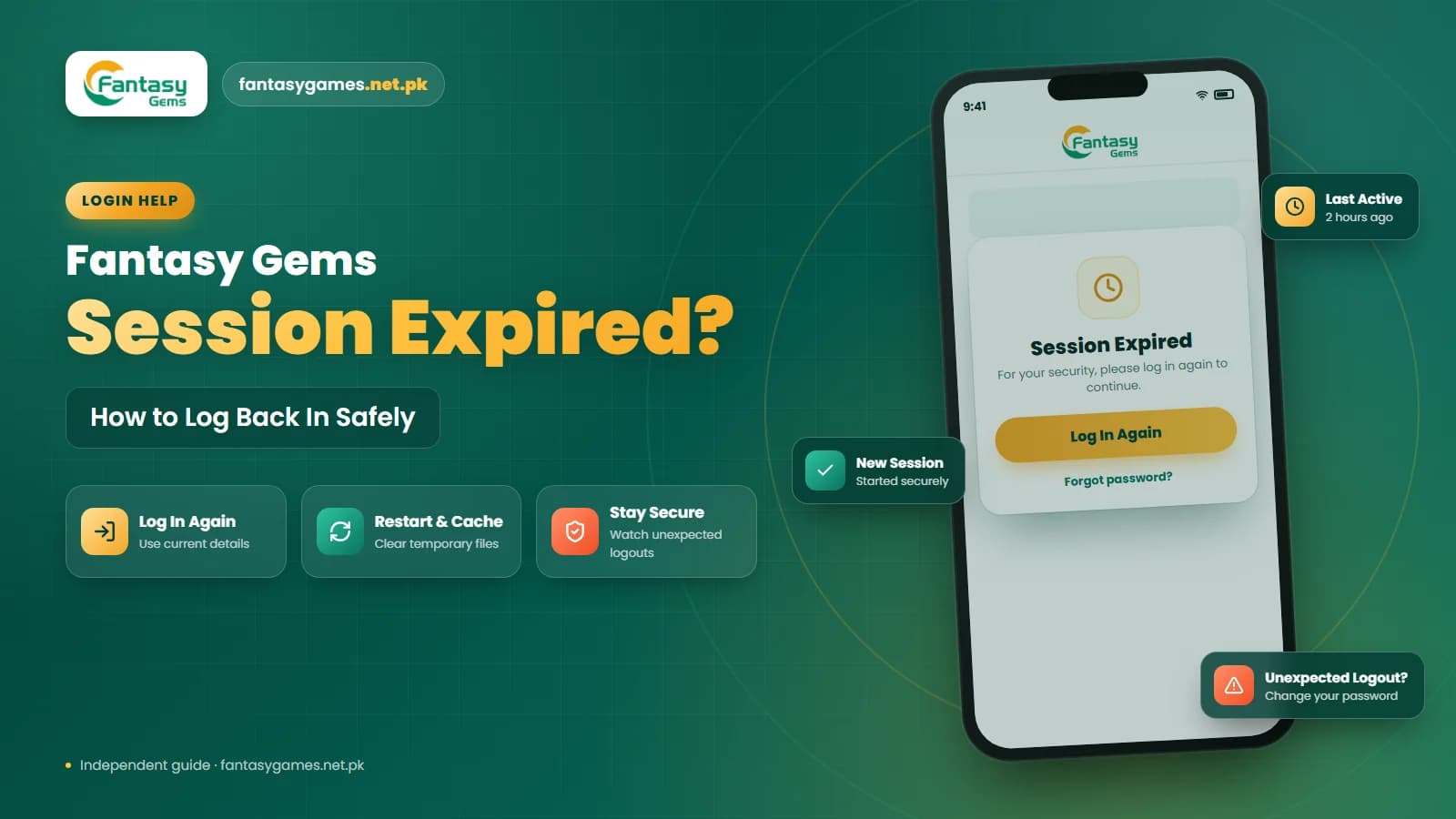
- Restart the Fantasy Gems app and sign in once more before assuming the reset failed.
If none of these work, keep reading. The sections below cover OTP delays, lost SIM cards and how to reach support without handing over anything sensitive.
Why recovering your Fantasy Gems account matters
It is tempting to skip recovery and simply register again with a different number. In most cases that creates more problems than it solves. Your Fantasy Gems wallet, the PKR balance sitting in it, and every deposit you made through JazzCash or Easypaisa are linked to the account you registered first. A new account starts from zero.
Some platforms also restrict duplicate accounts, so a second registration may be flagged or blocked later, sometimes right when you are trying to withdraw. Even if that never happens, you would be managing two sets of login details and two transaction histories, which is exactly how people end up locked out again.
Spending ten minutes on Fantasy Gems account recovery is almost always cheaper than losing access to funds and records you already have.
How to reset your Fantasy Gems password
The exact wording changes between app versions, but the Fantasy Gems password reset flow usually follows the same pattern. Take it one step at a time and avoid tapping the same button repeatedly.
- 1
Open the Fantasy Gems app or the login page you normally use and look for a link labelled something like Forgot Password, Reset Password or Recover Account.
- 2
Enter your registered mobile number or username exactly as it was entered at registration. A single wrong digit sends the OTP to the wrong place or nowhere at all.
- 3
Request the OTP once and wait. Keep the app open, keep your phone connected to the mobile network, and do not switch to airplane mode while you wait.
- 4
Type the OTP exactly as it appears in the SMS. Codes usually expire after a short window, so enter it as soon as it arrives rather than saving it for later.
- 5
Create a new password when the app allows it. Use a mix of letters, numbers and symbols where supported, and make it different from every previous Fantasy Gems password.
- 6
Confirm the password by typing it a second time if a confirmation field appears. Mismatched entries are a very common reason a reset seems to fail.
- 7
Return to the Fantasy Gems login screen, clear any auto-filled entry, and sign in with the new password to confirm that everything works.
If the app asks for extra confirmation, such as a username or basic account details, provide only what the reset screen itself requests. A legitimate Fantasy Gems password reset does not need your wallet PIN, bank password or any payment.
Check the mobile number linked to Fantasy Gems
Almost every Fantasy Gems account recovery route runs through the mobile number you registered with. If the SIM for that number is active and in your phone, the process is usually straightforward. If it is not, everything else gets harder, so confirm this before anything else.
Make sure the SIM can actually receive SMS. A quick test is to ask someone to send you a normal text message. If that never lands, the OTP will not either.
Type the number carefully and check whether the app expects a leading zero, a country code, or the plain number. Different versions of the Fantasy Gems app have handled this differently, and it is a quiet cause of resets that appear to go nowhere.
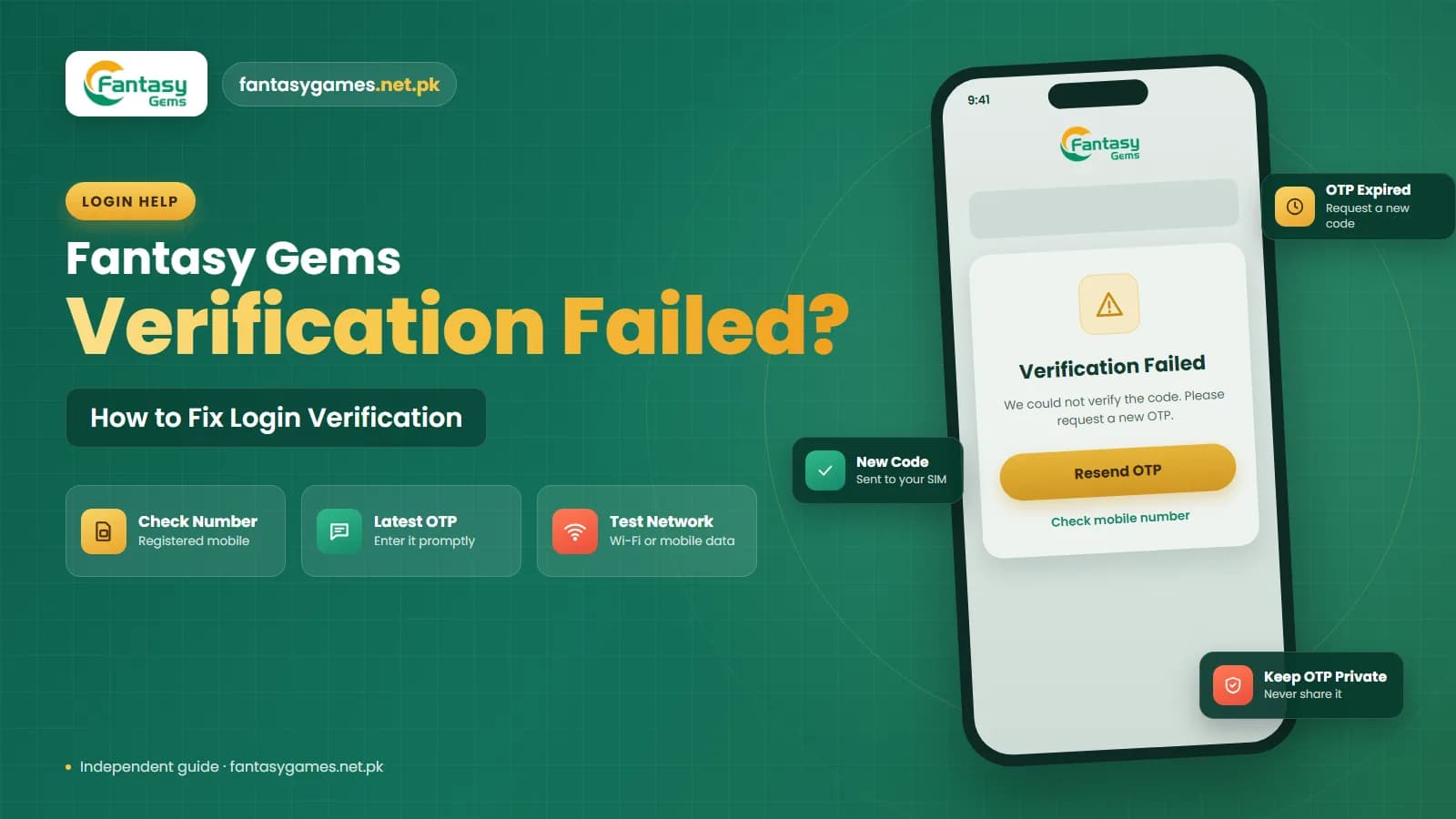
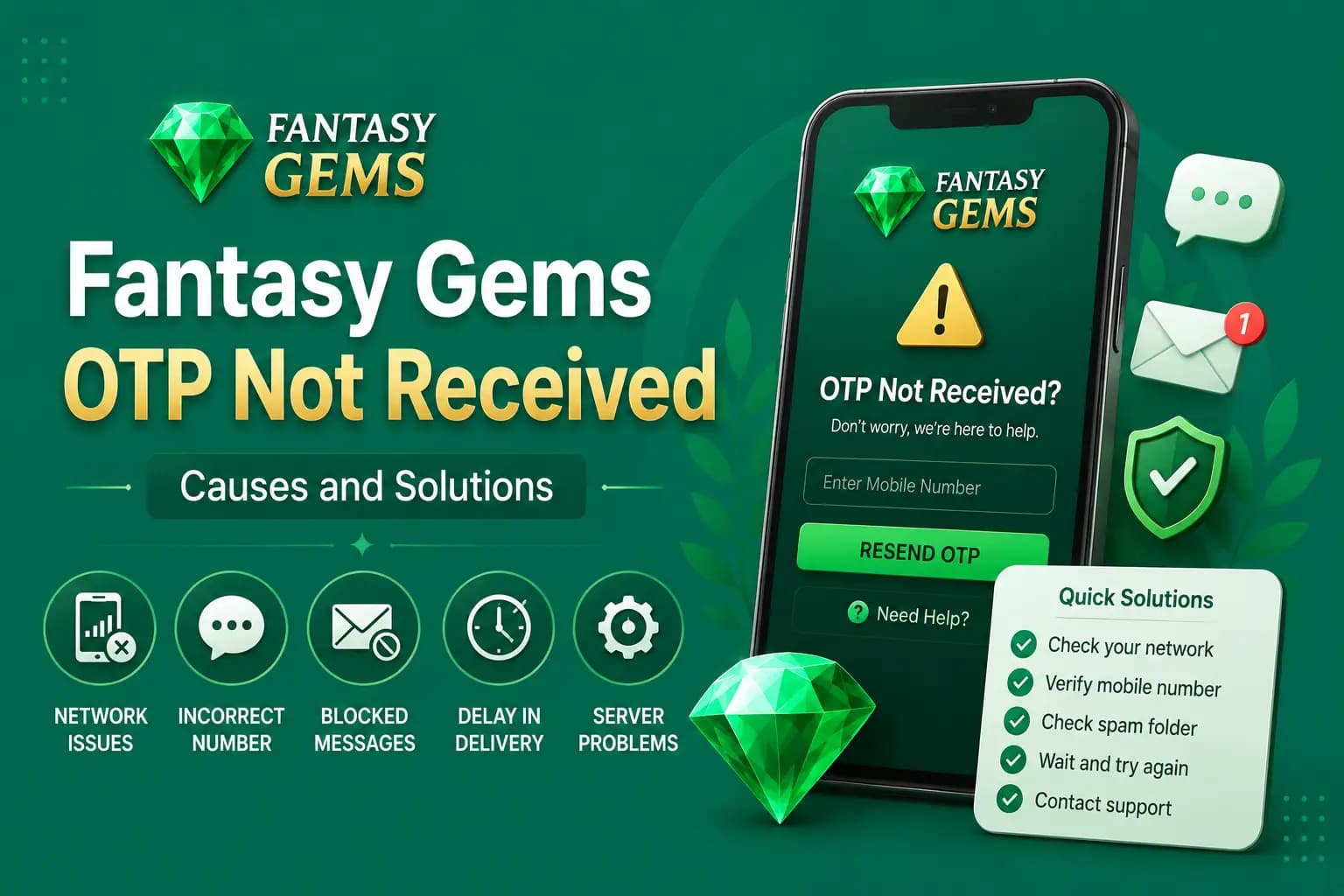
Fantasy Gems OTP not received during password recovery
When the verification code does not show up, the issue is almost always on the phone or network side rather than the account itself. Before requesting another code, check the basics:
- Your registered SIM is active and inserted in the phone you are holding.
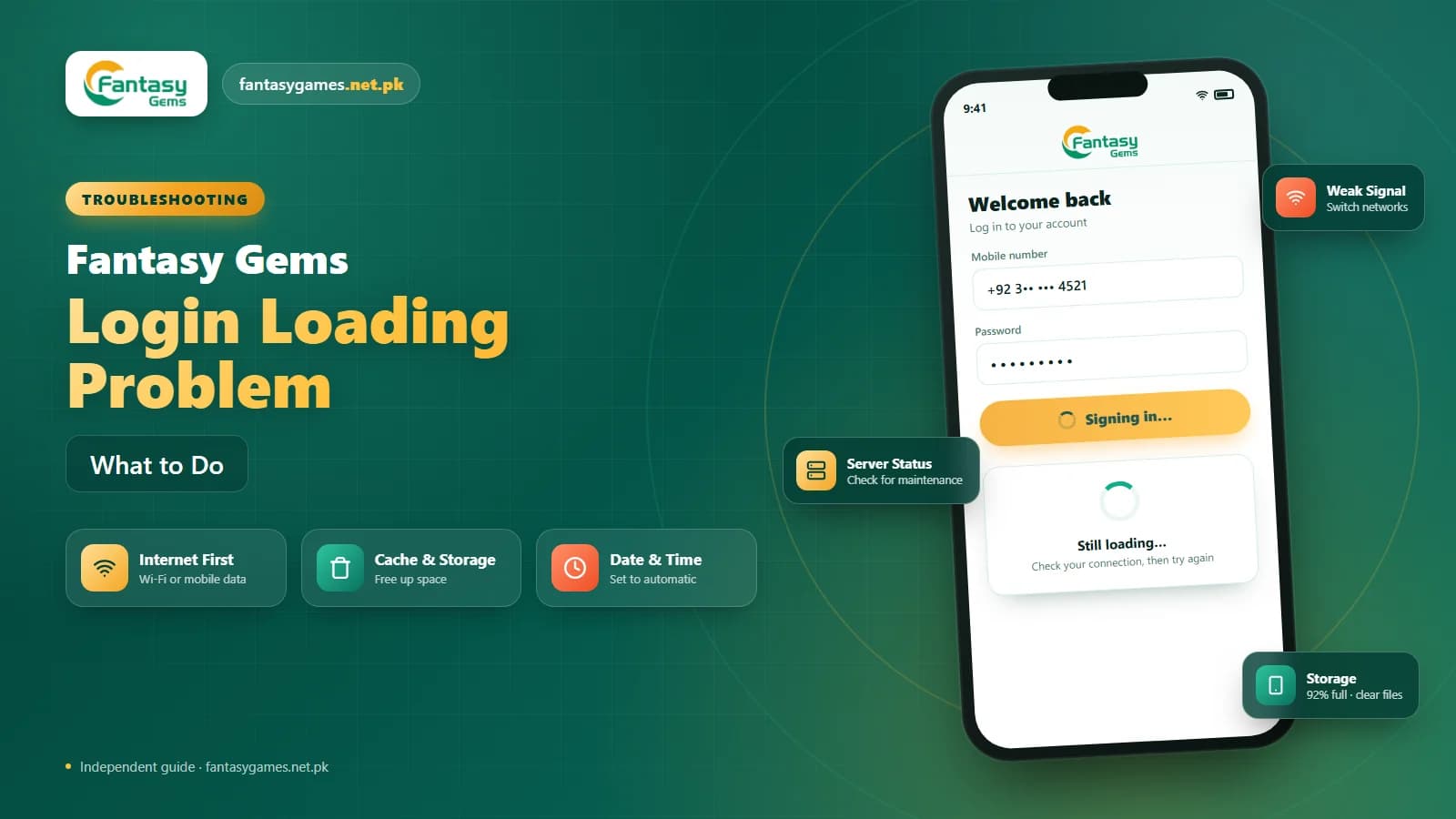
- The phone has mobile signal, not just Wi-Fi, because the OTP arrives by SMS.
- Airplane mode and any SMS blocking or spam filter apps are switched off.
- Your message inbox is not full, which on older phones can silently drop new texts.
- The number you typed on the reset screen matches the one on your Fantasy Gems account.
- You have waited a little while before requesting the code again.
Requesting several OTPs in a row can invalidate the earlier codes, so you end up entering a code that has already been replaced. Restart the phone, request one fresh code, and use it immediately.
Never share your Fantasy Gems OTP with anyone
The OTP proves you control the registered number. Anyone asking for it on WhatsApp, Telegram, Facebook or a phone call, including someone claiming to be Fantasy Gems support, is trying to take over your account. Real support does not need your OTP, your wallet PIN or your JazzCash or Easypaisa PIN.
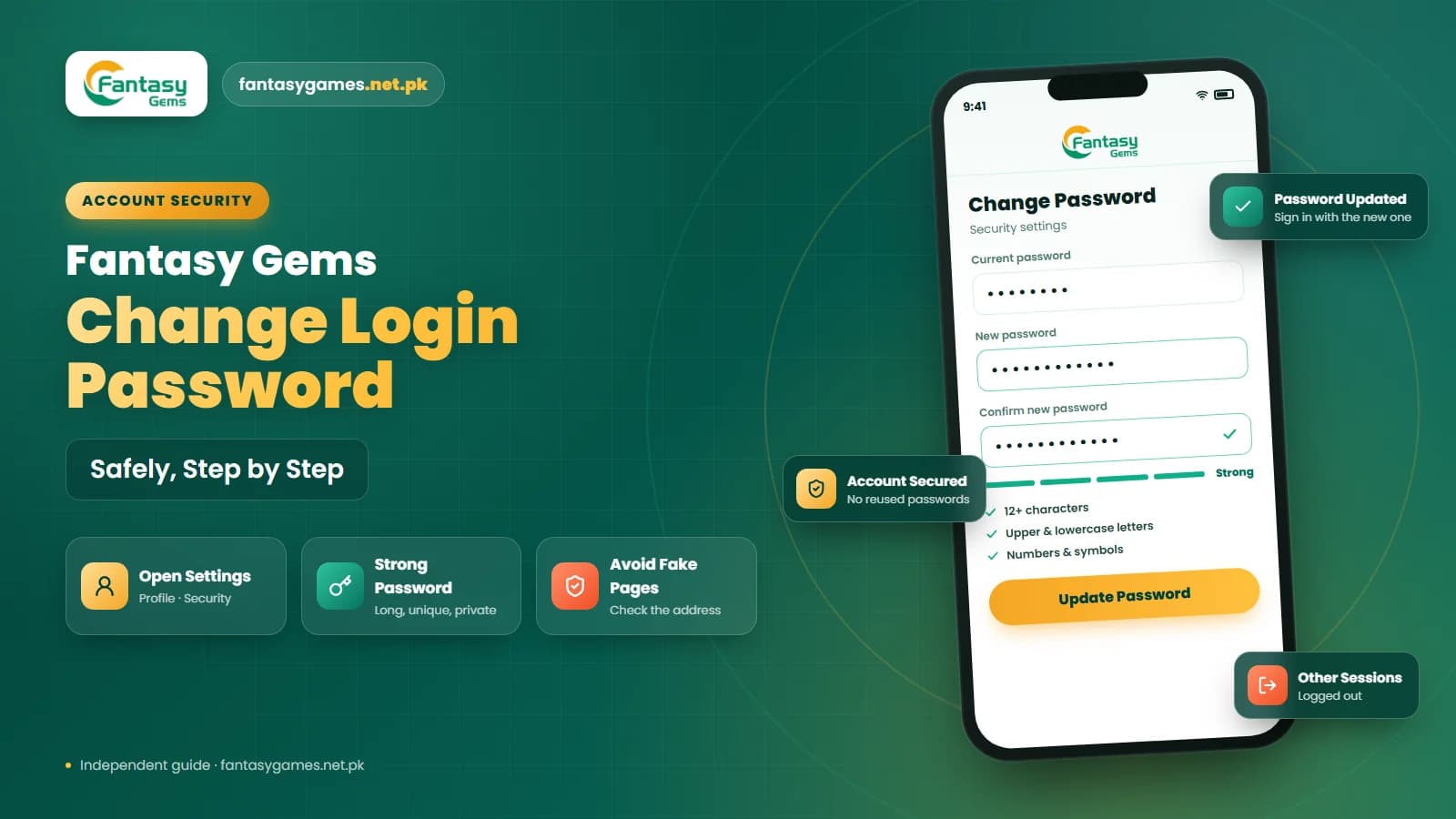
Choose a strong new Fantasy Gems password
The reset only helps if the new password is one you will remember and others cannot guess. Skip anything that appears elsewhere in your life, such as:
- Your name, your username or the name of a family member.
- Your mobile number, CNIC digits or date of birth.
- Simple sequences like 123456, 111111 or qwerty.
- The same password you use for email, JazzCash, Easypaisa or your bank.
- Any previous Fantasy Gems password, even with a number added at the end.
A longer passphrase made of a few unrelated words is usually easier to remember and harder to crack than a short complicated one. Store it in a proper password manager, not in a screenshot, a group chat or a shared phone's notes app.
New Fantasy Gems password not working after reset
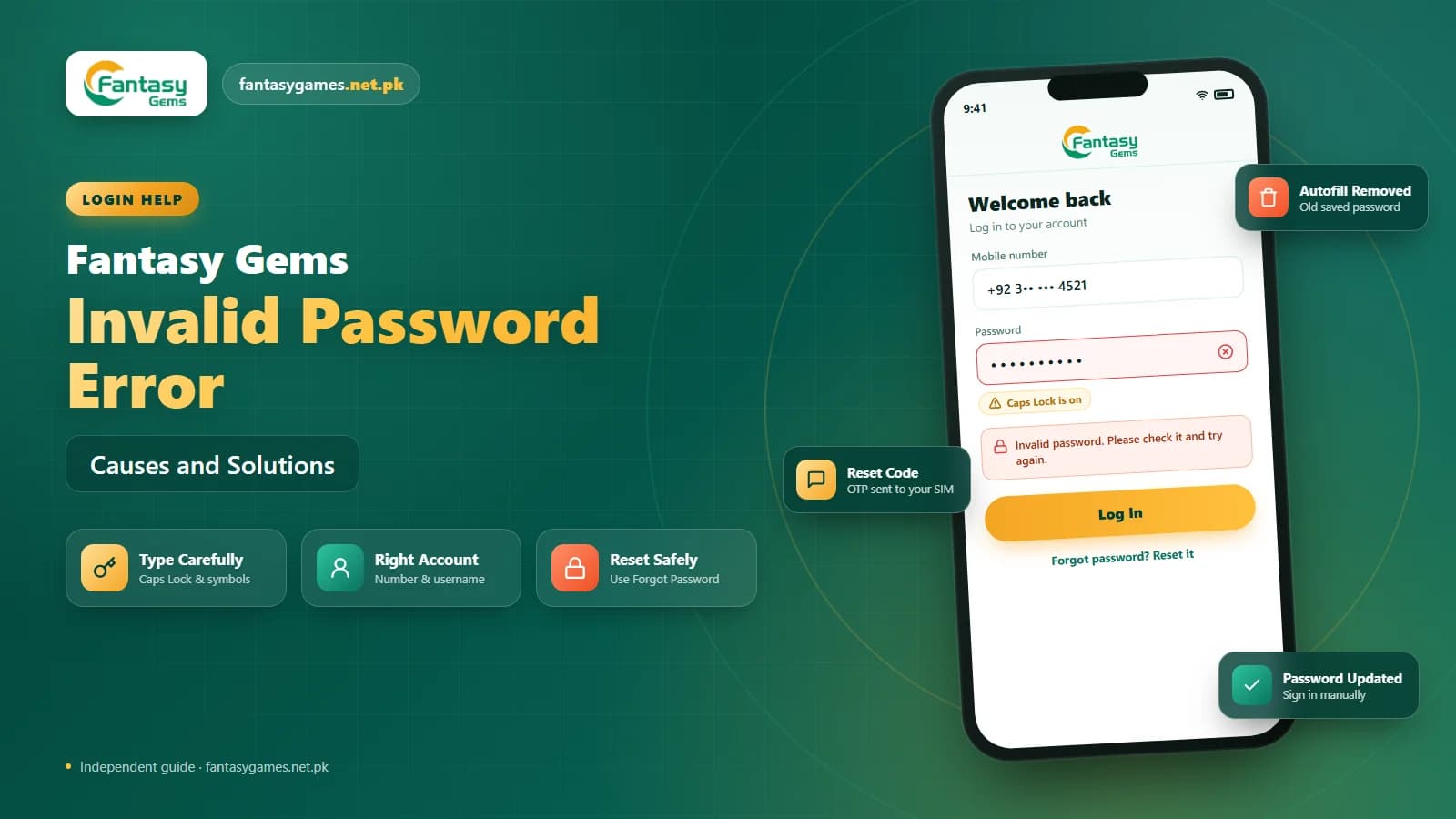
It happens more often than you would expect: the reset succeeds, the app confirms it, and the next login still fails. In most of these cases the device is quietly entering the old password. Password managers, browser autofill and keyboard suggestions all cache credentials, and they do not know you changed anything.
Clear the login field completely, type the new password by hand, and check that Caps Lock and the keyboard language are what you expect. If you saved the password anywhere, update that saved copy so it does not overwrite your manual entry next time.
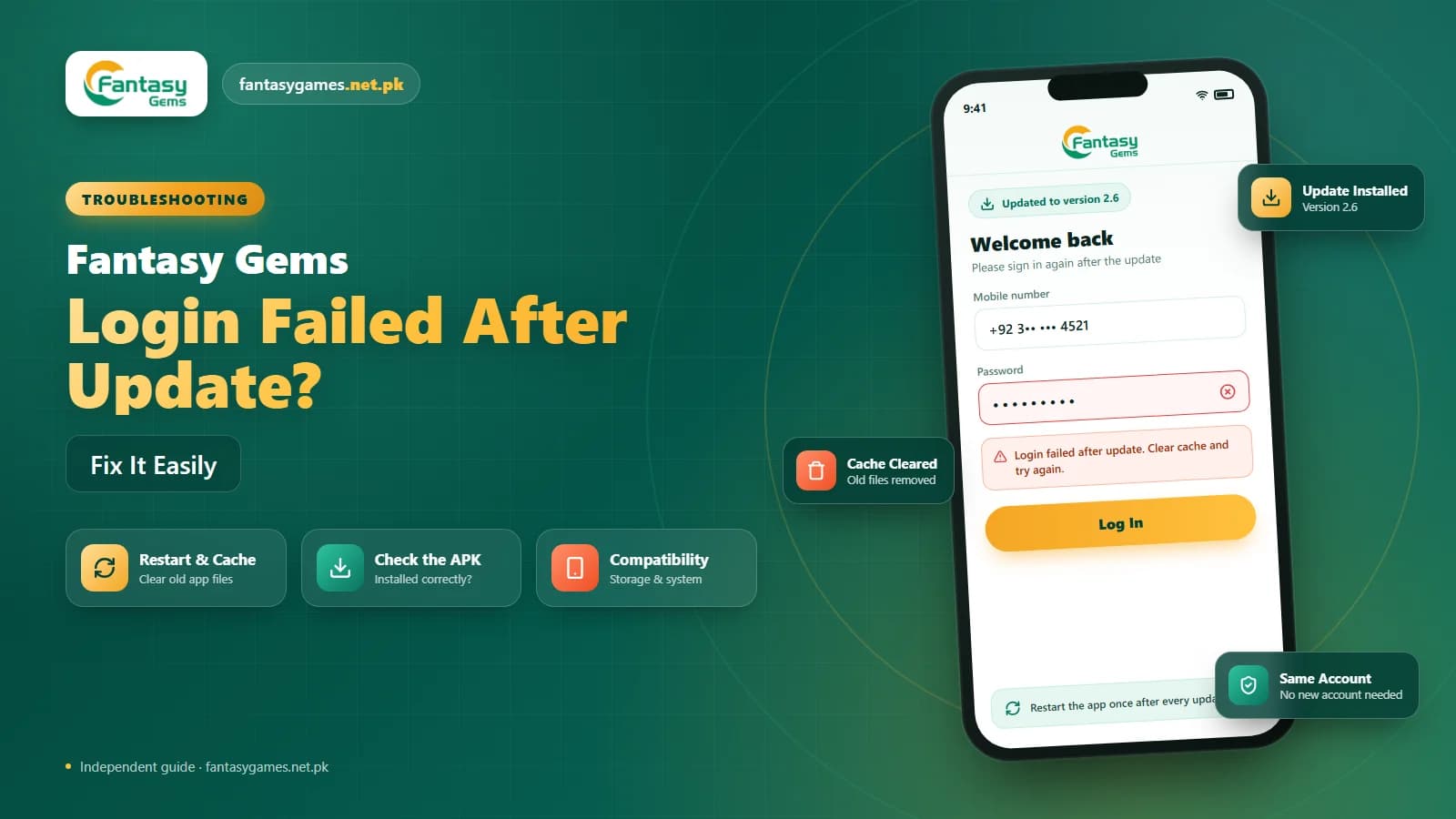
If the password is definitely right and the Fantasy Gems login still fails, close the app fully and reopen it, then restart the phone. A stuck session from before the reset can occasionally cause the app to reject a valid password until it starts fresh. Only after these checks should you treat the reset itself as the problem.
Fantasy Gems account recovery without your registered number
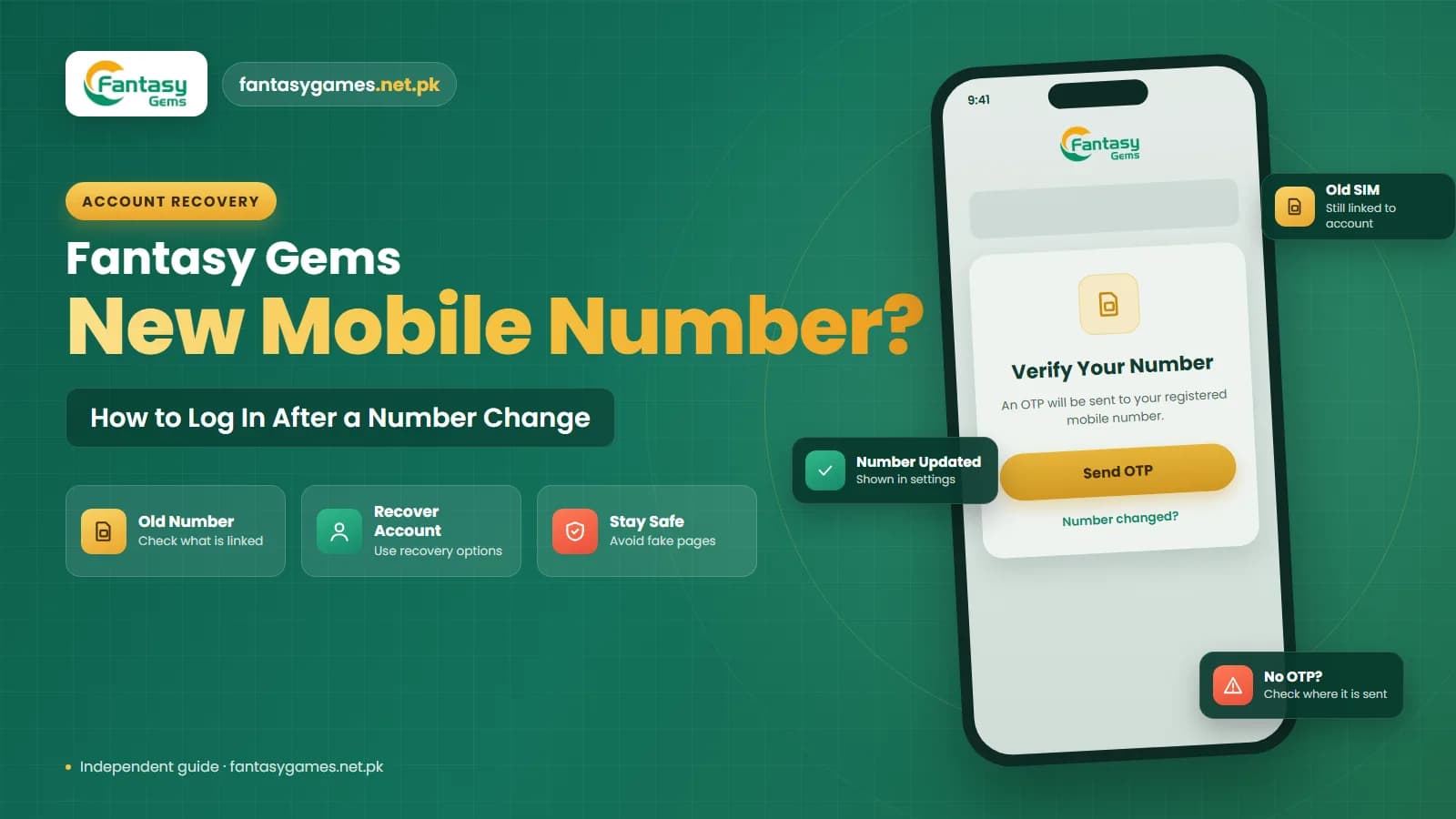
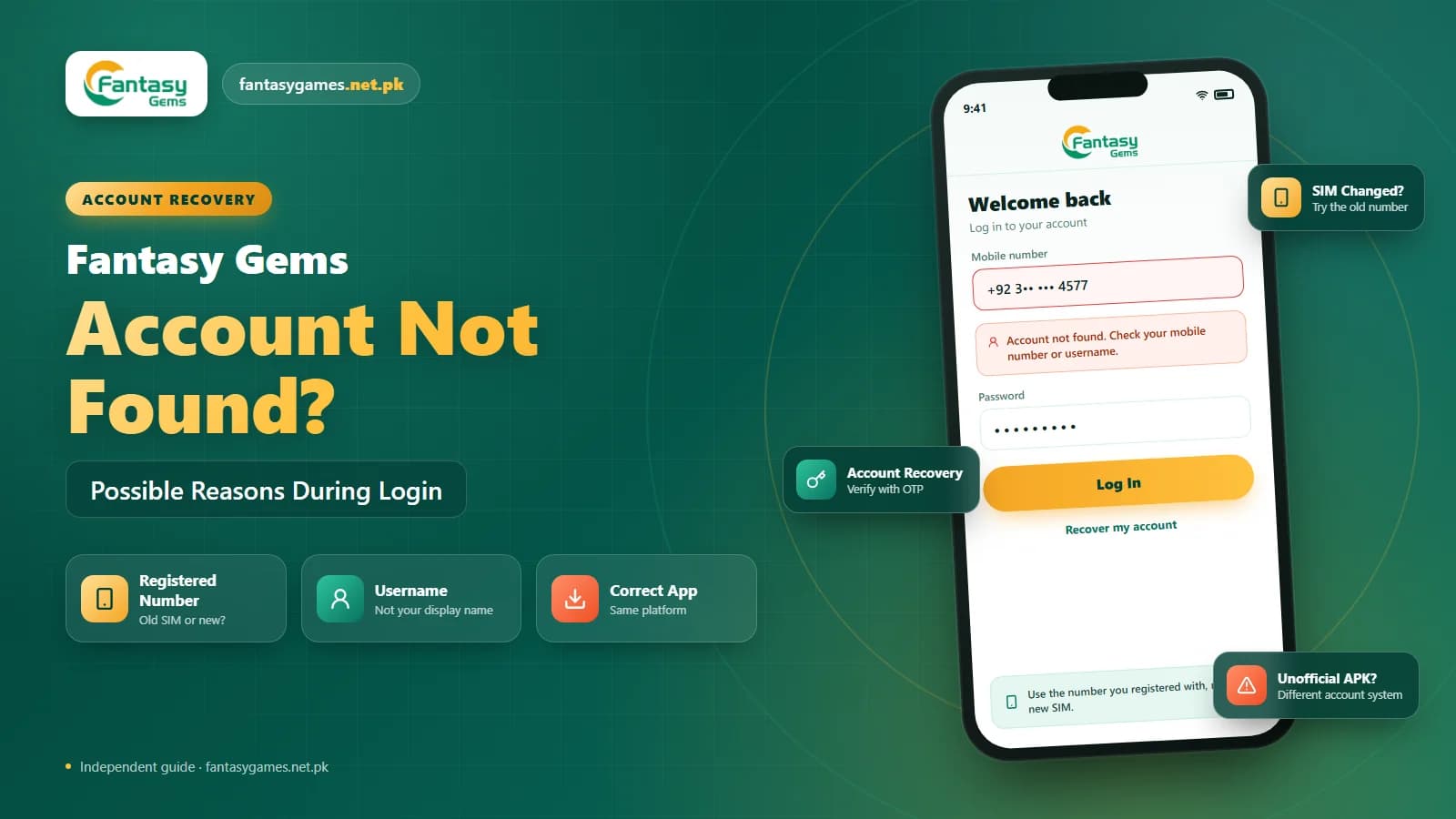
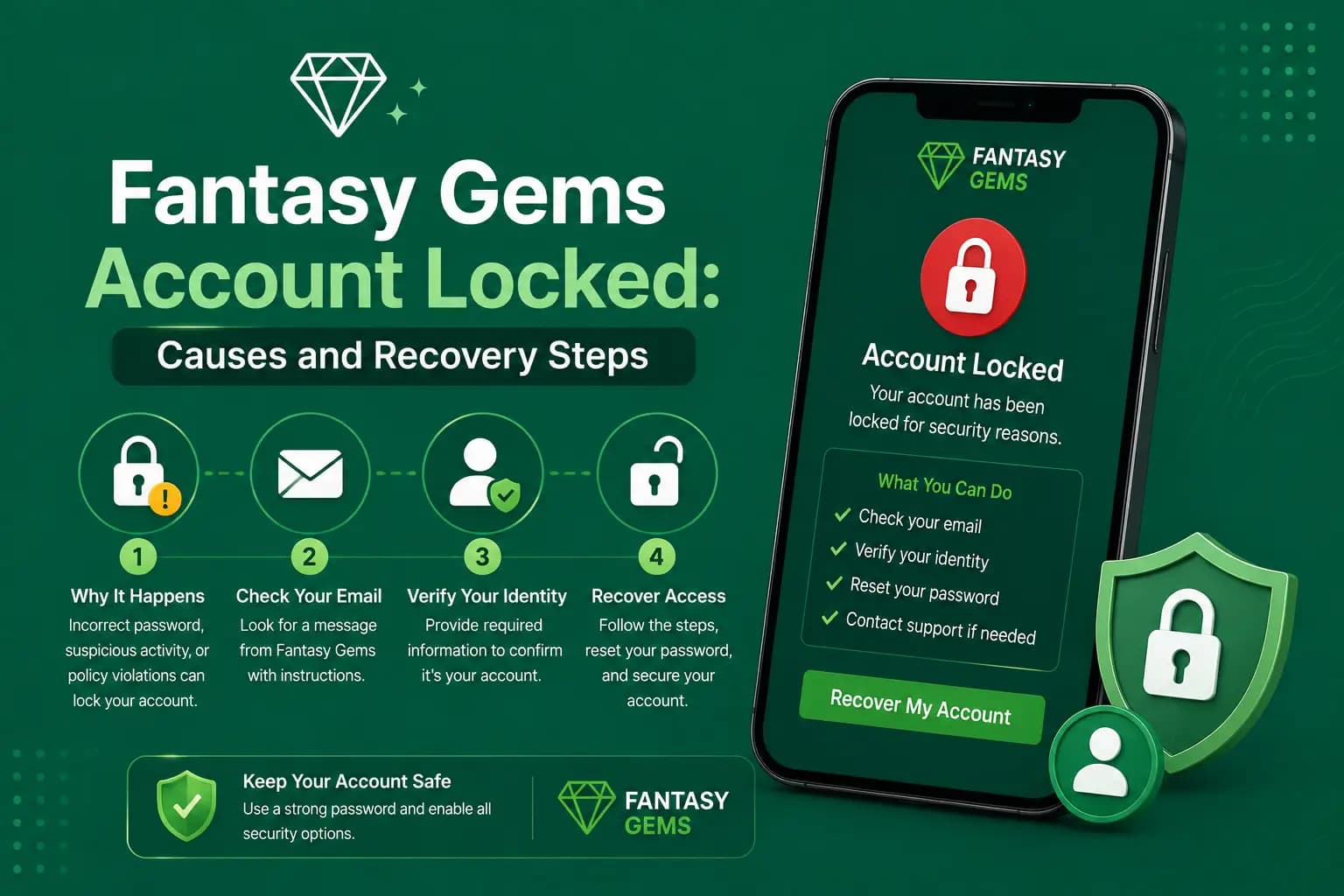
Losing the SIM linked to your account is the hardest version of a Fantasy Gems forgot password problem, because the standard reset has nowhere to send the OTP. It is not always hopeless, but expect extra checks and a slower process.
First, try to recover the number itself. Mobile operators in Pakistan can usually reissue a SIM for a number registered in your name, and once it is active the normal Fantasy Gems password recovery works again. This is often faster than any account-side process.
If the number is gone for good, use the support option shown inside the app or on the login page. Explain that you no longer control the registered number, and be ready to confirm your username, the approximate registration date and recent deposit or withdrawal activity. Support may or may not be able to move the account to a new number; it depends on the platform's policy and what you can prove.
Resetting your Fantasy Gems password on PC
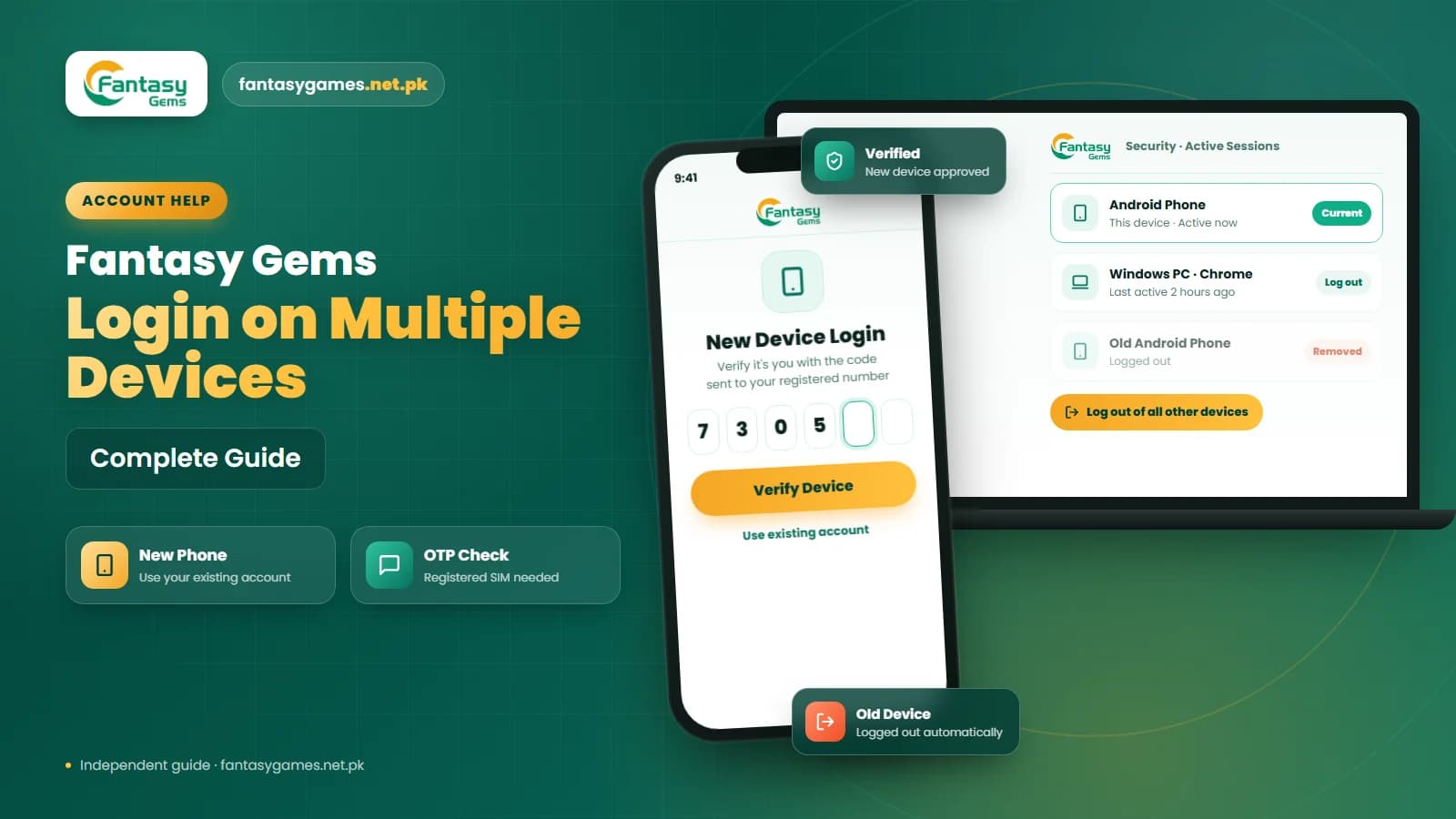
Plenty of users run Fantasy Gems on a Windows PC through an Android emulator, or open Fantasy Gems online in a desktop browser. The forgot password option usually works the same way there, but the OTP still arrives on the phone holding your registered SIM, so keep that phone nearby.
Once the reset is done, remember that the emulator or browser may have its own saved password. Update or delete it, otherwise you will hit the same old-password problem on the PC that mobile users hit on their phones. If you also use the Fantasy Gems APK on your phone, sign in there with the new password as well.
Some people search for Fantasy Game login when they mean this same app. Either way, the recovery steps are identical whether you are on a phone, a PC or an emulator, and reinstalling the app does not reset or remove your password.
Avoid repeated guesses and unknown reset pages
Guessing passwords over and over may trigger a temporary restriction, and a locked account is harder to recover than a forgotten password. Also be cautious of any reset page reached through an advert, a Telegram group or a random link. Open the Fantasy Gems app or the login page you normally use, and check the web address before typing anything.
Contact Fantasy Gems support for account recovery
If the reset option fails, the OTP never arrives after all the checks above, or you cannot access your registered number, reach out through the support option shown in the app. Keep the message short and factual:
- Your username and the mobile number registered on the account.
- The exact wording of any error message, ideally with a screenshot.
- When the login problem started and what you have already tried.
- Whether you still control the registered SIM.
- Any recent deposit or withdrawal that can help confirm ownership.
Never include your password, OTP, wallet PIN or banking details in a support message. Genuine support can verify you without them, and anyone who insists otherwise is not who they claim to be.
Final words on Fantasy Gems forgot password
A Fantasy Gems forgot password problem is rarely the end of your account. Open the login page you normally use, choose the reset option, verify the registered number, enter the OTP promptly and set a password you have not used anywhere else.
If the OTP does not arrive, fix the SIM and signal first. If the new password is rejected, clear autofill and type it manually. If the registered number is lost, recover the SIM or contact support with proof of ownership.
Above all, keep your login details private. Nobody, including support, needs your OTP or payment PIN to help you recover a Fantasy Gems account.
Recovered Your Password?
Sign in with your new password on the Fantasy Gems app or login page you normally use.
Related Guides
Fantasy Gems forgot password FAQs
Do not keep guessing. Open the Fantasy Gems login screen, tap the forgot or reset password option, and enter the mobile number you registered with. The app usually sends an OTP by SMS; type it promptly, then create a new password you have not used anywhere else. Sign in once to confirm the change worked.