Fantasy Gems Session Expired: Why It Happens and How to Fix It
A Fantasy Gems session expired message usually just means you need to sign in again. Learn why sessions end, how to log back in safely, and how to stop it repeating.
Independent guide — not an official Fantasy Gems channel.

Login Help
Category
Session Fixes
Focus
9 min
Read Time
Sep 2026
Published
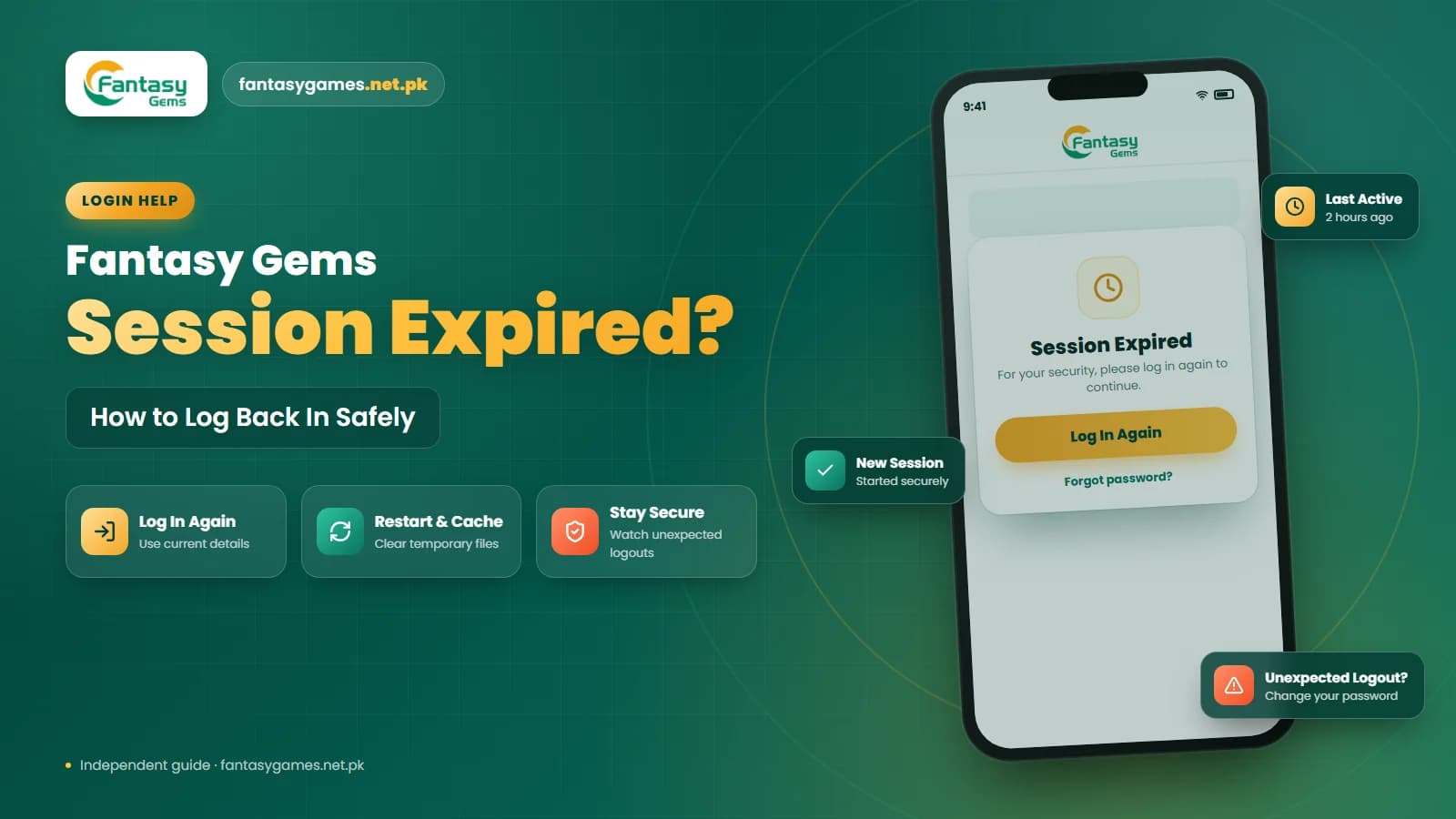
A Fantasy Gems session expired message means the app or website no longer trusts the login it was holding for you, so it sends you back to the Fantasy Gems login screen. It is one of the most searched login problems in Pakistan, and also one of the least serious: in the great majority of cases nothing has happened to your account, your wallet or your history.
Sessions end for ordinary reasons. You left the app idle overnight, your phone's battery saver killed it in the background, you signed in on another device, you changed your password, or the platform pushed an update and reset everyone. Occasionally the cause is worth checking, such as a wrong phone clock or someone else using your details.
This is an independent guide, not an official Fantasy Gems channel, so we describe what usually happens rather than quote exact rules. Below you will find the quick fixes, the safe way to log back in, the reasons a session keeps expiring, what it means if it happens mid-deposit, and how to tell a real logout from a phishing page pretending to be one.
Quick fixes for a Fantasy Gems session expired error
Try these in order. Most people are back in by the second step.
- Tap the login option shown and sign in again with your mobile number and current password.
- Close the Fantasy Gems app completely, reopen it, then try once more.
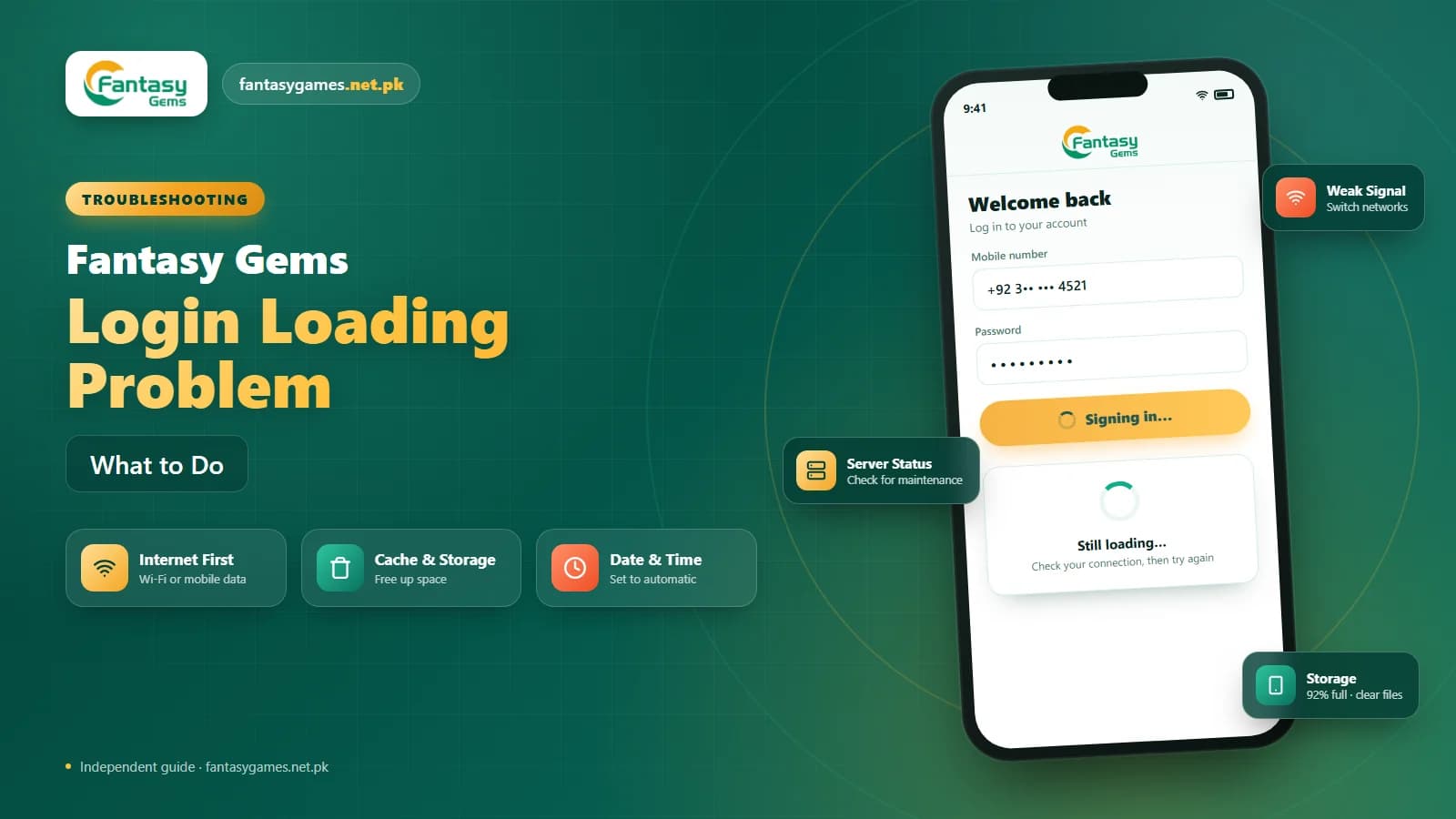
- Set your phone's date and time to automatic; a wrong clock can invalidate every session.
- Turn off battery optimization or data saver for the app so it is not killed in the background.
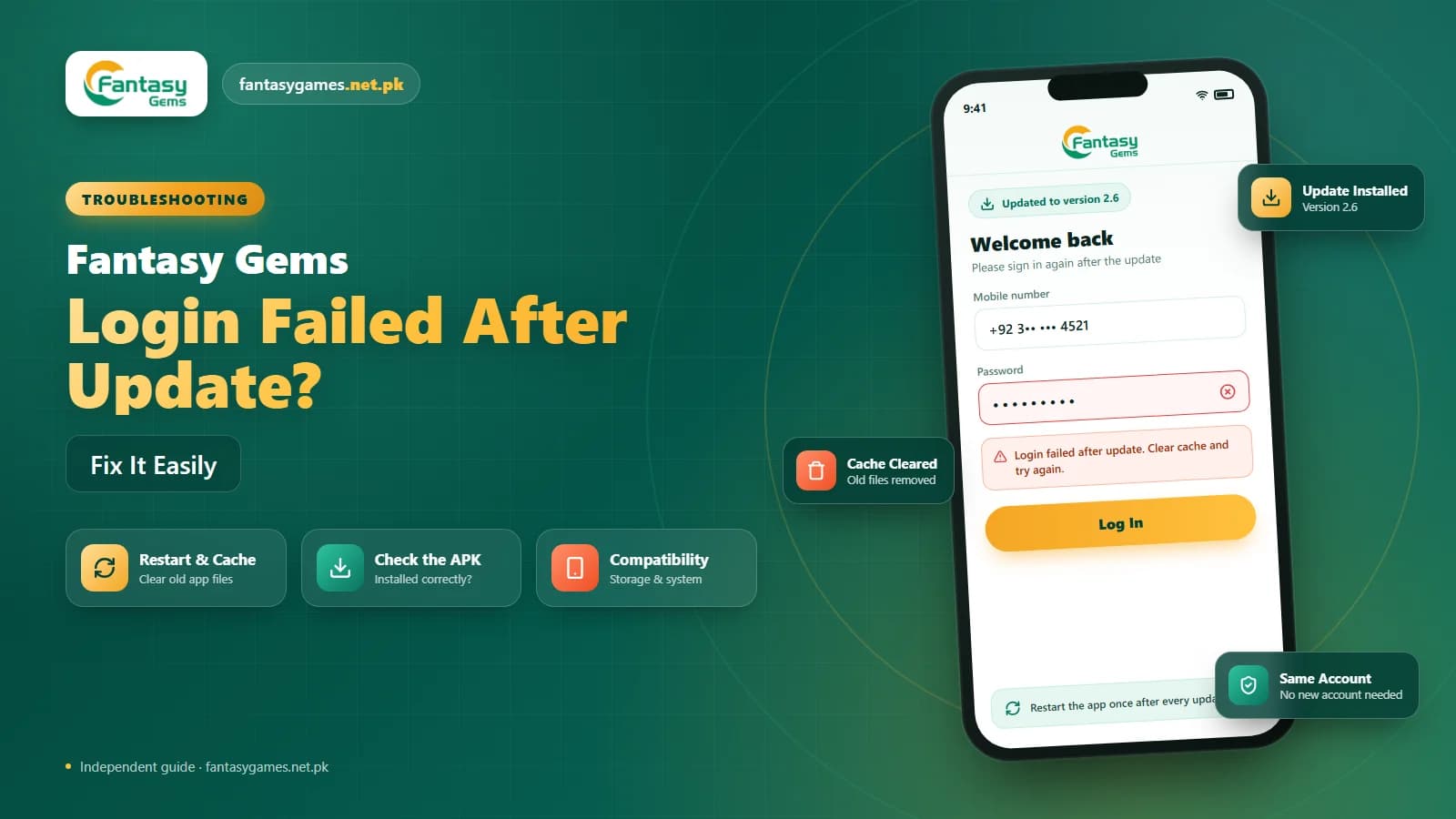
- Update to the latest Fantasy Gems app version and restart the phone.
- If the message appears on every login, check whether another device is signed in to your account.
- Never sign in through a session expired link sent by SMS, WhatsApp or an advert.
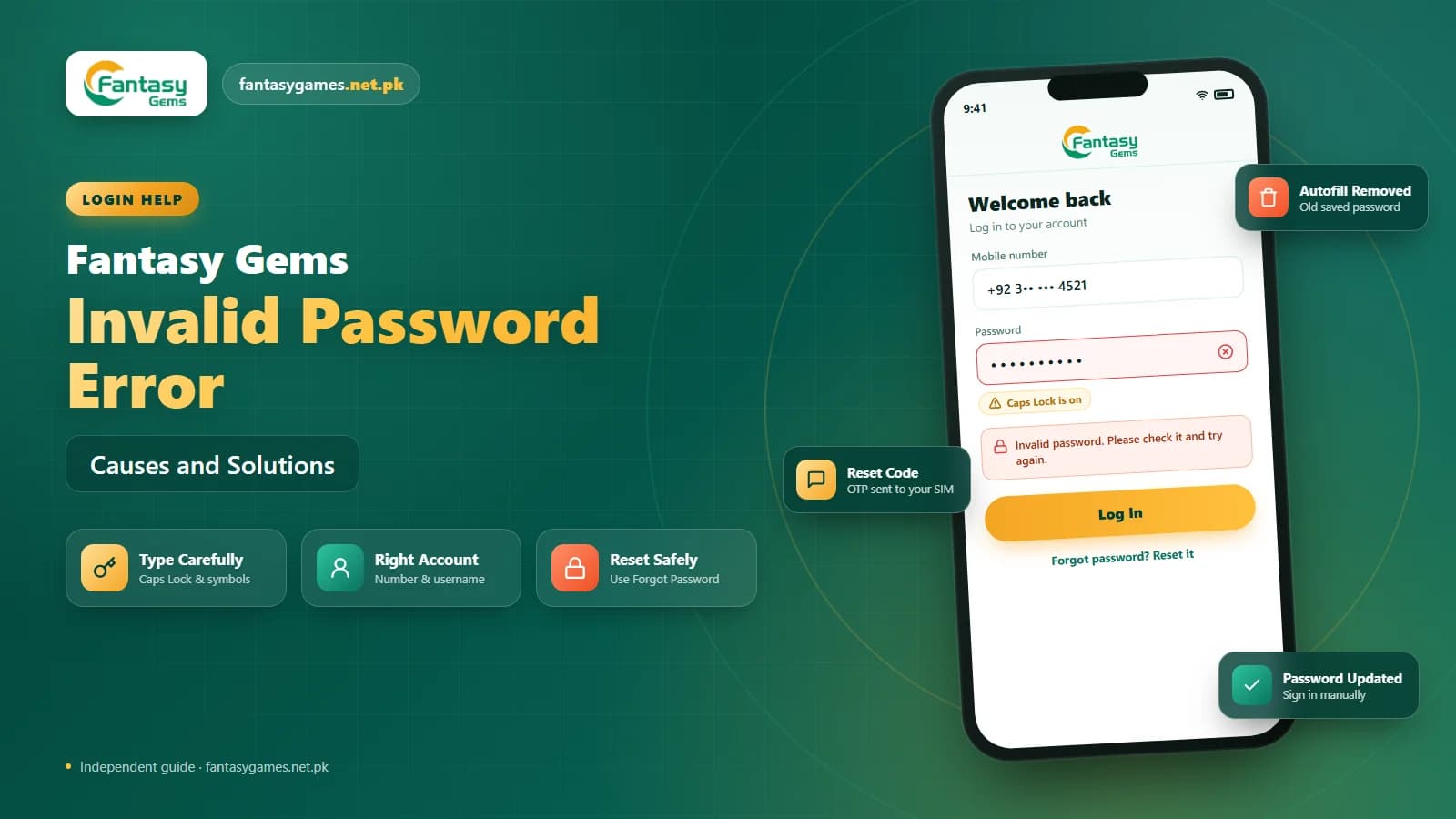
If the password itself is rejected at step one, that is a different problem; the password reset option is the right route rather than repeated guessing.
What Fantasy Gems session expired actually means
When you log in, the server gives your device a temporary token that says this phone has already proved who it is. Every action after that, opening a game, checking your Fantasy Gems wallet, requesting a withdrawal, is checked against the token. A session expires when the server decides that token is no longer valid.
That decision can be time-based (the token was older than the platform allows), event-based (you changed your password or signed in elsewhere, so older tokens were revoked) or technical (the app lost the token because its data was cleared, or the phone's clock made it look expired). None of these affects your Fantasy Gems account itself. Your balance, deposit history and identity details live on the server, not in the token.
So the honest answer to whether session expired means your account is blocked is no. A blocked or under-review account normally shows a different message after you enter correct details, and the Fantasy Gems login simply fails. If you can log straight back in, you were never blocked.
How to log back in to Fantasy Gems safely
Logging back in is simple, but doing it carelessly is how people end up on fake pages or locked out. Follow this order.
- 1
Dismiss the message and use the login button inside the Fantasy Gems app or on the login page you normally use. Do not follow a link from a notification or message to get there.
- 2
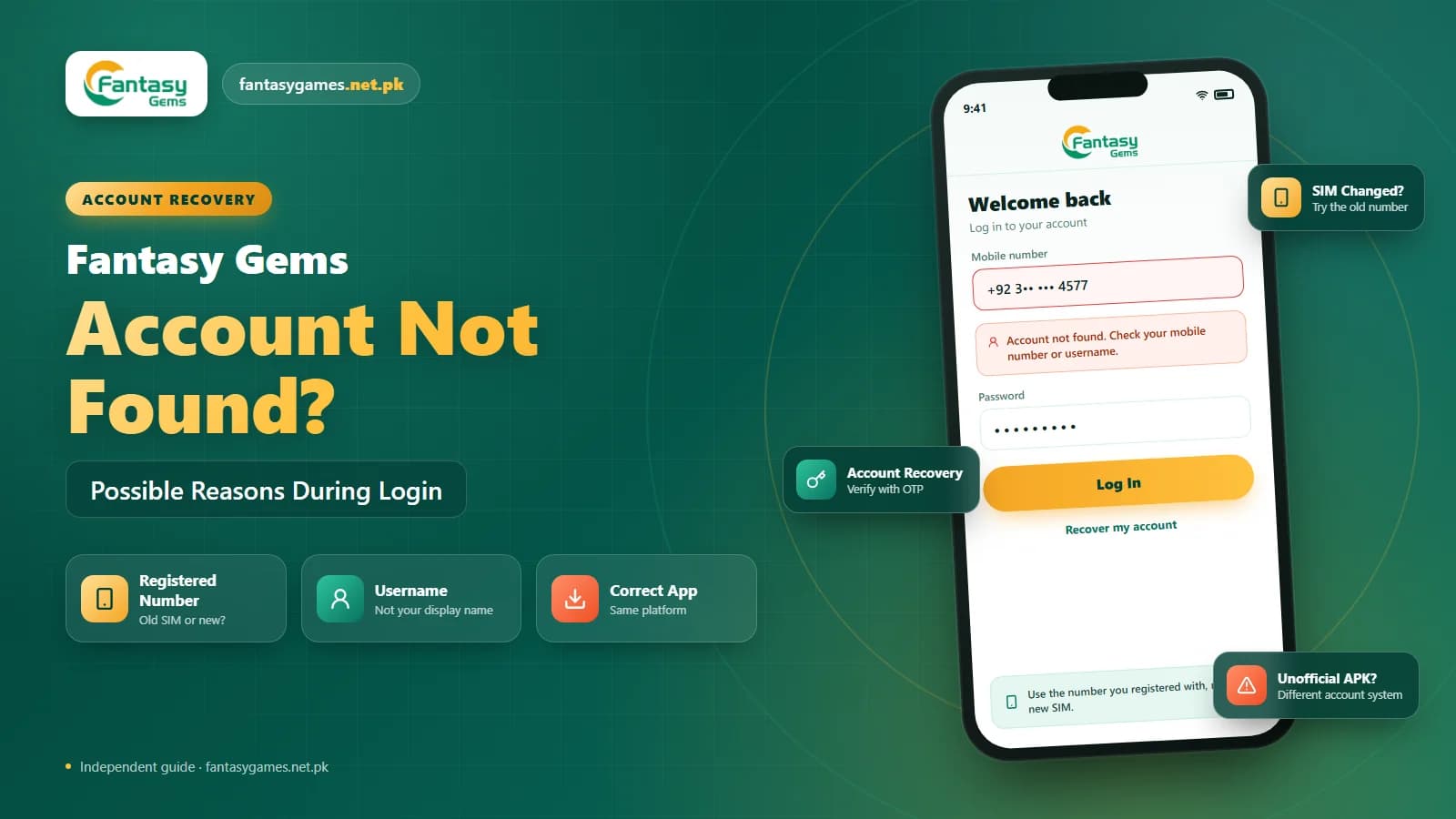
Enter your registered mobile number exactly as you did at registration, in the same country code format.
- 3
Type your current password manually. If your phone offers to autofill, check that it is not an older password from before your last Fantasy Gems password reset.
- 4
If an OTP is requested, wait for the SMS on your registered SIM and enter it in the app. Request a new code only if nothing arrives after a couple of minutes.
- 5
Once you are in, glance at your wallet balance and recent activity to confirm everything matches what you expect.
- 6
If you were logged out without doing anything yourself, change your password now while you have access.
If step three fails repeatedly, stop guessing. Several wrong attempts may trigger a temporary hold, and the password reset option is faster.
Why your Fantasy Gems session keeps expiring
Fantasy Gems keeps logging me out is a common search, and a session that ends every few minutes almost always has one of these causes:
- Phone date and time set manually and drifting from the real time.
- Aggressive battery saver, data saver or a phone cleaner app closing Fantasy Gems in the background.
- An outdated Fantasy Gems app version that the server no longer accepts.
- Another device, or another person, signing in to the same account and pushing you out.
- Switching between Wi-Fi and mobile data mid-session, which some servers treat as a new connection.
- A VPN that keeps changing your apparent location.
- Clear Data having been used in Android settings, which wipes the stored login every time.
Fix the clock and battery settings first; between them they explain most repeat cases we hear about.
Session expired after login on another device
If the message appeared right after you, or someone with your details, signed in somewhere else, you are seeing the platform's session limit in action. Many account systems allow only a small number of live sessions and close the oldest one when a new device authenticates.
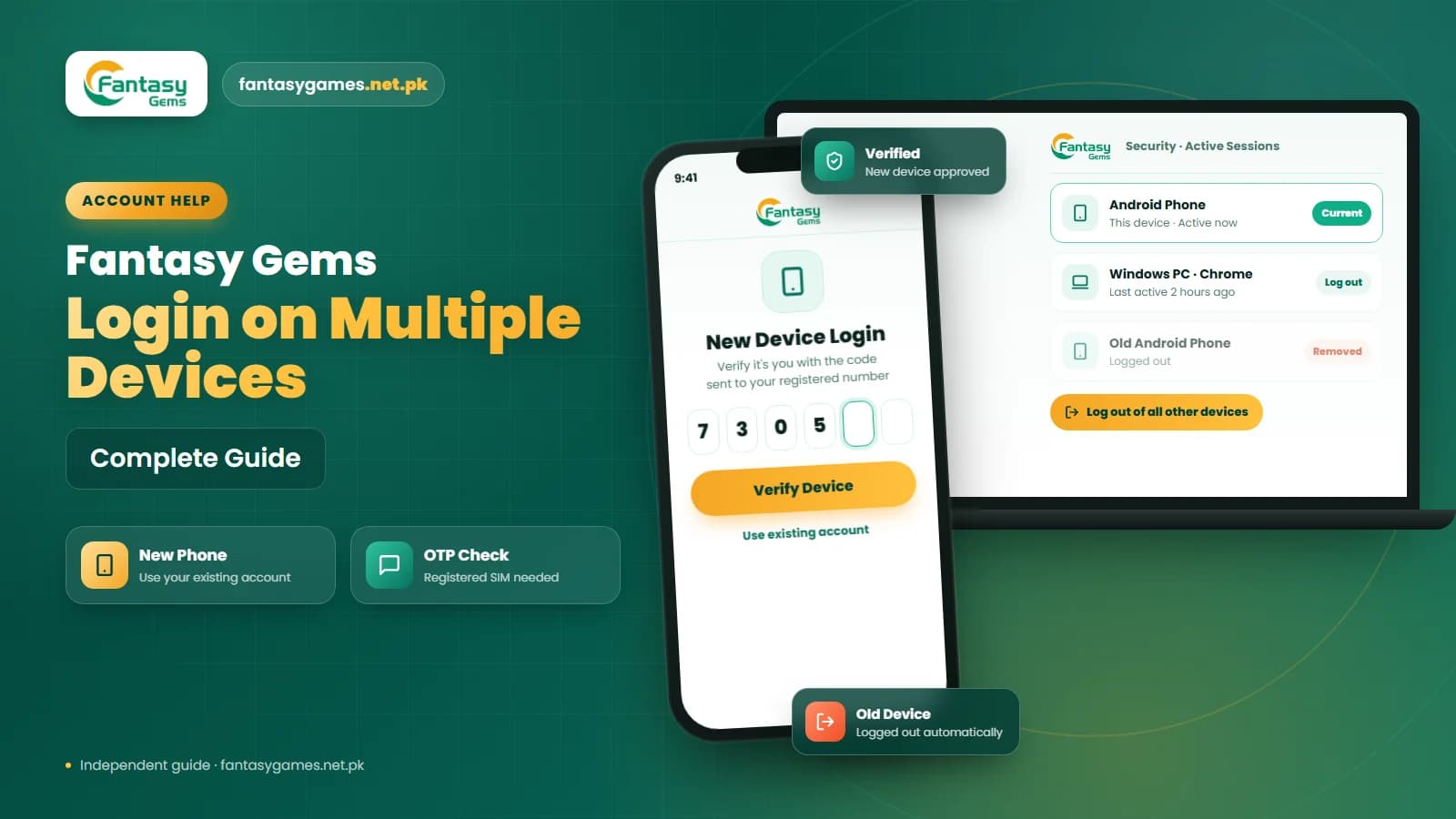
If that other device is yours, a laptop, a second phone or an emulator, nothing is wrong; decide which one you want to use and sign in there. Our separate guide on Fantasy Gems login on multiple devices covers what to expect when switching phones and using the account on PC.
If you did not sign in anywhere else, treat it as a warning. Log back in, change your password immediately, use the log out of all devices option if the app shows one, and check your wallet history for anything you did not do.
Fantasy Gems session expired during a deposit or withdrawal
The scariest version of this error is the one that appears while you are in the middle of a Fantasy Gems deposit through JazzCash or Easypaisa, or just after tapping withdraw. Readers understandably worry that the PKR left their wallet and vanished.
What usually happens is that the payment and the session are separate systems. A JazzCash or Easypaisa transfer that completed on the payment side is recorded against your account whether or not your app session survived; it may simply take a little time to show. A transfer interrupted before you confirmed it in the payment app normally never leaves your mobile wallet.
So log back in, wait a few minutes, and check the transaction history shown in the app before doing anything else. Do not repeat the deposit straight away, or you may pay twice. If the money has left JazzCash or Easypaisa and still does not appear after the time the app indicates, use the support option with your transaction ID and a screenshot.
Fake Fantasy Gems session expired messages are phishing
Scammers copy this exact error because it is believable. You receive an SMS, WhatsApp message or pop-up saying your Fantasy Gems session has expired and you must verify by tapping a link. The page then asks for your password, an OTP, or your JazzCash or Easypaisa PIN. A genuine session expiry only ever shows inside the app or on the site you already opened, and a genuine login never needs a payment PIN. Delete such messages, and if you already entered anything, change your password and contact your mobile wallet provider.
Stop Fantasy Gems logging you out repeatedly
If the error returns every day or every few minutes, work through these settings on your phone. Each one is a permanent fix rather than a workaround.
- 1
Open your phone's date and time settings and switch both to automatic (network-provided). Restart the phone afterwards.
- 2
Find the battery or power settings, locate the Fantasy Gems app, and set it to unrestricted or not optimized so it is not killed in the background.
- 3
Do the same for data saver, and remove Fantasy Gems from any cleaner or booster app's auto-close list.
- 4
Update the app. If you installed it from an APK, get the newest Fantasy Gems APK from the download page you trust rather than a random mirror.
- 5
Stay on one network during play where you can, and turn off any VPN while using the app.
- 6
Sign out on any other device or emulator you are not actively using.
- 7
As a last resort, uninstall and reinstall the app, then log in with your existing details. Do this only after confirming you know your password and have your registered SIM.
Reinstalling deletes only the local app data. Your Fantasy Gems account, wallet and history remain on the server.
Fantasy Gems logged out automatically on PC or emulator
People who play Fantasy Gems on a Windows PC through an emulator such as BlueStacks report session expiry more often than phone users. The usual culprits are the emulator's own clock drifting, the emulator being suspended when the PC sleeps, and the fact that the emulator counts as a separate device competing with the phone for the same session.
Set the emulator to sync time with Windows, keep the PC from sleeping during a session, and do not leave the phone app open at the same time. Browser users on PC should also avoid private or incognito windows, which discard the session the moment the window closes.
Finally, some readers search for Fantasy Game login and mean this same app; if you arrived here that way, the advice on this page applies exactly as written.
Session expired is not an account block
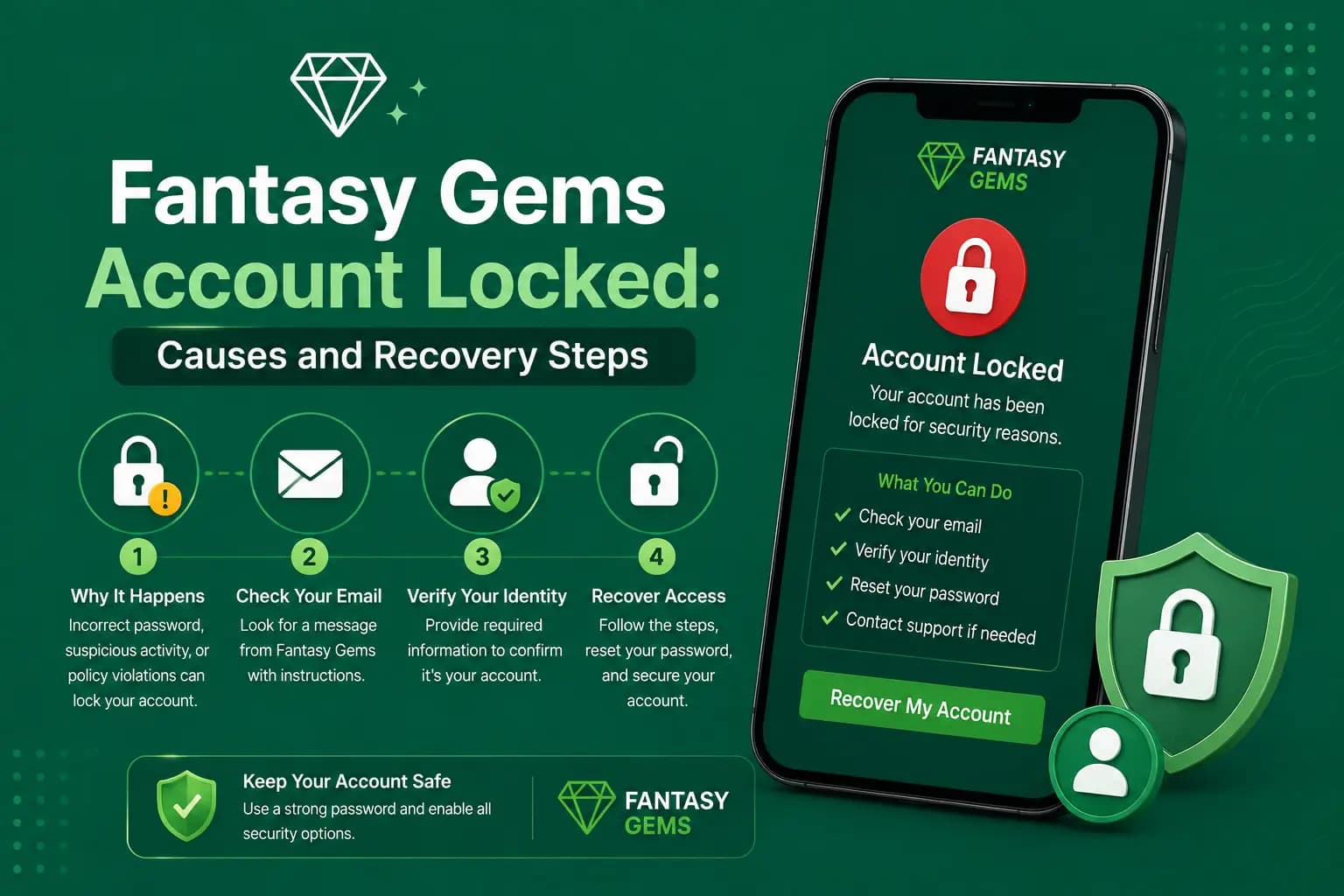
Do not panic and do not register a second account when you see this message. A session expired notice is a routine logout, not a suspension, and a fresh registration would leave your wallet balance and history stranded in the original account. If your correct password is rejected after a session ends, use the password reset option; if the app reports that the account is under review, that is a separate issue with its own process, and support is the right route.
Final Words on the Fantasy Gems session expired error
A Fantasy Gems session expired message is, almost always, just an invitation to sign in again. Use the login button in the app or on the site you already trust, type your current password, and complete any OTP check on your registered SIM.
If it keeps happening, the fixes are on your phone rather than in your account: automatic date and time, no battery optimization for the app, the latest app version and one device at a time. If it happened during a deposit, wait and check the history before paying again.
And if a session expired message reaches you by SMS, WhatsApp or an advert instead of inside the app, it is a phishing attempt, whatever logo it carries. Handle those three things and the error stops being a problem.
Session Expired? Sign In Again
Log back in through the Fantasy Gems app or login page you normally use.
Related Guides
Fantasy Gems session expired FAQs
Repeated expiry is almost always caused by the phone rather than the account. The usual reasons are a manually set clock that drifts, battery saver or a cleaner app closing Fantasy Gems in the background, an outdated app version, switching networks mid-session, or another device signing in to the same account. Set date and time to automatic and exclude the app from battery optimization first.