Fantasy Gems Login Verification Failed: How to Solve It
Fantasy Gems login verification failed? Work through number format, OTP delivery, network, app and session checks in the right order, and learn when the problem needs support.
Independent guide — not an official Fantasy Gems channel.

Login Help
Category
Verification Fixes
Focus
15 min
Read Time
Oct 2026
Published
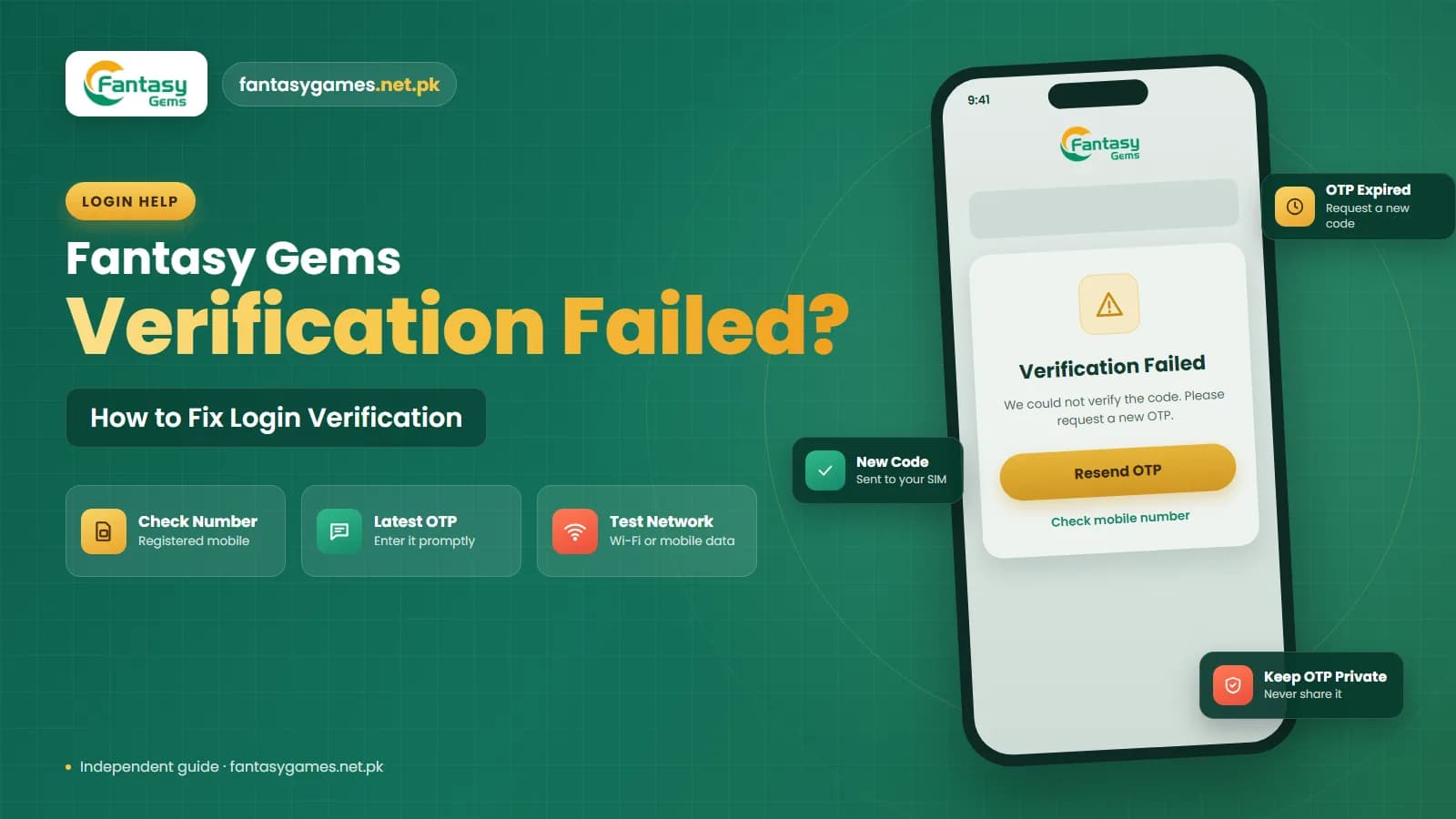
A Fantasy Gems login verification failed message can appear when the platform cannot confirm the information or verification code used during login. This may happen when an OTP is entered incorrectly, the registered mobile number does not match the account, the code has expired, or a temporary network or app problem interrupts the verification process.
A failed verification does not always mean that your Fantasy Gems account has been blocked or deleted. In many cases, checking your mobile number, OTP, internet connection, and app settings can help identify the problem.
This independent guide explains the common causes of a Fantasy Gems verification problem and the steps you can try, in a sensible order, before contacting support.
Quick fixes when Fantasy Gems login verification failed
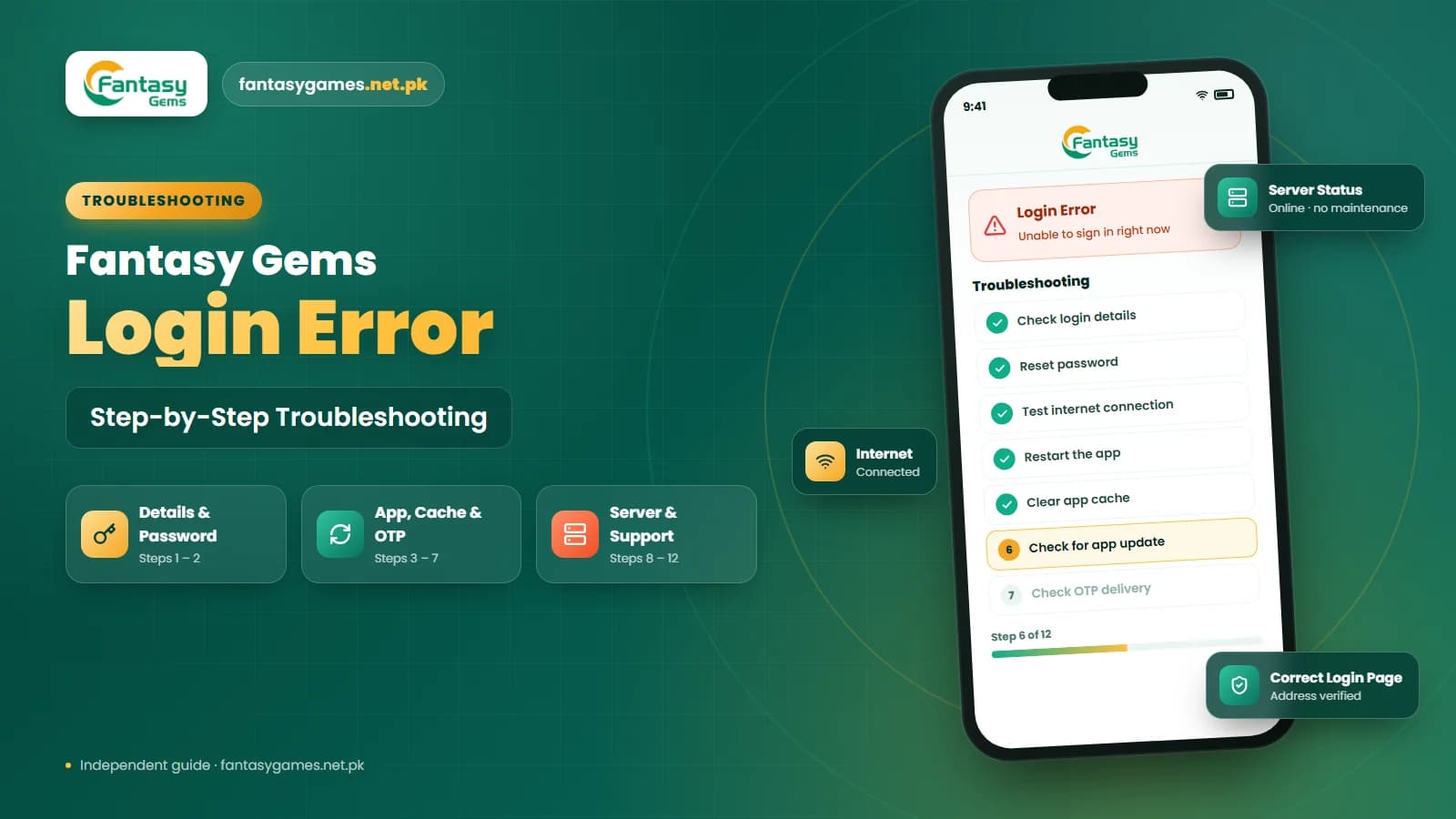
Try these in order. Most verification errors are cleared by the first three.
- Re-type your registered mobile number and check the format, with no spaces or missing digits.
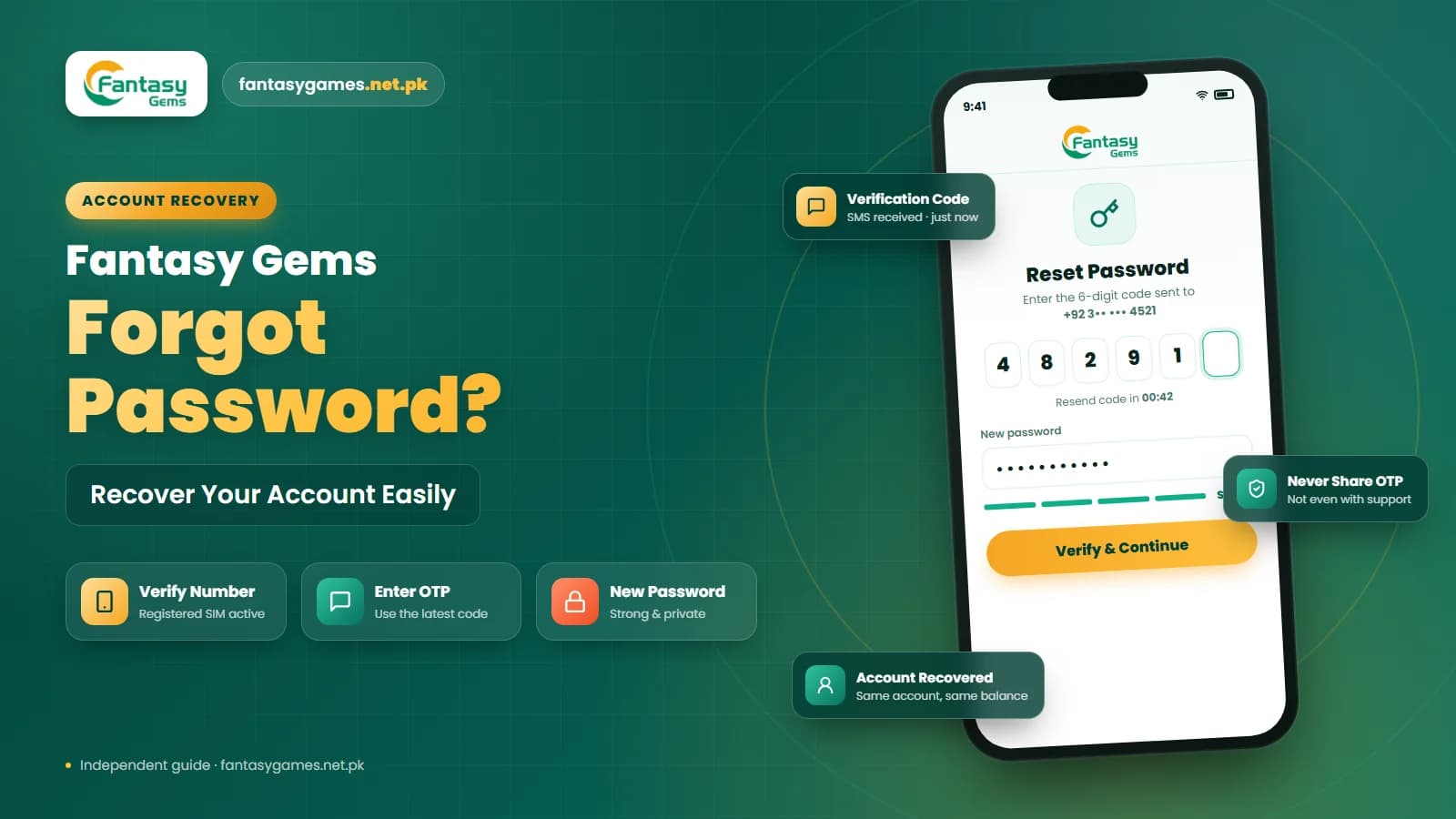
- Go back to the login screen, request one new OTP and enter it as soon as it arrives.
- Use only the newest code; any earlier code is likely to be invalid.
- Switch between Wi-Fi and mobile data, then try again.
- Close the app completely, reopen it and restart the phone if needed.
- Set the phone's date and time to automatic and turn off any VPN.
- Stop after a few failed attempts and wait before retrying, so you do not trigger a temporary hold.
Never complete verification through a link sent by SMS, WhatsApp or an advert, and never give a code to another person.
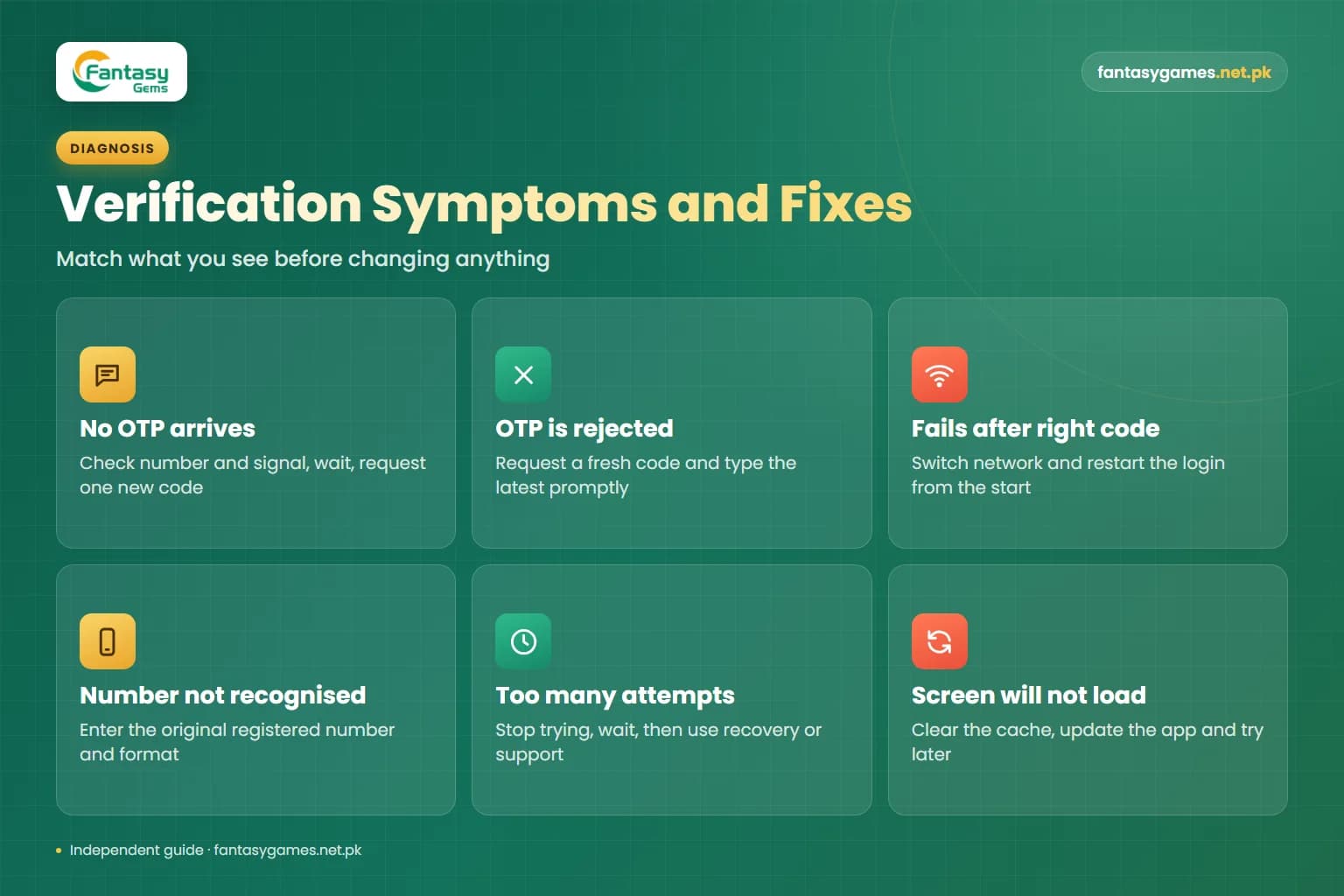
Fantasy Gems verification problem: symptoms, causes and fixes
The wording on your screen may differ, but most cases fit one of these situations. Match what you see to the likely cause before changing anything.
| What you see | Likely cause | What to do |
|---|---|---|
| No OTP arrives at all | Wrong number entered, weak signal, SIM not active, or SMS delay on the network | Check the number and signal, wait a couple of minutes, then request one new code |
| OTP arrives but is rejected | An older code was used, the code expired, or a digit was mistyped | Request a fresh code and type the latest one promptly |
| Verification fails right after a correct code | Unstable internet or an expired login session | Switch network and restart the login from the beginning |
| Number not recognised | Different number or format from the one used at registration | Enter the original registered number in the format you signed up with |
| Fails only on a new phone or emulator | A new device is being checked, or the SIM is in another handset | Keep the registered SIM active nearby and enter the code on the new device |
| Too many attempts or locked message | Repeated wrong codes or passwords | Stop trying, wait, then use recovery or support |
| Verification screen will not load | Outdated app, damaged cache or a temporary server problem | Clear the cache, update the app and try again later |
Check Your Registered Fantasy Gems Mobile Number
Start by checking the mobile number entered during login or Fantasy Gems account verification. A small typing mistake can cause the verification process to fail. Check for:
- Missing digits
- Extra digits
- Wrong country code
- Old mobile number
- Typing errors
- Extra spaces
Make sure you are using the mobile number originally linked with your Fantasy Gems account. If you have multiple SIM cards, it is easy to enter the wrong number by mistake. If the account was registered with an older number, entering your current number may not complete the verification process. Pakistani numbers can be written with a leading 0 or with the +92 country code, so follow the format the login screen asks for and do not enter both.
Enter the Fantasy Gems OTP Correctly
An OTP may be required to verify your Fantasy Gems login. When the code arrives, enter it exactly as shown in the SMS. Check that:
- No digit is missing
- The code is entered in the correct order
- You are using the latest OTP
- The code has not expired
If you requested several OTPs, use the most recent one. Older codes may become invalid after a new verification code is generated. Avoid copying extra spaces when pasting an OTP into the verification field.
Fantasy Gems OTP Not Received: What to Check
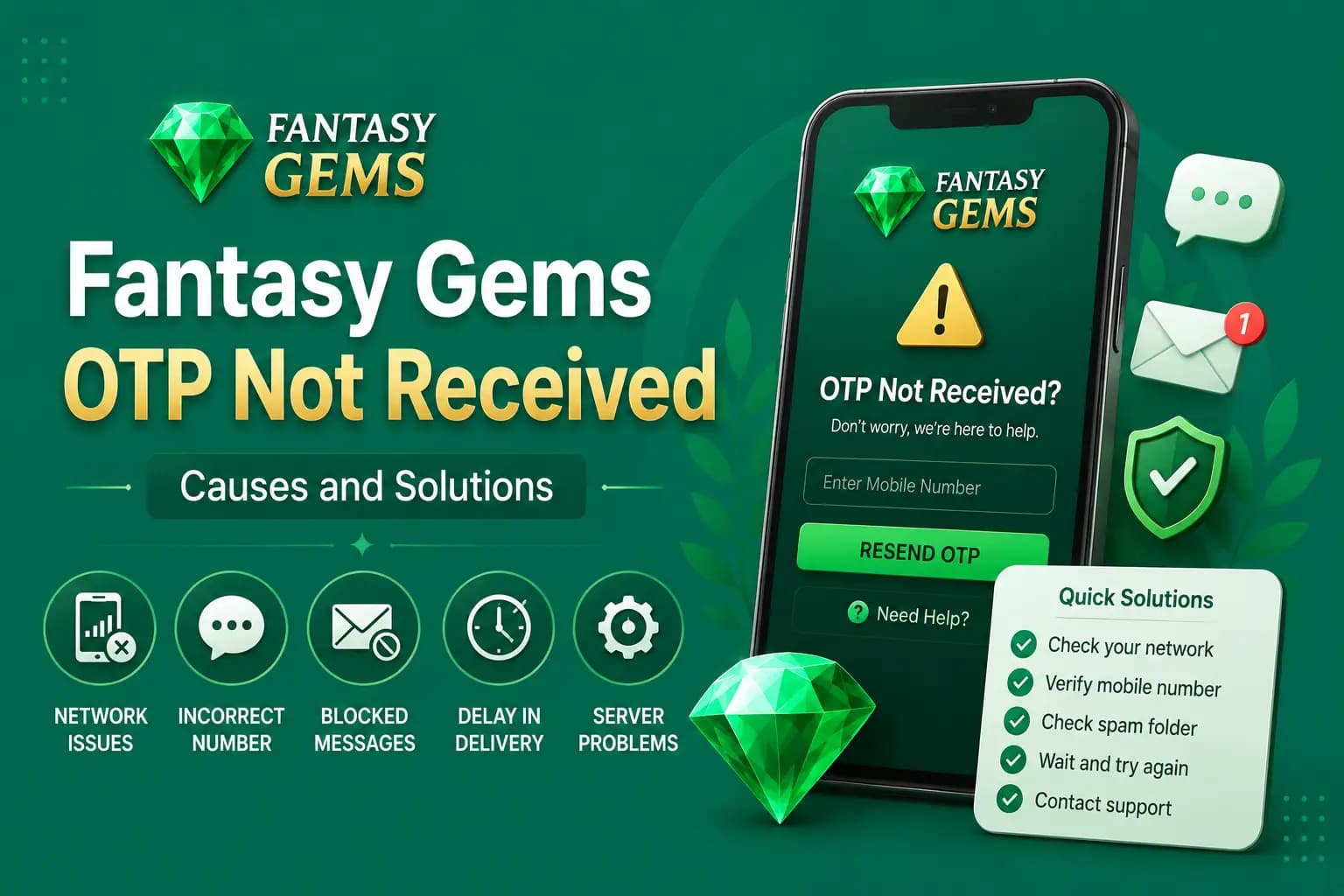
A common cause of login verification problems is Fantasy Gems OTP not received. If no code arrives, first check your phone and mobile network. Make sure:
- Your registered SIM is active
- Your phone has network signal
- SMS messages are working
- Airplane mode is off
- The registered number is correct
- Your SMS inbox has available space
You can also restart your phone and request another OTP. Avoid requesting too many codes in a short period because this may create confusion over which code is valid. If OTP delivery continues to fail, there may be a temporary network or service issue.
Why OTP messages are delayed on Pakistani SIMs
Verification codes travel over the ordinary SMS network, so they are affected by the same things as any other text. On Jazz, Zong, Telenor, Ufone and other networks, messages can arrive late during busy evening hours, in areas with weak coverage, or during a local service disruption. A code that arrives after it has expired will be rejected even though you typed it correctly.
A few situations are specific to how SIMs work here. If you recently moved your number to another operator through MNP, messages from some senders can be unreliable for a short period after the switch. On a dual-SIM phone, confirm that the registered SIM is enabled and has signal, since a disabled slot receives nothing. A SIM that has gone unused for a long time may be suspended by the operator, and a replacement SIM can take a little while before it receives messages normally.
Also check the phone itself. Many messaging apps now filter texts from unknown or business senders into a spam or blocked folder, and a full inbox on an older handset can stop new messages. Receiving an SMS does not normally need balance, and a PTA-registered handset is not a requirement for the app login itself, although an unregistered phone may be unable to use a local SIM for SMS at all.
Check Your Internet Connection
A weak or unstable internet connection can interrupt verification even when the OTP itself is correct. If Fantasy Gems login verification failed after entering OTP, test your internet connection. Try:
- Switching from Wi-Fi to mobile data
- Switching from mobile data to Wi-Fi
- Restarting your router
- Turning airplane mode on and off
- Restarting your device
You can also open another website or app to check whether your connection is working normally. If other online services are slow, the verification failure may be related to your network rather than your Fantasy Gems account.
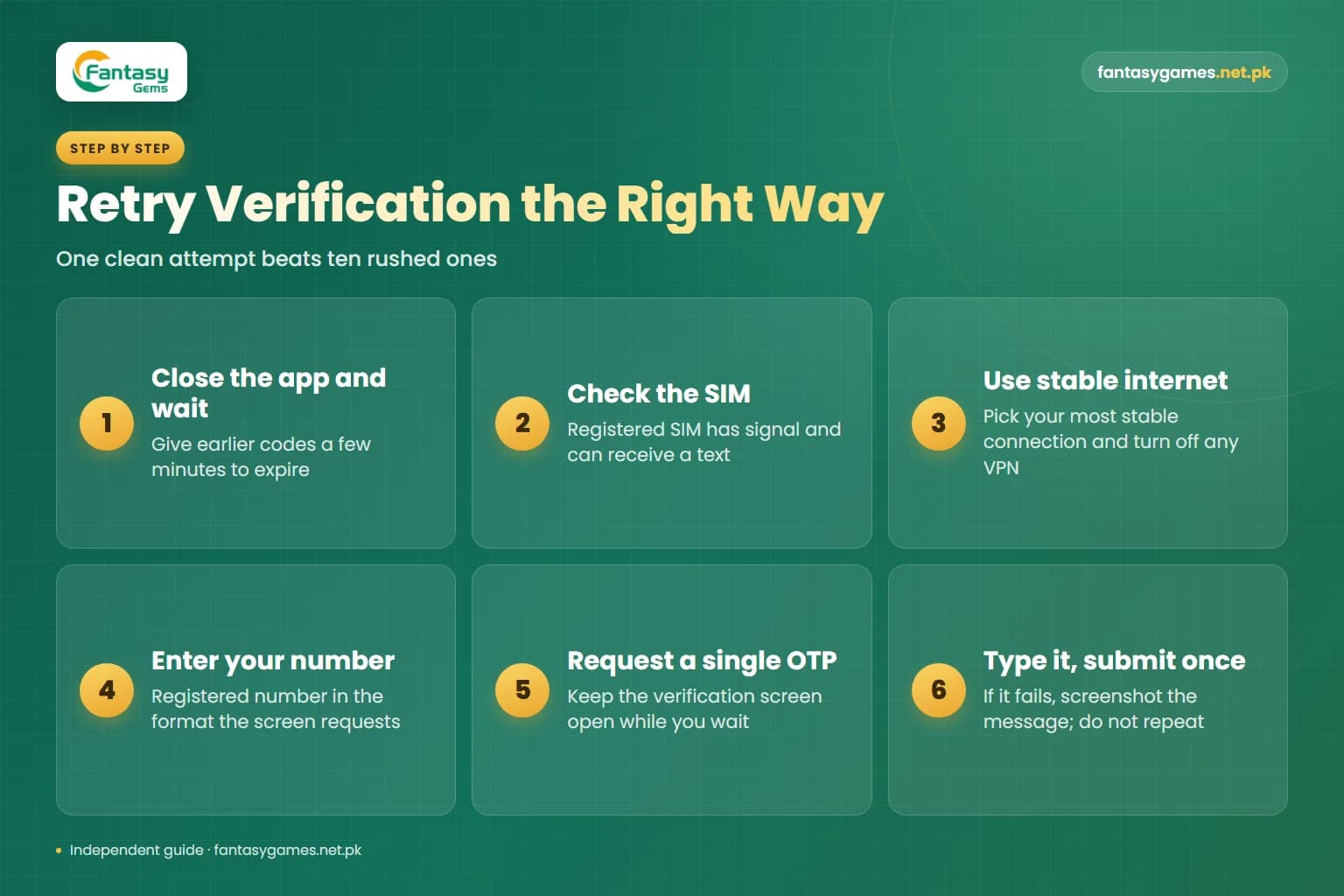
How to retry Fantasy Gems account verification the right way
Random retries make things worse, because each new request can cancel the previous code. One clean attempt in this order works better than ten rushed ones.
- 1
Close the app completely and wait a few minutes so any earlier codes can expire.
- 2
Check that the registered SIM has signal and that you can receive an ordinary text message.
- 3
Connect to your most stable internet connection and turn off any VPN.
- 4
Open the app, go to the login screen and enter your registered number in the requested format.
- 5
Request a single OTP and keep the verification screen open while you wait.
- 6
When the SMS arrives, type the code straight away and submit it once.
- 7
If it fails again, note the exact message, take a screenshot and move on to the checks below instead of repeating the request.
If nothing arrives after a couple of minutes, use the resend option once. Requesting code after code is the most common reason a valid-looking OTP is rejected.
Restart the Fantasy Gems App
Temporary app problems may prevent Fantasy Gems login verification from completing correctly. Close Fantasy Gems completely instead of leaving it running in the background, then reopen the app and try signing in again.
If the Fantasy Gems app login verification still fails, restart your phone. A fresh app session may clear temporary errors affecting the verification screen.
Clear the Fantasy Gems App Cache
Old or damaged cached files may interfere with Fantasy Gems login and verification. Android users can usually clear the app cache through device settings. The path may look similar to: Settings > Apps > Fantasy Gems > Storage > Clear Cache. After clearing the cache, reopen Fantasy Gems and try the login verification again.
Avoid selecting Clear Data unless necessary because this may remove saved login information from your device. Make sure you know your username, registered mobile number, and password before deleting all app data.
Check Whether Your Fantasy Gems Session Expired
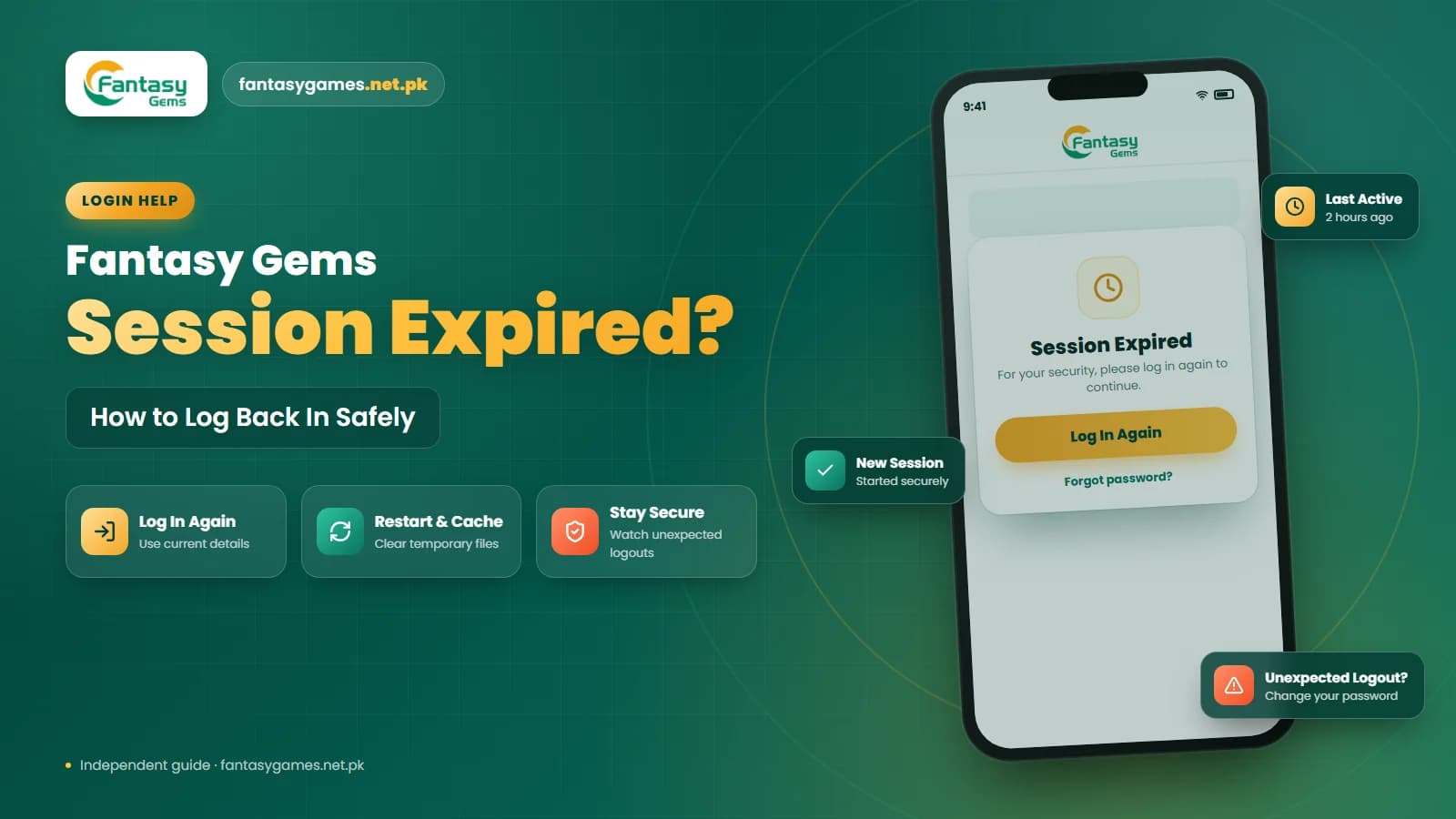
A verification code may fail if the login session expires before you enter the OTP. If you spent a long time on the verification screen, return to the Fantasy Gems login page and start the login process again.
Request a new OTP and enter it promptly. Do not try using a code from a previous login attempt. A fresh session and new OTP may resolve a Fantasy Gems login verification error. Our separate guide on the session expired message explains why sessions end.
Date, time and battery saver settings that break verification
Two phone settings cause more verification errors than people expect. The first is the clock. Secure connections and time-limited codes both depend on the correct time, so a phone with a manually set or wrong date can fail verification even with the right code. Set date, time and time zone to automatic in your phone settings.
The second is power saving. Aggressive battery saver or data saver modes on Android can pause the app when you switch to your messages to read the code, so the verification screen has reset by the time you return. Exclude the app from battery optimization, or read the code from the notification without leaving the app.
Check the Fantasy Gems App Version
An outdated application may sometimes cause Fantasy Gems login or verification problems. If you installed Fantasy Gems using an APK, check whether the installed version is still suitable for your device. An older app version may have:
- Login errors
- OTP problems
- Compatibility issues
- Loading problems
- Session errors
If you update the app, use a source you trust. Avoid modified APK files that claim to provide login bypasses, unlimited access, account unlocking, or hacks. Such files may create additional security or verification problems.
Fantasy Gems Verification Failed on a New Phone
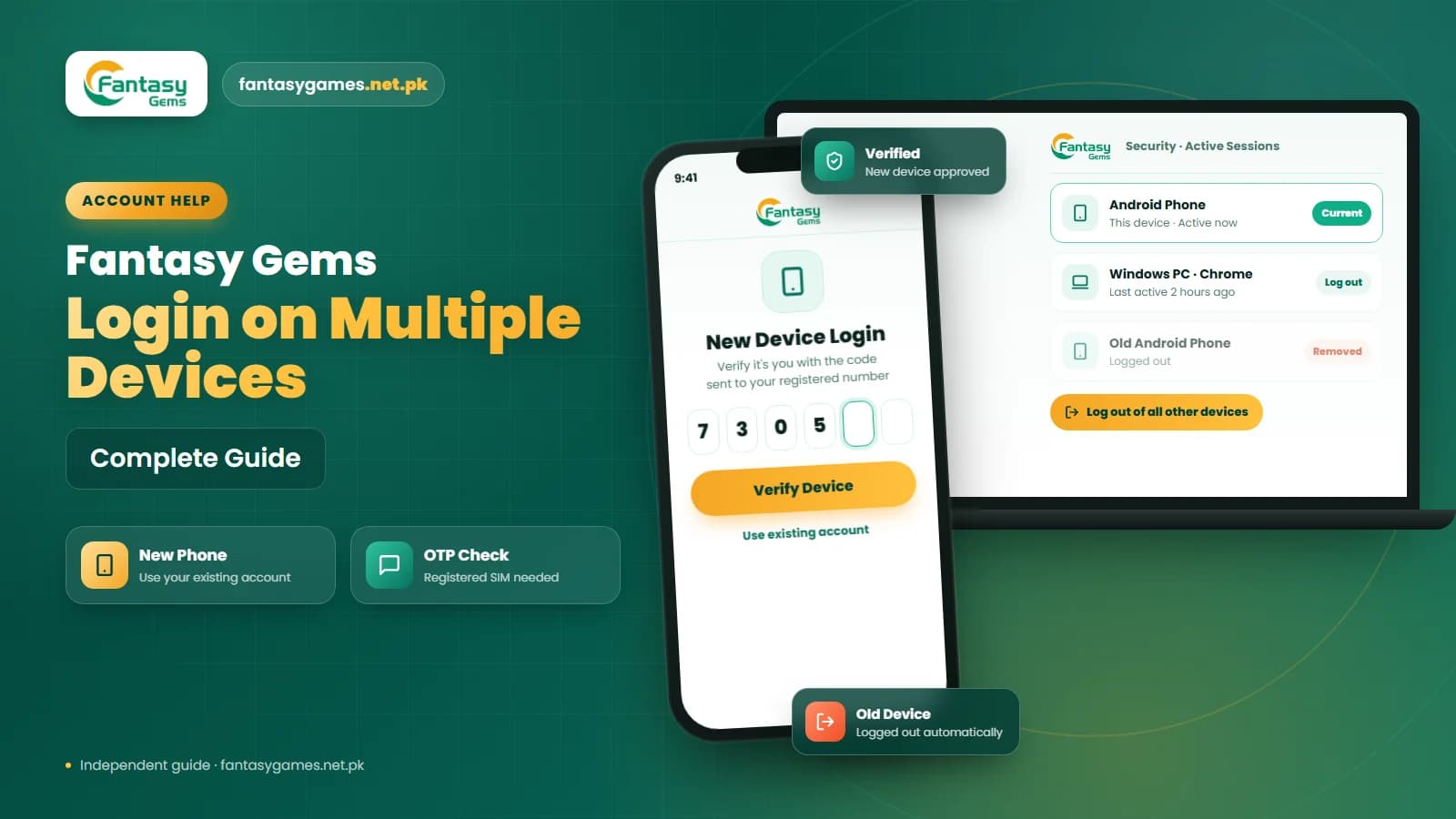
A Fantasy Gems verification failed on a new phone issue may occur when the platform detects a different device. You may be asked to confirm your registered number or enter an OTP, so make sure the SIM linked with your account is active and able to receive messages.
Use your existing Fantasy Gems account details rather than immediately creating another account. Creating duplicate accounts may make account recovery, balances, and verification information harder to manage.
Do not create a second account to get around verification
A new registration does not fix a verification error on the old account. Your wallet balance and history stay with the original account, and platforms of this kind commonly restrict users who hold more than one account. Keep working on the original login, and use recovery or support if you cannot get through.
Verification failed on PC, emulator or iPhone browser
On a Windows PC with an Android emulator, the code still goes to the SIM in your phone, not to the computer. Keep the phone beside you, type the code into the emulator by hand, and check that the emulator's clock matches Windows time. An emulator is also seen as a new device, so expect a verification step the first time.
In a browser on an iPhone or PC, avoid switching tabs or locking the screen while you wait, because some browsers reload the page and reset the form. Private or incognito windows forget the session when closed, which means verifying again on each visit. Our PC guide and iOS guide cover access on those devices.
Check Whether Your Fantasy Gems Account Is Restricted
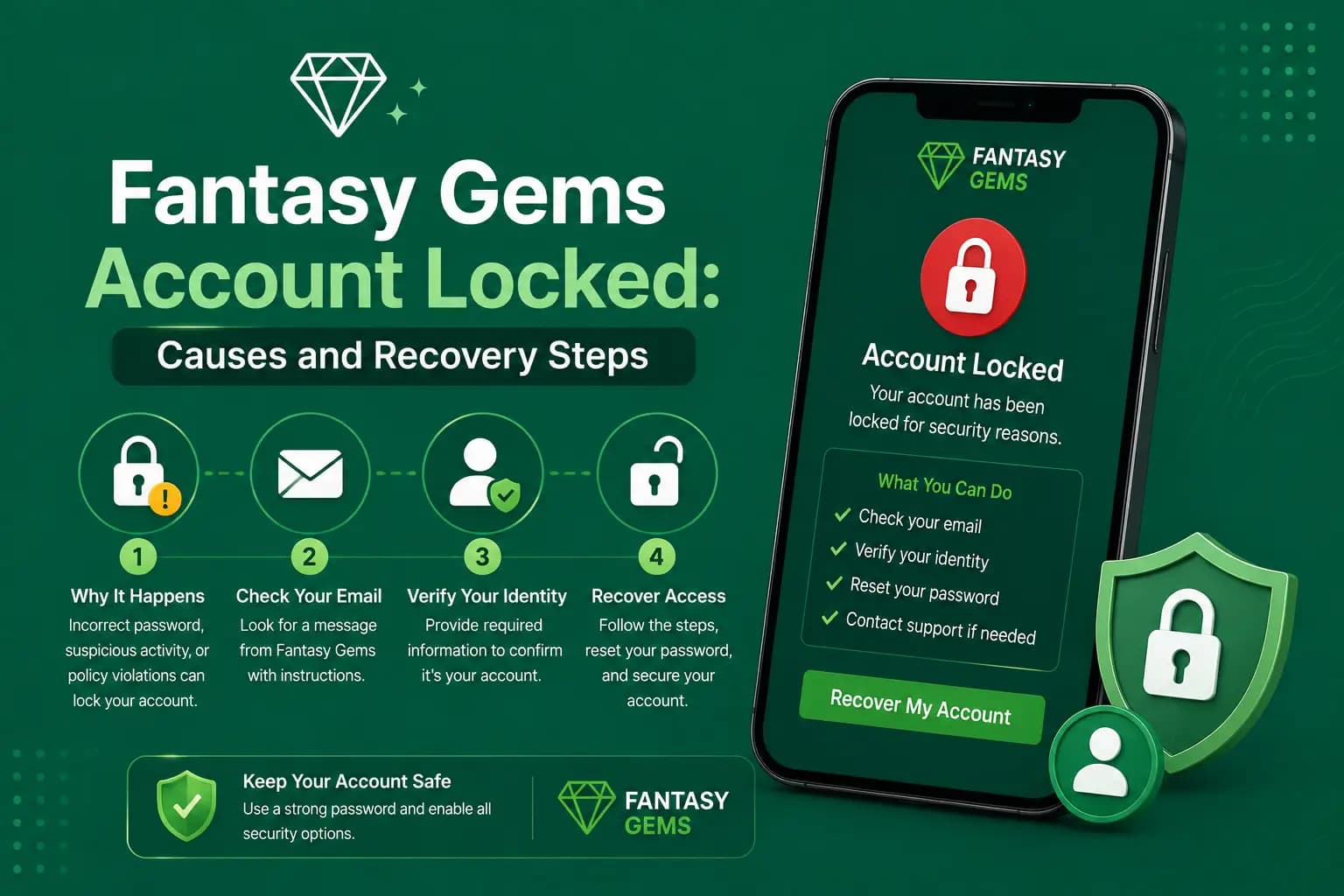
Repeated failed login or verification attempts may sometimes result in a temporary account restriction. If the app displays an account locked, restricted, or suspended warning, stop repeatedly entering OTPs or passwords and take a screenshot of the exact message if possible.
Use the available Fantasy Gems account recovery or support option to understand the restriction. A verification failure and an account restriction are not always the same issue, so the exact error message matters.
Avoid Fake Fantasy Gems Verification Pages
Fake websites may copy a Fantasy Gems login or OTP verification page. Before entering a password or verification code, check the website address carefully. Be suspicious if the page asks for:
- Easypaisa PIN
- JazzCash PIN
- Wallet PIN
- Bank password
- Payment before verification
- OTP to be shared with another person
A normal Fantasy Gems account verification process should not require your private payment PIN. Never give your Fantasy Gems OTP to someone through WhatsApp, Telegram, SMS, or a phone call.
Verification help offered on WhatsApp or Telegram is a scam
When verification keeps failing, people search for help and find agents who promise to verify or unlock the account for a fee, or who ask you to forward the OTP so they can do it for you. Nobody outside the platform can verify your account, and a forwarded code gives a stranger control of it. Do not pay, do not share codes, and do not install any verification or bypass APK they send.
Contact Fantasy Gems Support for Verification Problems
If Fantasy Gems login verification keeps failing after checking your mobile number, OTP, internet connection, app cache, and app version, or if the app shows a locked or restricted message, use the support option available through the platform. Explain:
- The exact verification error
- Whether the OTP arrives
- Your device type
- Whether you recently changed your SIM
- Whether you are using a new phone
- When the problem started
- Your registered mobile number and mobile network
A screenshot of the error may also help. Never provide your password, OTP, Easypaisa PIN, JazzCash PIN, wallet PIN, or banking password to anyone claiming to provide support. Our customer care guide explains how to recognise genuine support channels.
Final Words on the Fantasy Gems login verification failed error
A Fantasy Gems login verification failed problem can happen because of an incorrect mobile number, expired OTP, delayed SMS, weak internet connection, outdated app, expired session, or temporary account issue.
Start by checking your registered number and entering the latest OTP carefully. Then test your internet connection, restart the app, clear the cache, and check whether the Fantasy Gems version on your device is current. If the Fantasy Gems verification problem continues, use the available account recovery or support option.
Most importantly, avoid fake verification pages and never share your password, OTP, or payment PIN with third parties.
Verification Failed? Try Again Safely
Start a fresh login through the Fantasy Gems app or login page you normally use.
Fantasy Gems login verification FAQs
The message appears when the platform cannot confirm the number or code used during login. The usual reasons are a mistyped or old mobile number, an expired or outdated OTP, an SMS that arrived late, an unstable internet connection or an expired login session. Start a fresh login, request one new code and enter it promptly on a stable connection.